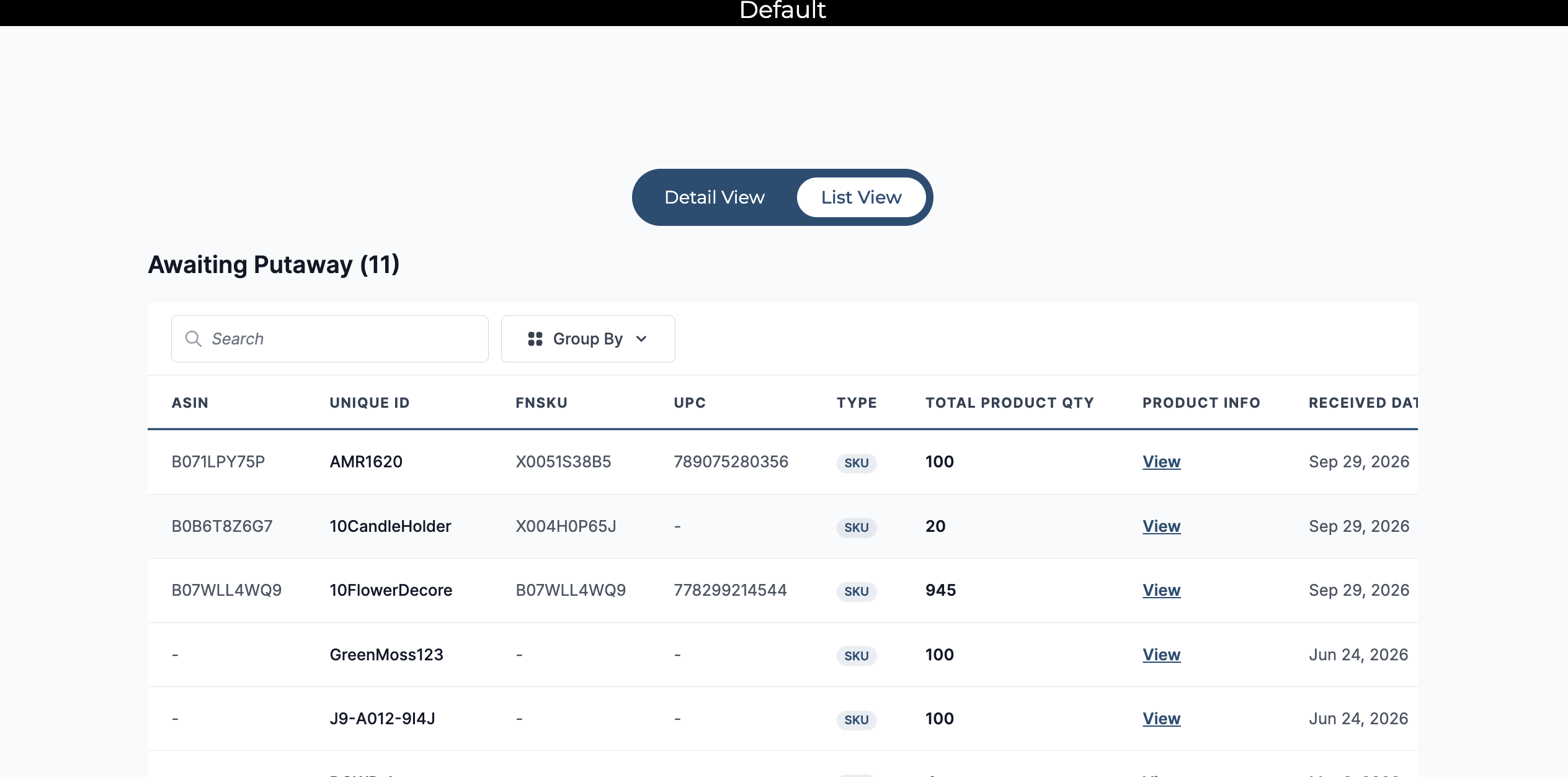
This feature is designed to enhance your associate workflows under the Putaway section.
Please note that currently, this feature is available only on the desktop version of our platform. It will soon be updated on the mobile app as well.
What is the Putaway List View?
The Putaway List View is a comprehensive list of all the batches that need to be put away. This view is designed to give you all the necessary details at a glance, making the putaway process more efficient.
List View Section
In the Putaway List View section, you will find the following columns:
-
Unique ID: A unique identifier for each batch.
-
Type: The type of batch.
-
Total Product Quantity: The total number of products in the batch.
-
Product Info: Information about the products in the batch.
-
Received Date: The date the batch was received.
-
Action: The actions you can take on the batch.
Actions and Product Info
-
Work On This: Click on the “Work On This” Action to start the putaway process for the selected batch.
-
View (Product Info): Click on the “View” under the Product Info column to view detailed information about the products in the batch, including:
-
SKU
-
Name
-
FNSKU
-
Quantity
-
Form Factor
-
Search Feature
You can search by the Unique ID such as SKU, Tote ID, LPN ID, Serial Number, Pallet ID, etc. to locate specific batches.
Sort by Receiving Date
Sort by Received Date arranges the putaway list by the date the items were received. Users can sort from oldest to newest to prioritise earlier receipts, or from newest to oldest as required.
Group by Feature
The new Group By feature organises inventory awaiting putaway into logical groups, making it easier for warehouse associates to prioritise and process items. Users can group the list by Received Date, SKU, or Lot on both desktop and handheld devices.
Grouping by Received Date is particularly useful for following FIFO operations, as the oldest received inventory is displayed first.
Expand a group and view the items it contains by clicking on View All. Only one group can be expanded at a time. A filter indicator displays the active group selection, and you can return to the grouped view when required by clicking on X on the filter.
FBA Product Identifiers in Putaway List View
The FBA putaway list now displays FNSKU, UPC, and ASIN. The Awaiting Putaway list also shows FNSKU and UPC alongside SKU, making it easier to identify the physical item without opening each row.