
This guide explains the new feature of inventory sharing across products. With this update, different products can now share common inventory pools or draw from stock that supports multiple SKUs. This means you can manage inventory more efficiently when multiple products rely on the same items.
Accessing the Inventory Sharing
Inventory Sharing feature can be accessed in two ways.
1. From Stock Ledger
-
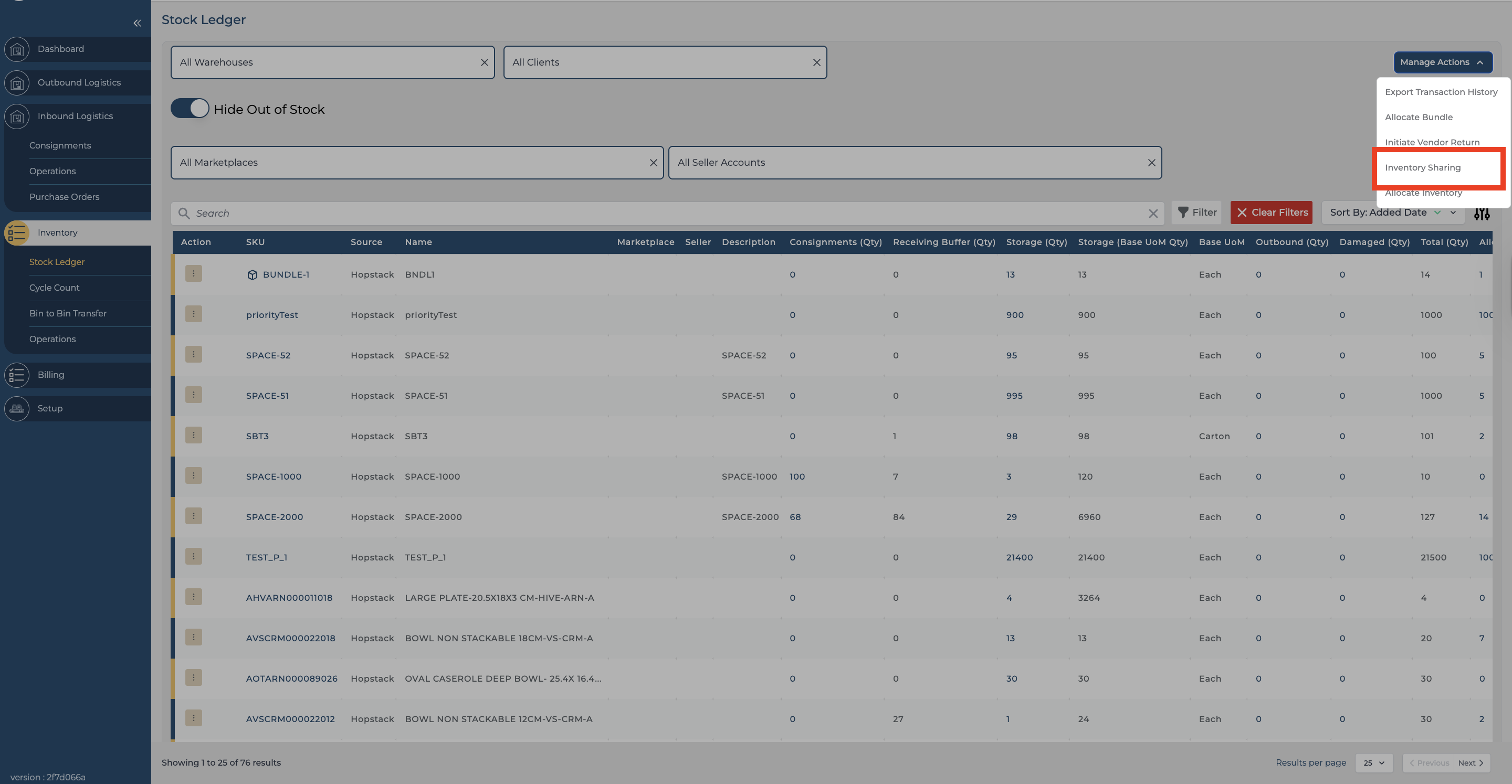
Navigate to Inventory > Stock Ledger.
-
From the Manage Action dropdown, choose Inventory Sharing
-
From the Inventory Sharing Tab
-
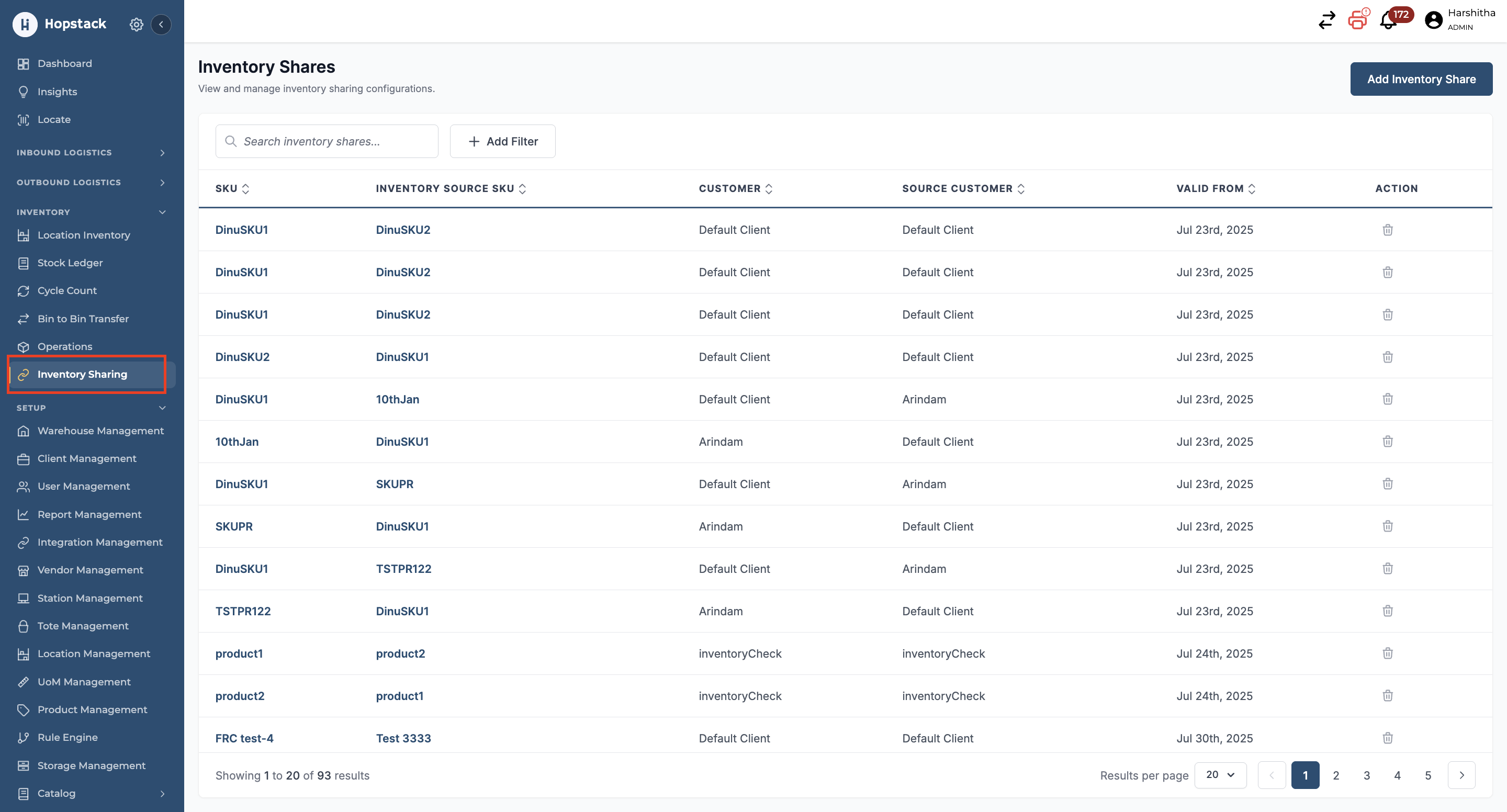
Under the Inventory module, click on Inventory Sharing
-
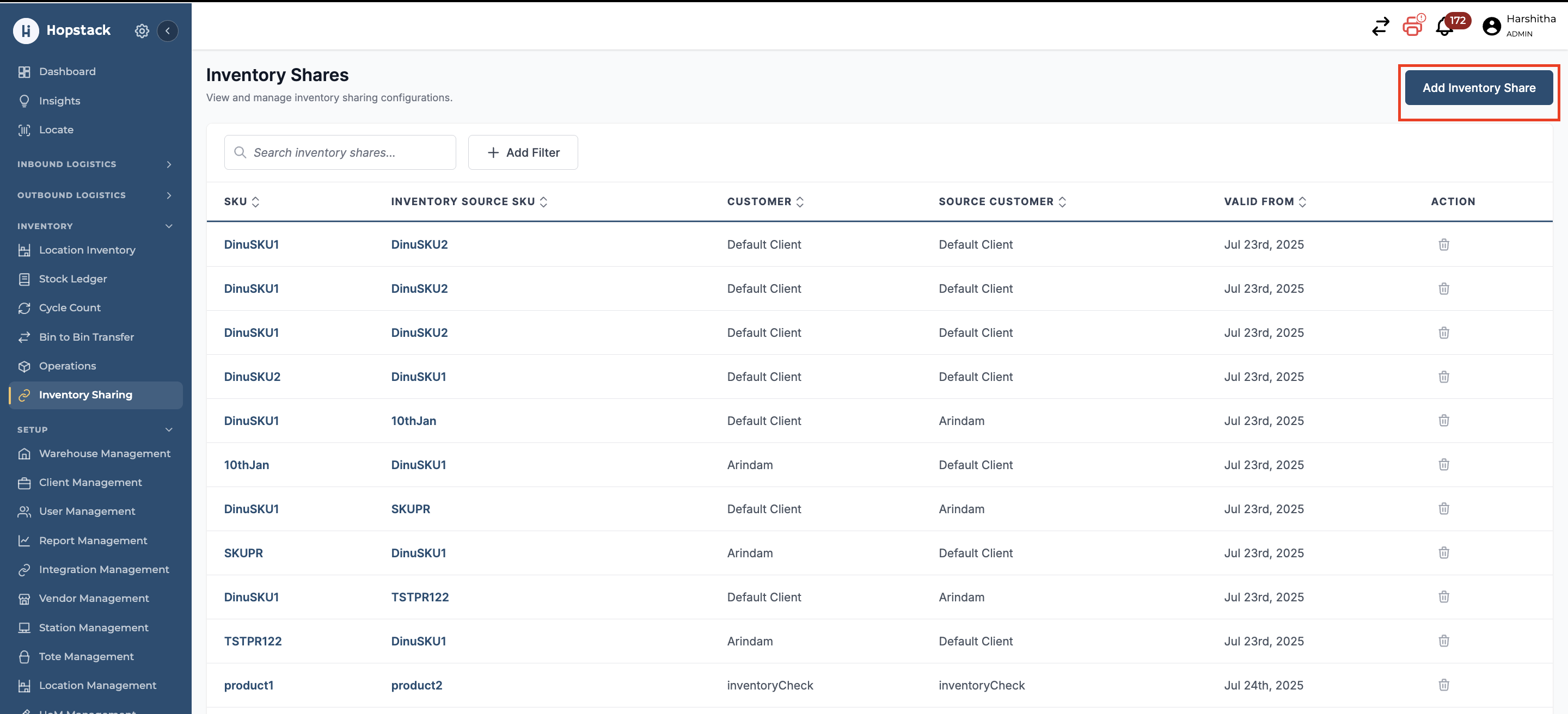
Click on Add Inventory Share
How to Create Inventory Sharing
Before initiating an inventory sharing process, it is essential to identify the correct customer and associated product(s). This ensures accurate stock allocation and streamlined operations.
-
Select the customer and product for which you want the inventory sharing
-
Define the customer and product for which the inventory needs to be shared
-
Click on “Add Inventory Source”
Enabling a bidirectional link means inventory sharing will happen between both products.
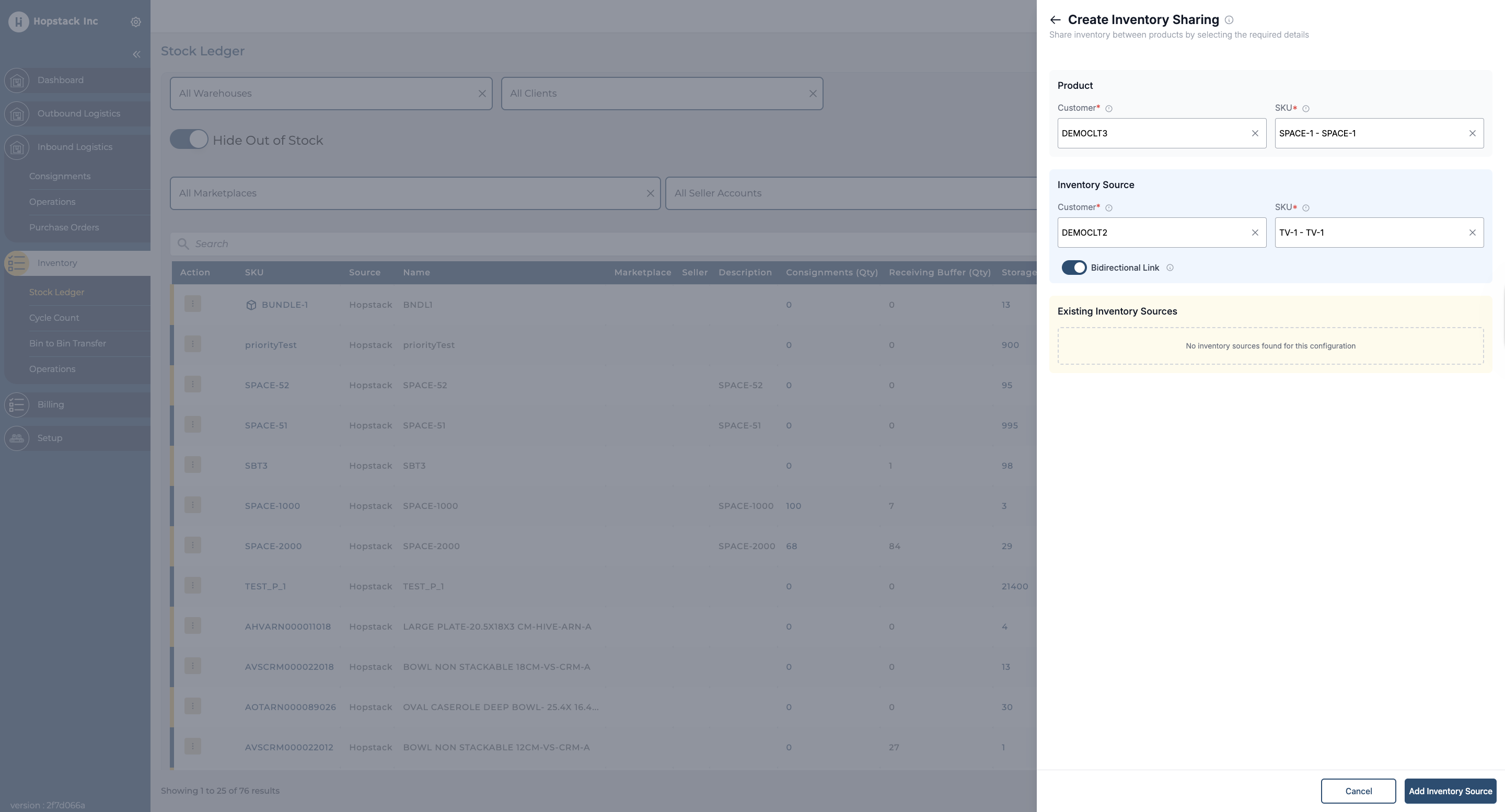
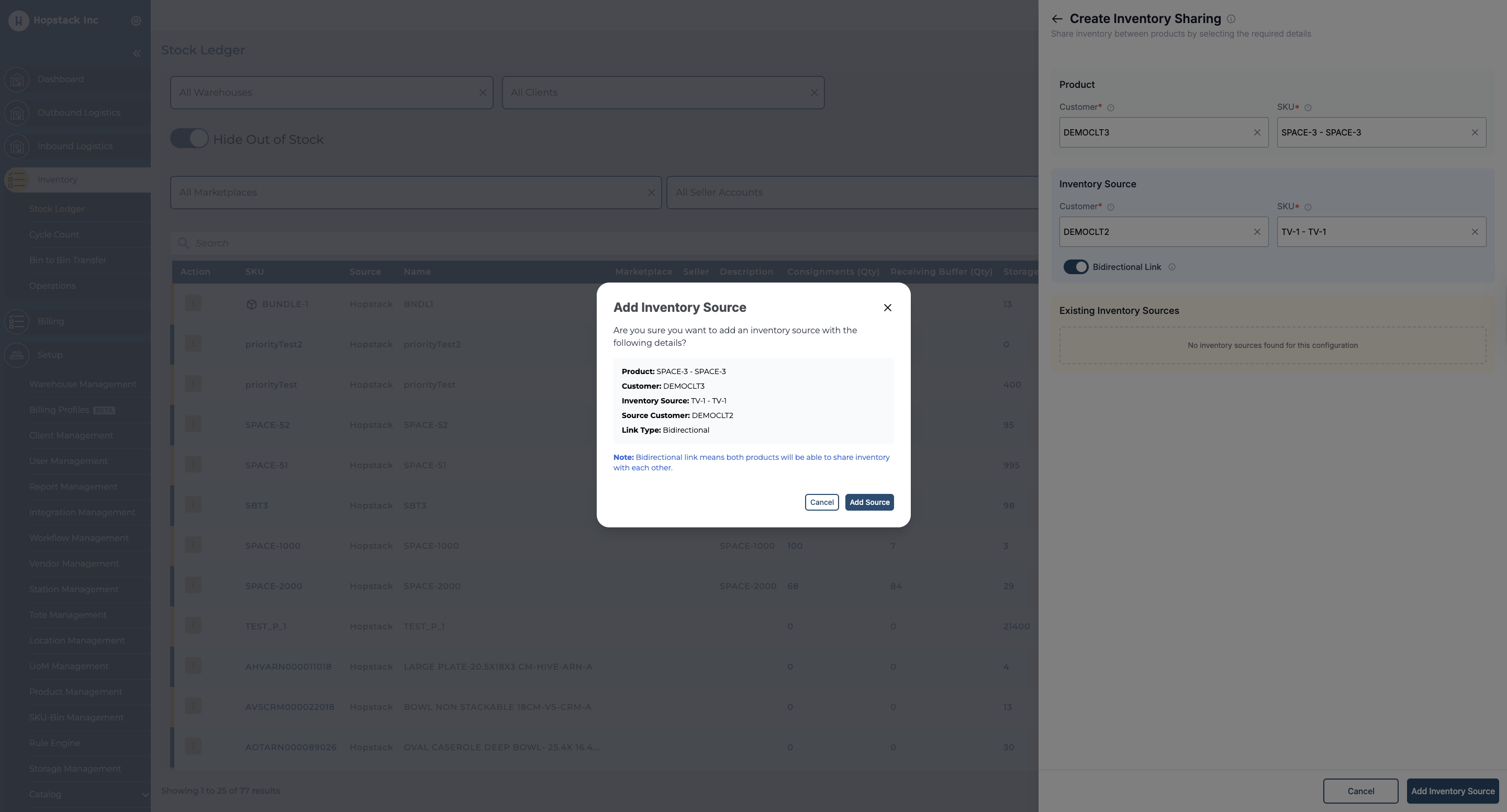
Once the source is added for the product, you will be able to see that in the “Existing Inventory Sources” field.
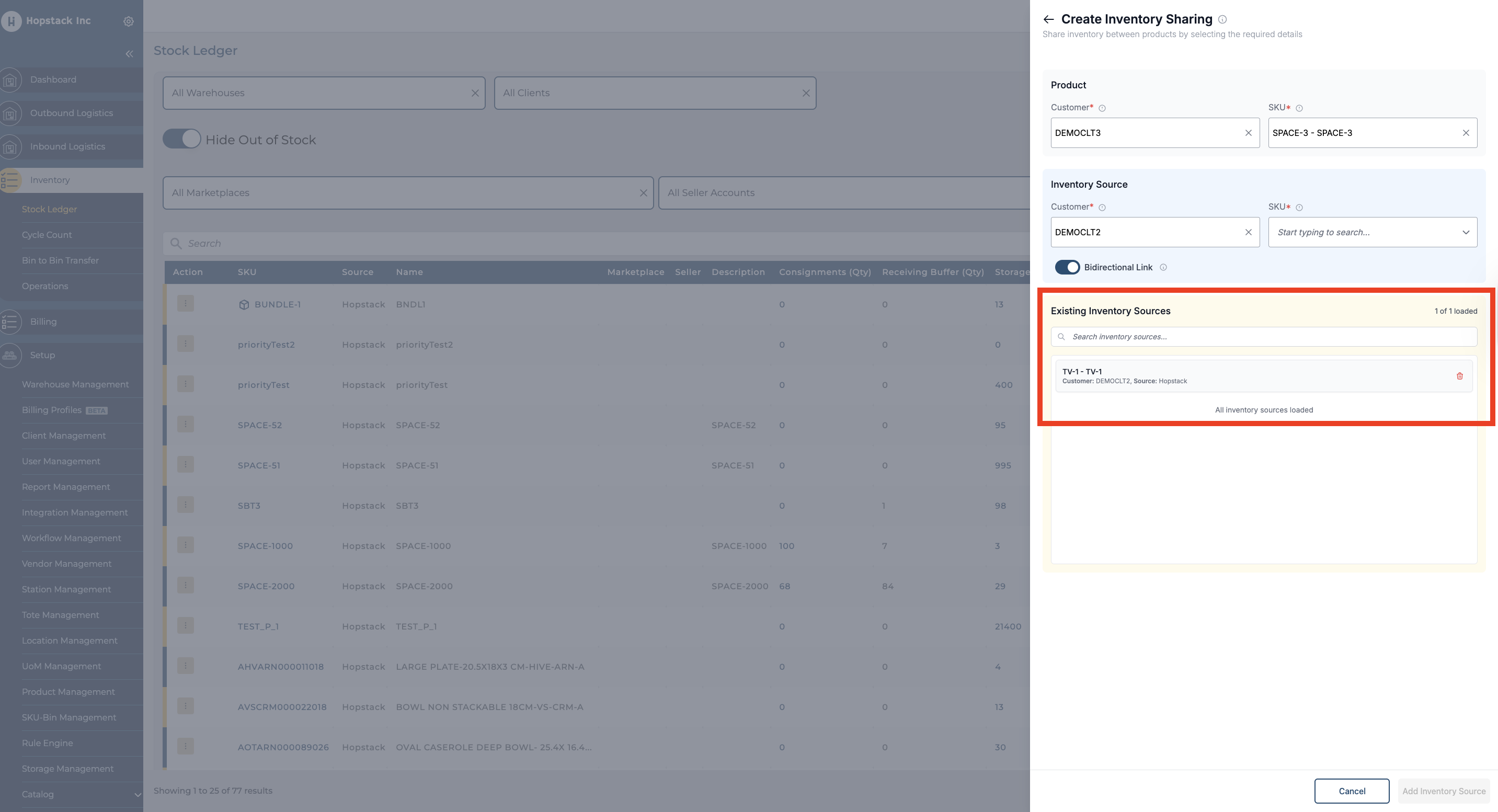
The above process ensures that the inventory sharing will happen from TV-1 to SPACE-1 if a bi-directional link is not enabled. If the Bi-directional link is enabled, the sharing will happen between both products.
Inventory Sharing From Product Management Module:
-
Navigate to Product Management
-
Go to the Product Management module.
-
Search and select the product you want to share inventory for.
-
-
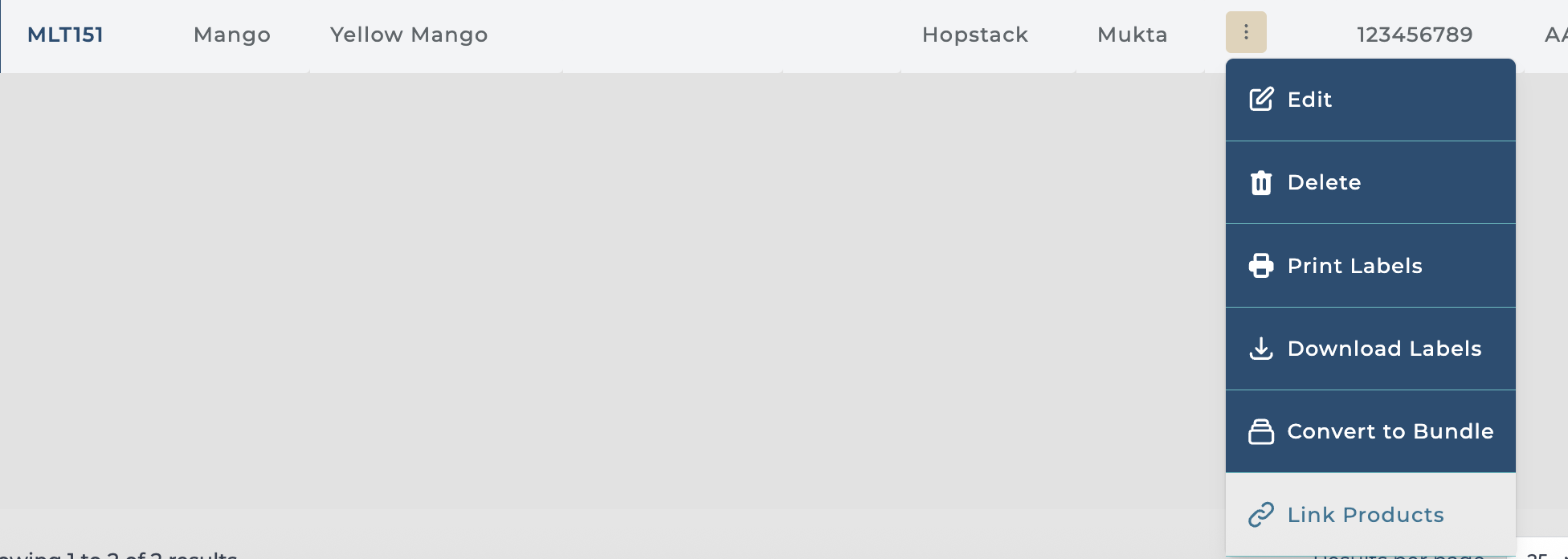
Open Link Products
-
Click on Action → Link Products.
-
-
Select SKU to Link
-
In the detailed view, choose the SKU(s) that need to be linked.
-
Important: The products must have the same Warehouse, Client, and UoM (Unit of Measure).
-
-
Save Changes
-
Once selected, the linked product(s) will appear in the List Items section.
-
Click Save to update the linking.
-
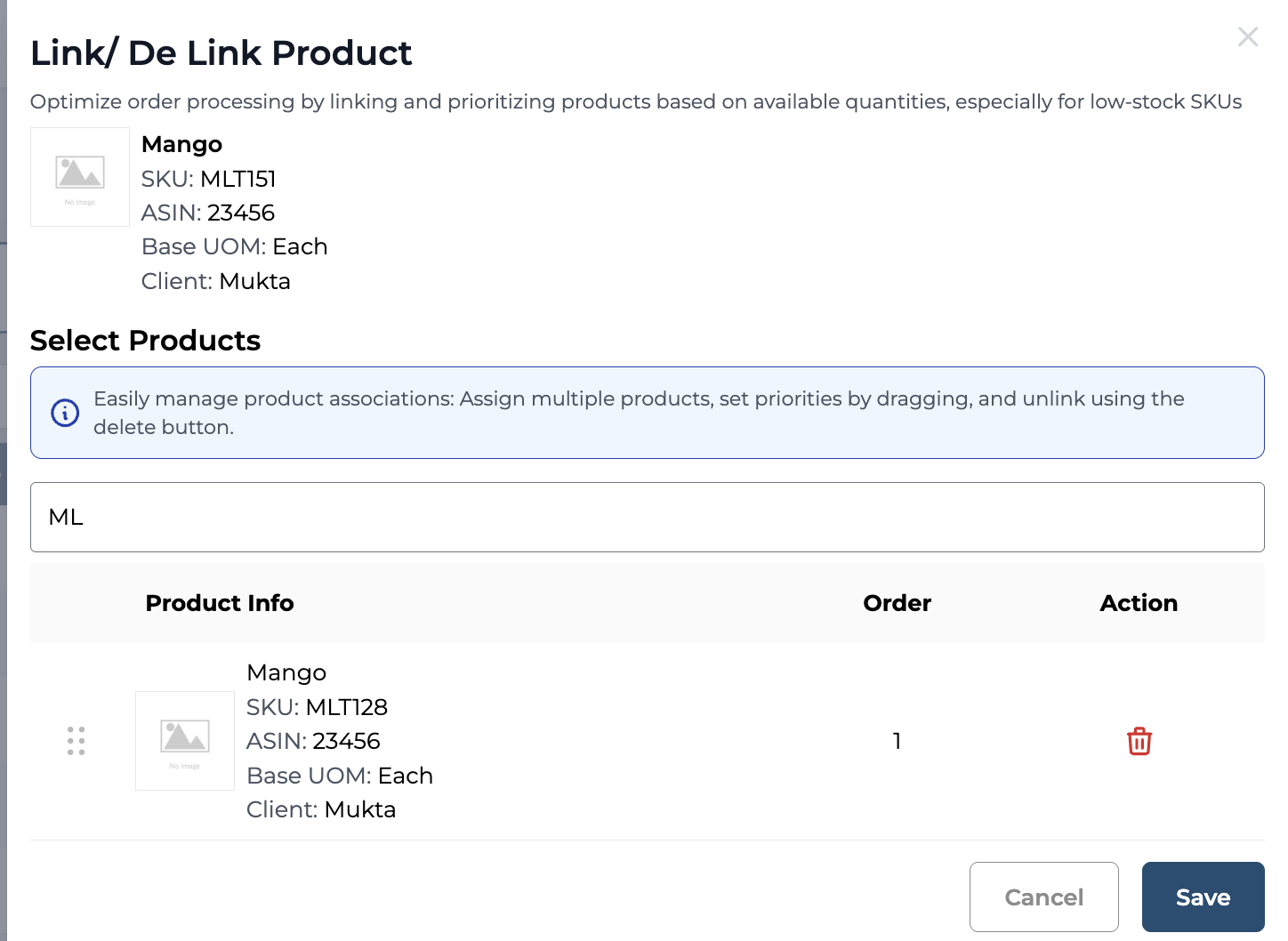
Viewing Already Linked Products
-
To check existing links:
-
Go to Action → Link Products.
-
All products already linked will be displayed in the list.
-
How to View and Manage the List of Products that Share Inventory
-
Under the Inventory module, click on Inventory Sharing
On this page, you can view all existing inventory sharing rules, search for specific mappings, filter by Client and remove obsolete ones by clicking on the Trash icon under action.
Limitations
When using the Inventory Sharing feature, it's important to be aware of the following limitations. These constraints ensure accurate stock management and prevent unexpected behaviour during order fulfilment.
-
No multi-warehouse transfers: The Inventory sharing does not work across multiple warehouses. The sharing applies only to one warehouse.
-
Order fulfilment based on LOT ID: If there is a mismatch between the source LOT and the order LOT, the order cannot be fulfilled. The order LOT ID and Source LOT ID should be exactly equal, and the source LOT ID should have stock to fulfil an order.
-
UoM Form-factor conversion: The source and destination products must have the same Unit of Measure (UoM) form factor.
-
E.g.: If the order has a UoM factor as “Carton” and the source has the UoM form factor as “Each”, the order can’t be fulfilled.
-
-
Bundle Workflow:
-
Case 1: Inventory sharing will occur between two Parent Bundles only if the Bundle Flag is ON. Orders placed for component SKUs cannot be fulfilled using the inventory from a Parent Bundle. Example: If Bundle X has an active inventory sharing link with Bundle Y, then an order for Bundle X can be fulfilled using inventory from Bundle Y.
-
Case 2: If an order is placed for a standalone component SKU, and that component is part of a Parent Bundle that has inventory sharing set up as a source, the order can be fulfilled. Example: If Product A is a component of Bundle X, and Product A has an active inventory sharing link with Product B, then an order for Product A can be fulfilled using inventory from Product B even though it exists within a bundle context.
-
For any questions or concerns, please reach out to the Hopstack support team.