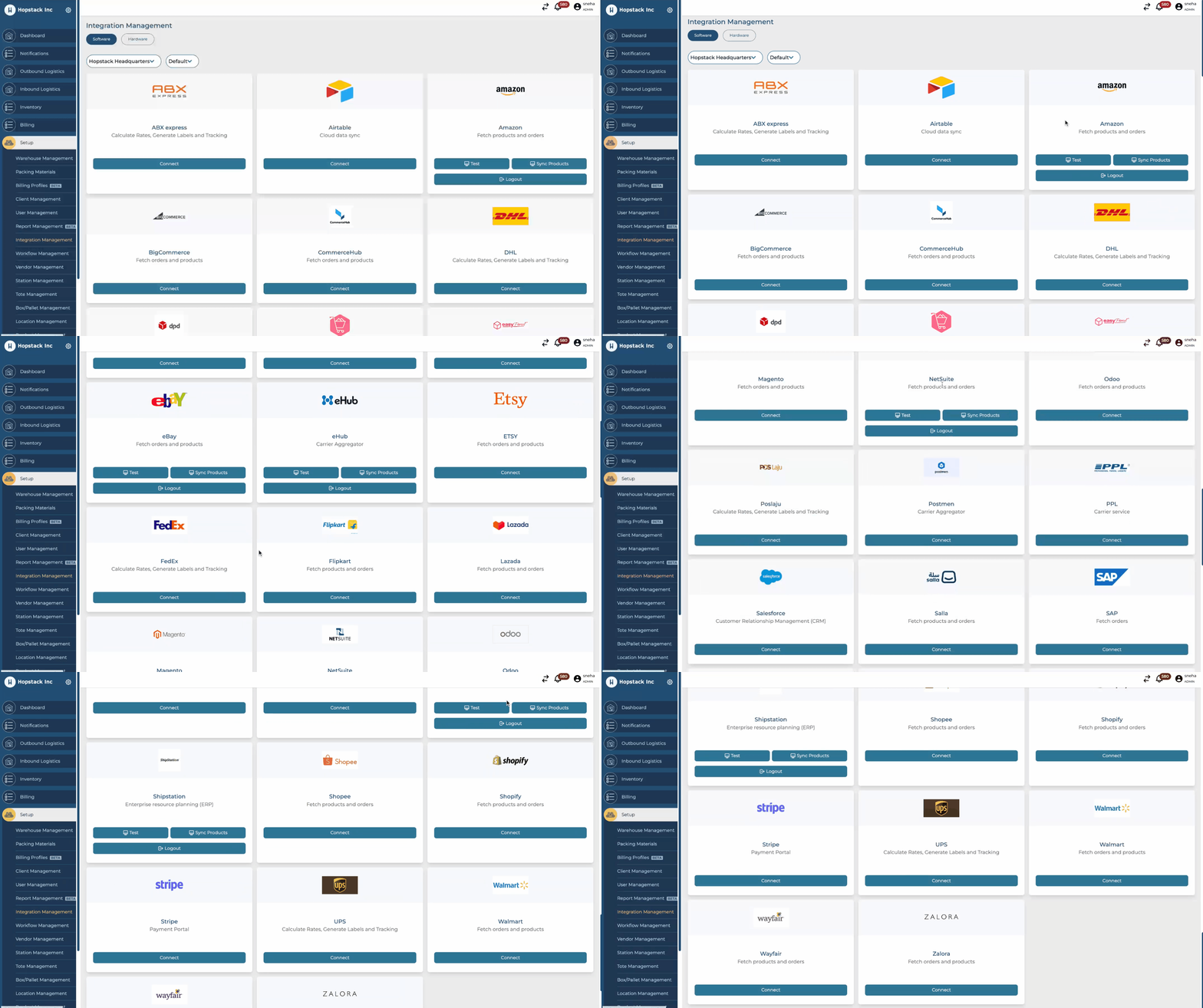
Please Note: You must have the appropriate permissions to access the Integrations Management Module.
1. Navigate to the Integrations Management Module
-
Log in to your system/platform.
-
On the main dashboard or menu, look for a section labeled "Setup".
-
Under the "Setup" section, you should find a module named "Integrations Management Module". Click on it.
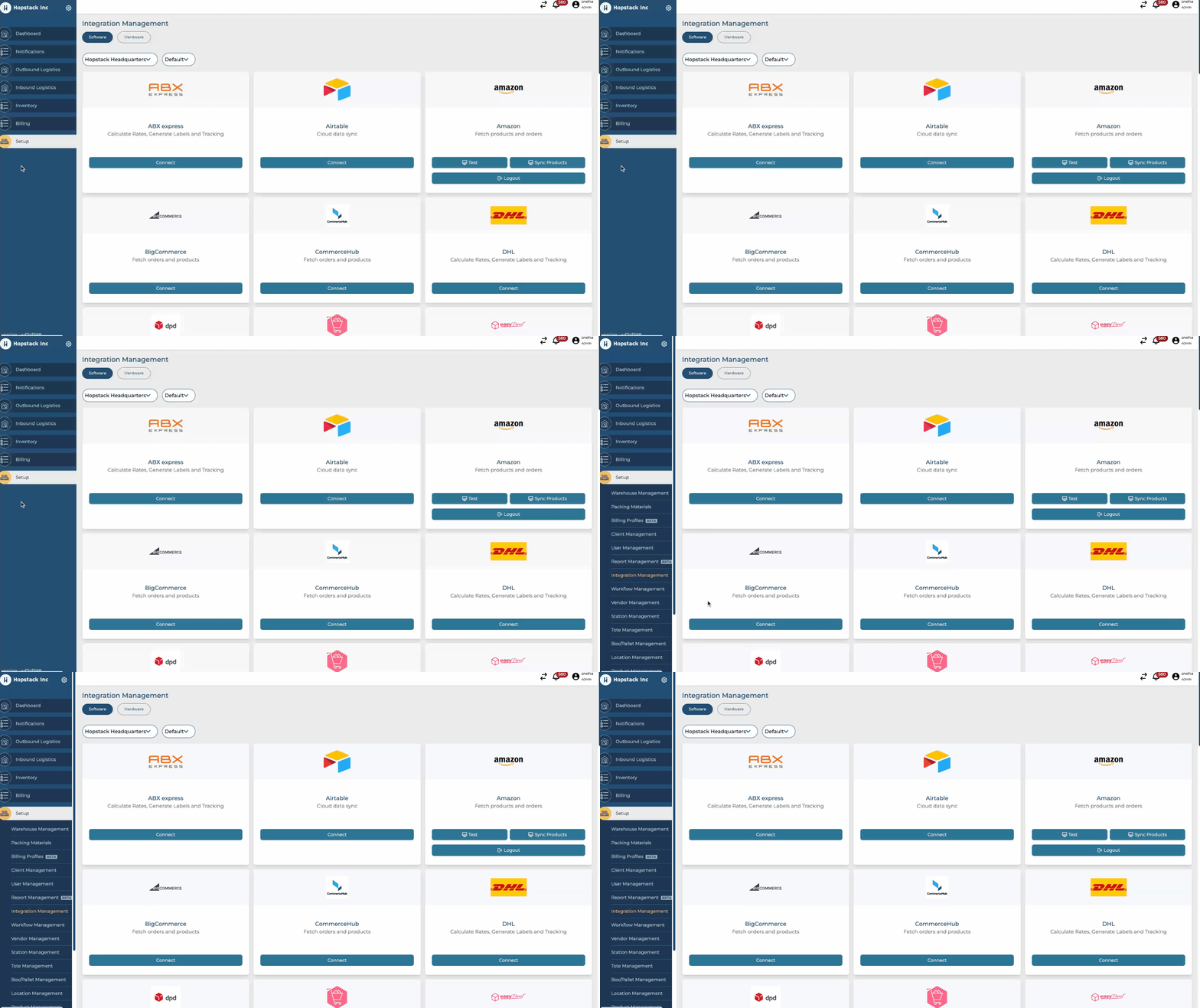
2. Selecting the Specific Client and Warehouse
Once inside the Integrations Management Module:
-
You will see a list or dropdown of available Clients. Choose the specific client you wish to check.
-
After selecting the client, a new list or dropdown for Warehouses related to that client will appear. Choose the specific warehouse associated with the client.
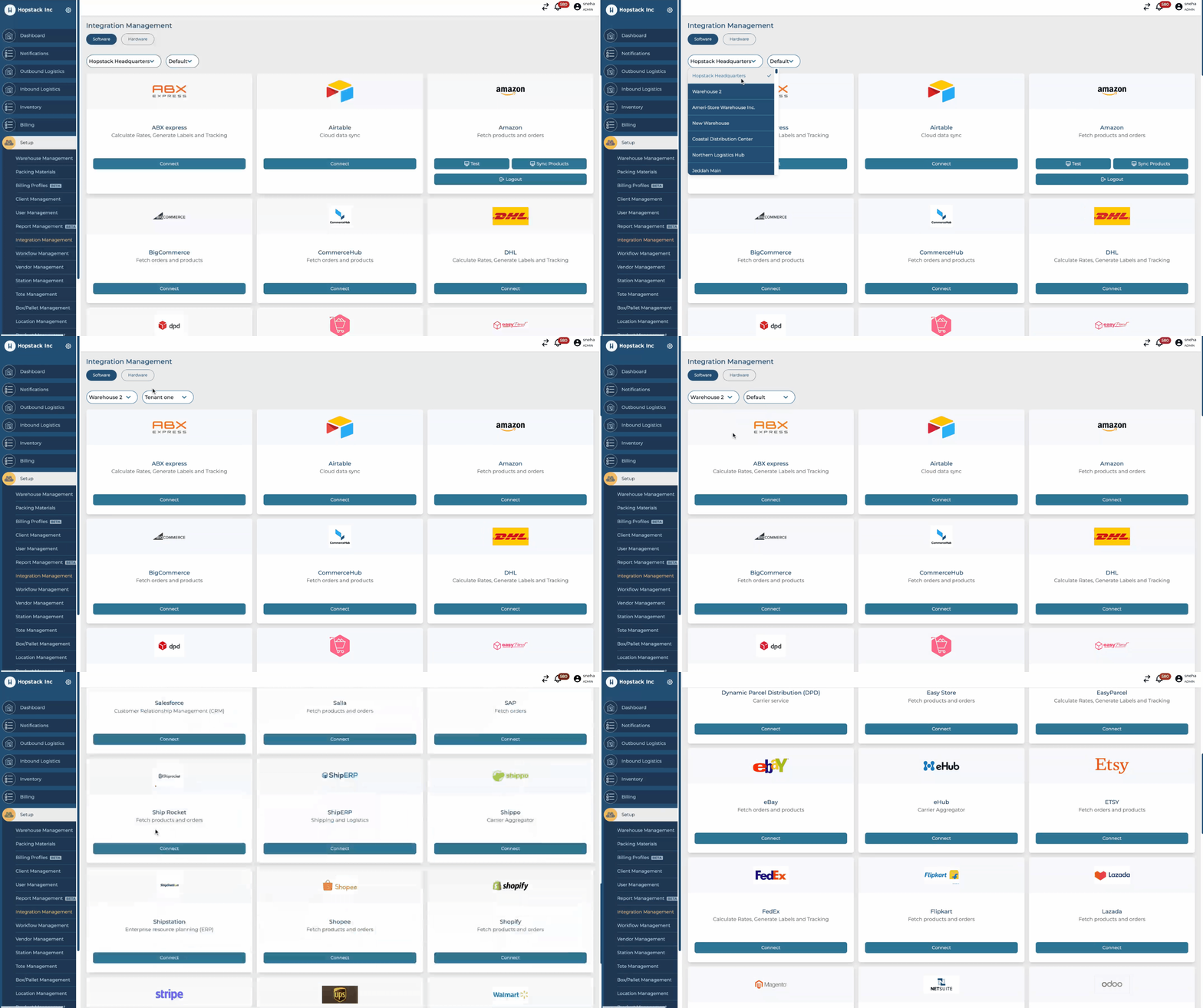
3. Determine the Integration Status
After selecting the client and warehouse:
-
A list of available integrations for that client and warehouse will be displayed.
-
For each integration:
-
If you only see a label/button that says "Connect", this integration is not connected.
-
If you see the following set of buttons and details:
-
Test
-
Sync Products
-
Logout
This signifies that the integration is connected and active for the chosen client and warehouse.
-
-