
Editing and Deleting Stations

Navigate to the Hopstack dashboard.

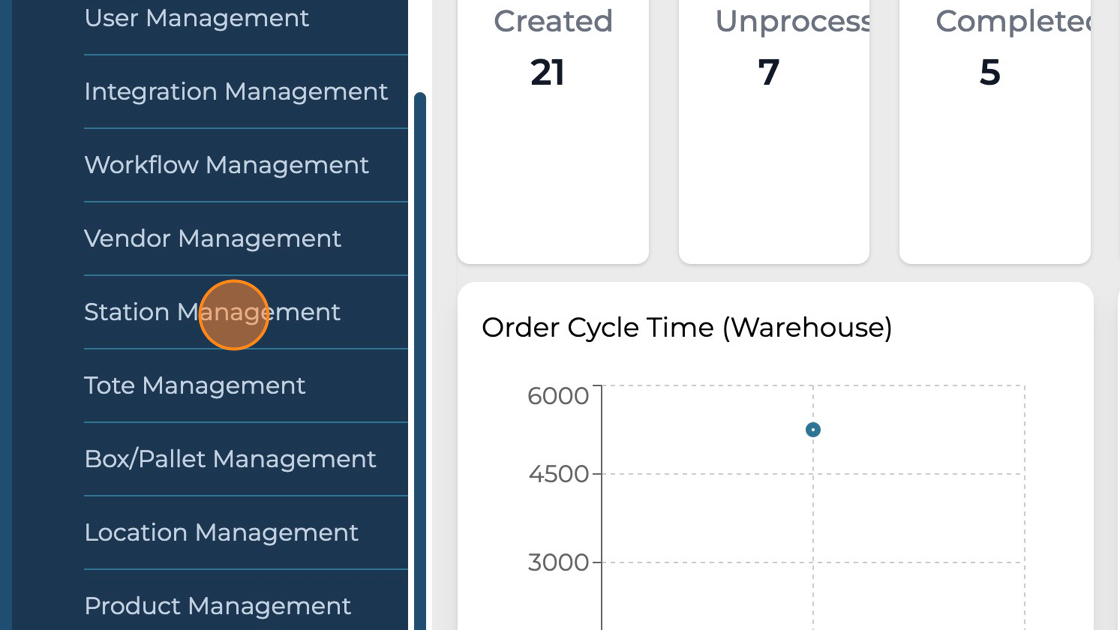
Click on the "Station Management" option under Setup in the side menu.
FB923C_standard.png&wat_pad=198,279

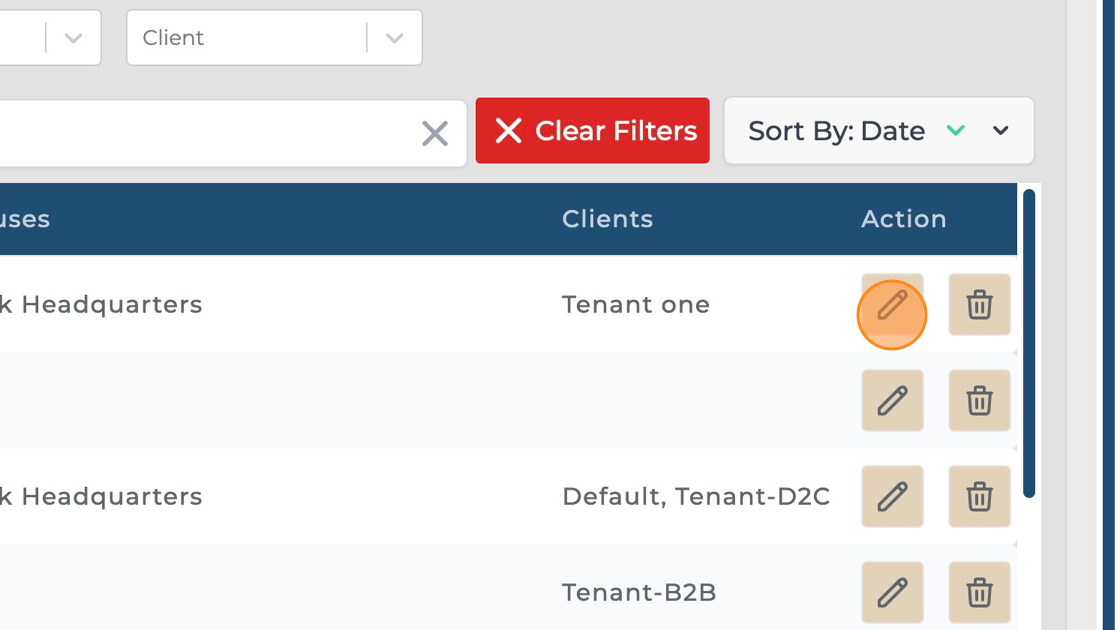
Click on the pencil icon against the station you want to edit.
FB923C_standard.png&wat_pad=856,279

Edit the fields.

DpXVOZ11j7HjcPvPSt58lOS5ke34jtvoKm9XVKaFPg7wADGBi3vKTAJfYmuE7Uu7-E0KnHMxnB__x6RntzuGxE_a8nLcns7SNUQIzVcPN6FAHYT-AmGBNTUiNTi_k86XLB5Q4tQT4jE6bmQ0KNPO6yk

Verify the changes and click on the "Submit" button.

JXUi4xlUcz0OTvcezMZ1IT7kTrggxZvbYXdcJaenlMVLb-NG9Z84ngdfIJWrAyE96sjiSqZiCmDYCD1n1rRpOzC92WbRqhAyF-qhqMVLVk6HzWkc8xF4orefo2iC3lhjkeMrhpnq-IK-RXWDEO1F5R4

Click on the "bucket" icon against the station you want to delete.

ZUlESFu0zBSaRwvjpQZe5EQePDT6-oX6bA6d29q2LIMPrCL7xUOj34aaq7Na8gFCSxc7yzCam9Gf4Cg-jLO_3EkNHcpZLEyHXLhMc4Xxd0MSNYkyKt5Au9nMOA3qFuXkDxQ4yhbeqdWRVHHCwQoD8wc

Click on the "Yes, I confirm" button to proceed and delete the station.

m7JGBEnADXPgrcZuNcfWM5jRrAk3xq2MFw55IvDVX50vUwmBG7fjk-nkvidObaIaZxFY2SLPJBBPbkTWG3JSEbZkqQ9PNynYcfpLQTMqd343Dpp3oyF7ZBDBBS7r676DgIvkxEPxZQZzDpJ-WcvJ9RE