
To calculate the usage for your customers on different activities, you will need to create a Billing Profile (often called a Rate Card) under Hopstack.
On logging into the Hopstack, using your credentials, navigate to Set Up and you will be able to see Billing Profile (Beta).
Creating a Billing Profile
Click Billing Profiles , to view the Homepage
As an admin, you will be able to create multiple Billing Profiles. Please Click “ Add Billing Profile”, where you will see the below page:
Now let's dive deeper into creating a Billing Profile. A user will have to provide mandatory information such as Billing Profile Name, Currency, and Metric System.
Please note that the name of the billing profile must be unique.
Under the same Billing Profile, you can add tariffs or rates for different fulfillment services. We support Regular and Cross-docking.
On selecting a particular fulfillment service, to understand the flow, continuing with “Regular”
Admins are able to add various tariffs for different categories and their sub-categories.
On clicking “Activity”, you see the current workflows supported by Hopstack.
Adding Tariffs to Billing Profiles
On clicking a particular sub-category, let's say Receiving, you will be able to add tariffs for that activity.
Let’s consider the following example for explaining this section better. Say you charge your clients based on the number of pallets you receive for them, with the tariff per pallet being $5.
Here are the steps on Tariff Page:
-
Select the ‘Unit of Measure’ as “Count” and Entity as “Pallet”
You can also choose the unit of measure to be by weight i.e. you will charge by the total kgs/lbs of material processed or volume i.e. the cubic meters/foot of material processed.
-
Select Time based Frequency if need be. Often when adding Labor tariffs say the rate is $10/per hour, the time-based frequency checkbox will be default selected with Hourly chosen.
We provide two Tariff rate options: Flat Rate and Tiered Rating based on how you charge your customers
-
Flat Rate:
If you have a single, flat rate that you charge your customers for that activity, select Flat rate. Let’s say you charge your customer a rate of $10 for every Pallet.
Please select Flat Rate, Value (pallet) should be 1 and for Fees (USD), please enter 10.
Note: You will not be able to Save a tariff for a sub-category if the Fees Value have not been entered.
-
Tiered Rate:
For a particular sub-category, if you have tiered rating, Hopstack will be able to support it. Let’s say you want to charge tiered rating for Receiving, 0-10 pallets, the rate is $2/per pallet for 11-20 os $4/per pallet, and for 21+ the rate is $6/per pallet/ Please see below.
-
Multi-Tariff: You will be able to add multiple tariffs for a sub-category within the same Billing Profile. If your customer sends shipments in Cases and Pallets, Hopstack provides that capability for you.
-
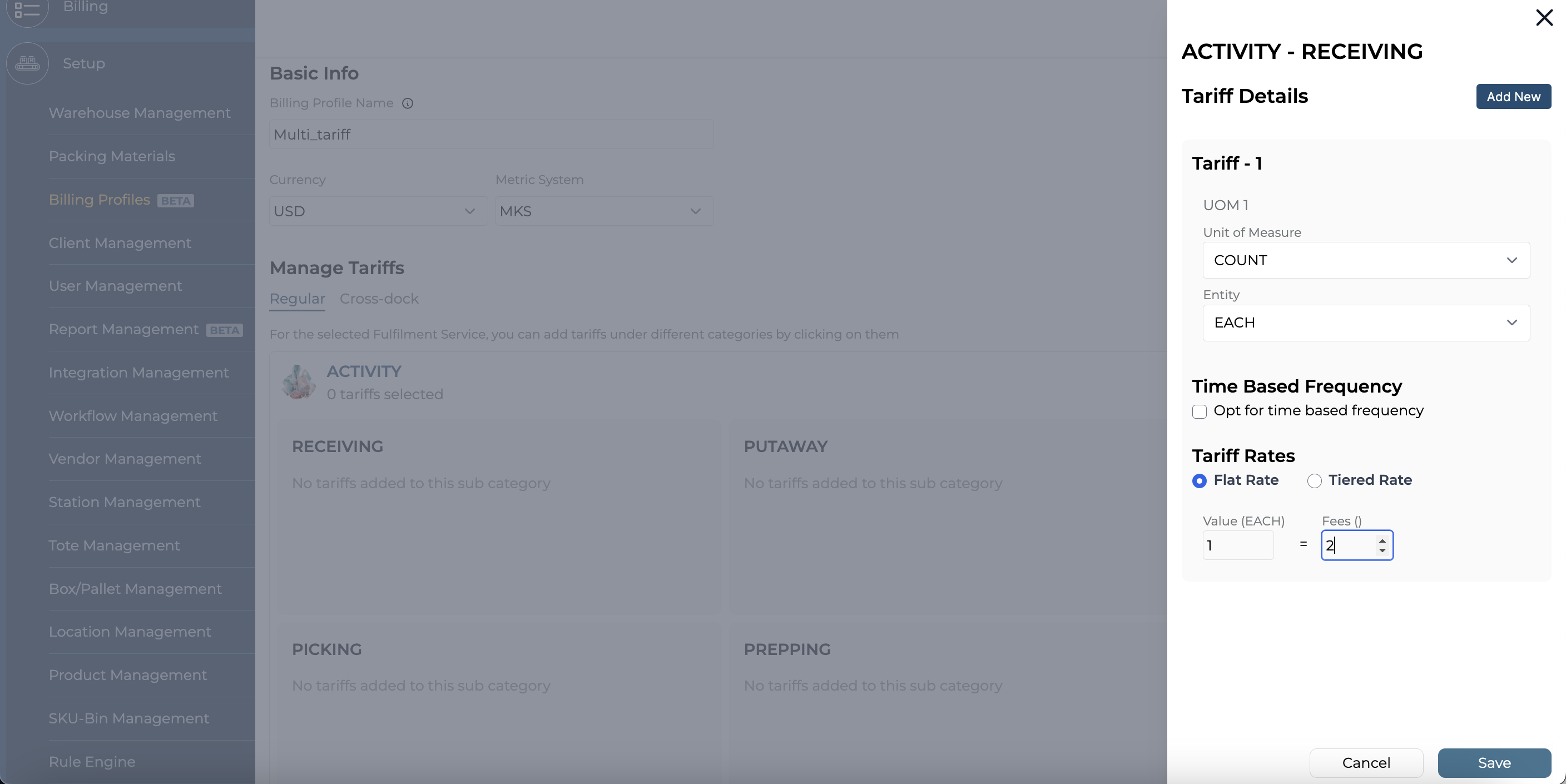
On choosing a sub-category such as Receiving, you will be able to add multiple tariffs by clicking “Add New”
-
You will be able to add another Tariff. Please note: Only one tariff rate can be added for each combination of Count and Entity. For example, while you can add rates for Count > Each and Count > Pallet under receiving, you won't be able to add different rates for Count > Each
-
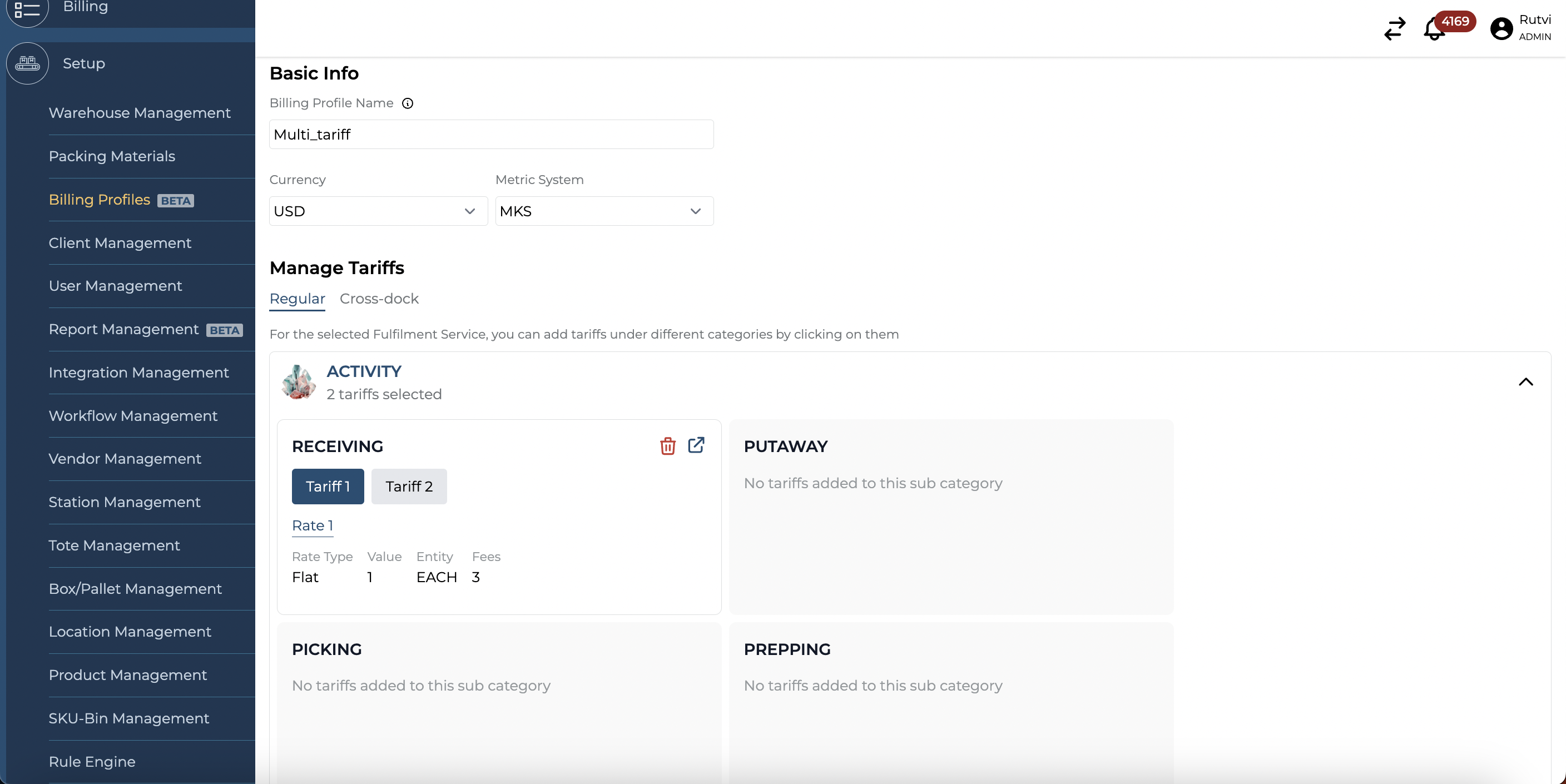
You will be able to view different tariffs as shown below. On clicking Tariff 1/2 will show you the values under them
-
On Saving a Tariff, the rates will be indicated on the Billing Profile Page, as shown below
Please add different tariffs for different categories such as Storage, labels, Labor and Materials.
Please note that for Materials, you will have to configure all different Materials under Setup > Packing Materials module.
Once configured, you will be able to add tariffs for them. Please refer below
Hopstack supports a unique Tariff Rate for every sub-category (ex. Receiving).
Important Notes from Hopstack for Beta Release :
For Beta Release, we are only supporting a single Unit of Measure, multiple units of measure (Let's say you have a tariff for Storage as $2 per SKU/per CBM) will be released soon. Look out for an update!