
Multi-order picking allows associates to efficiently pick items for multiple orders in a single workflow. This process can only be performed using the mobile app. This guide provides detailed steps to help you navigate the multi-order picking process.
Note: Multi-order picking can only be done on the mobile app and not on the desktop.
Steps to Perform Multi-Order Picking
Step 1: Navigate to Picking
-
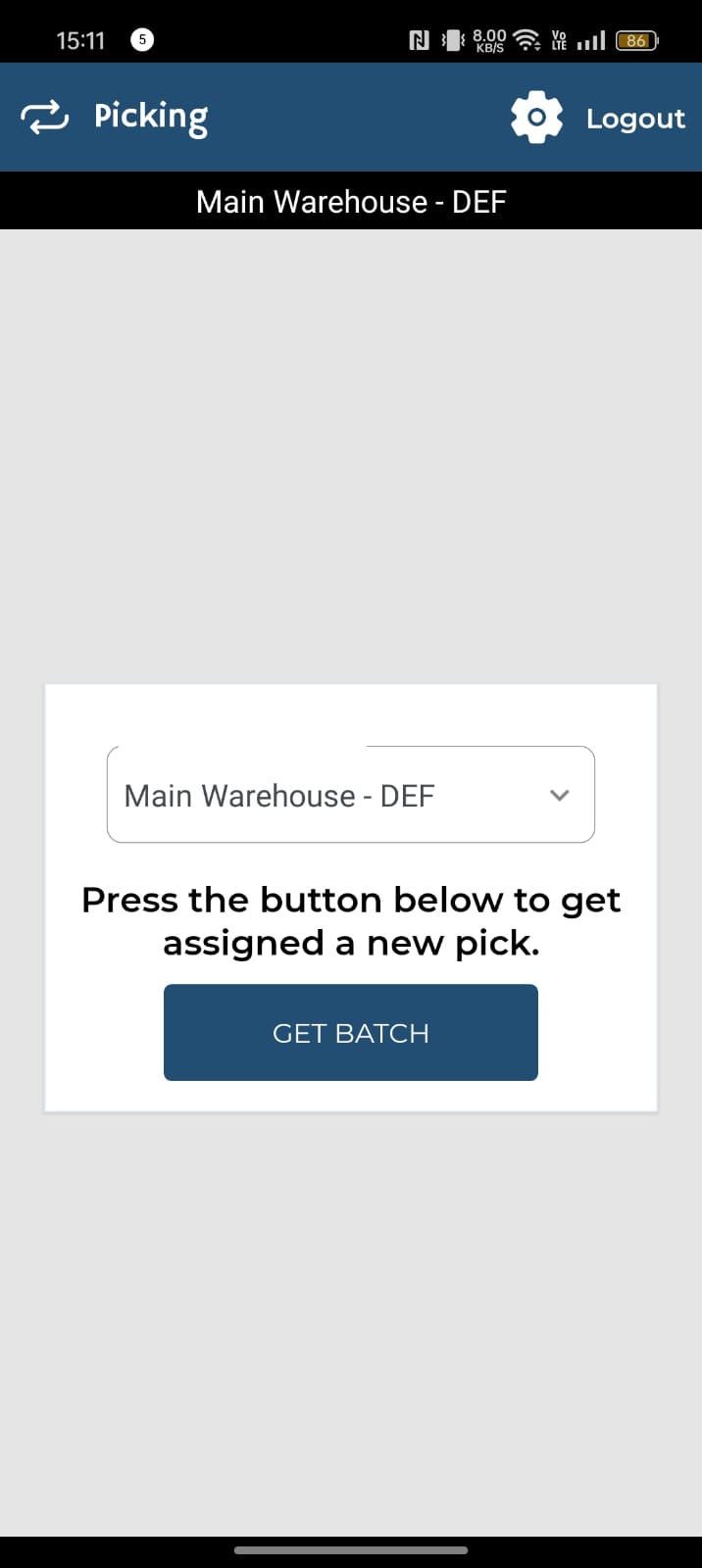
Open the Mobile app.
-
Go to the Picking section.
-
And click on “Get Batch”.
Step 2: Scan the Tote with Subtotes
-
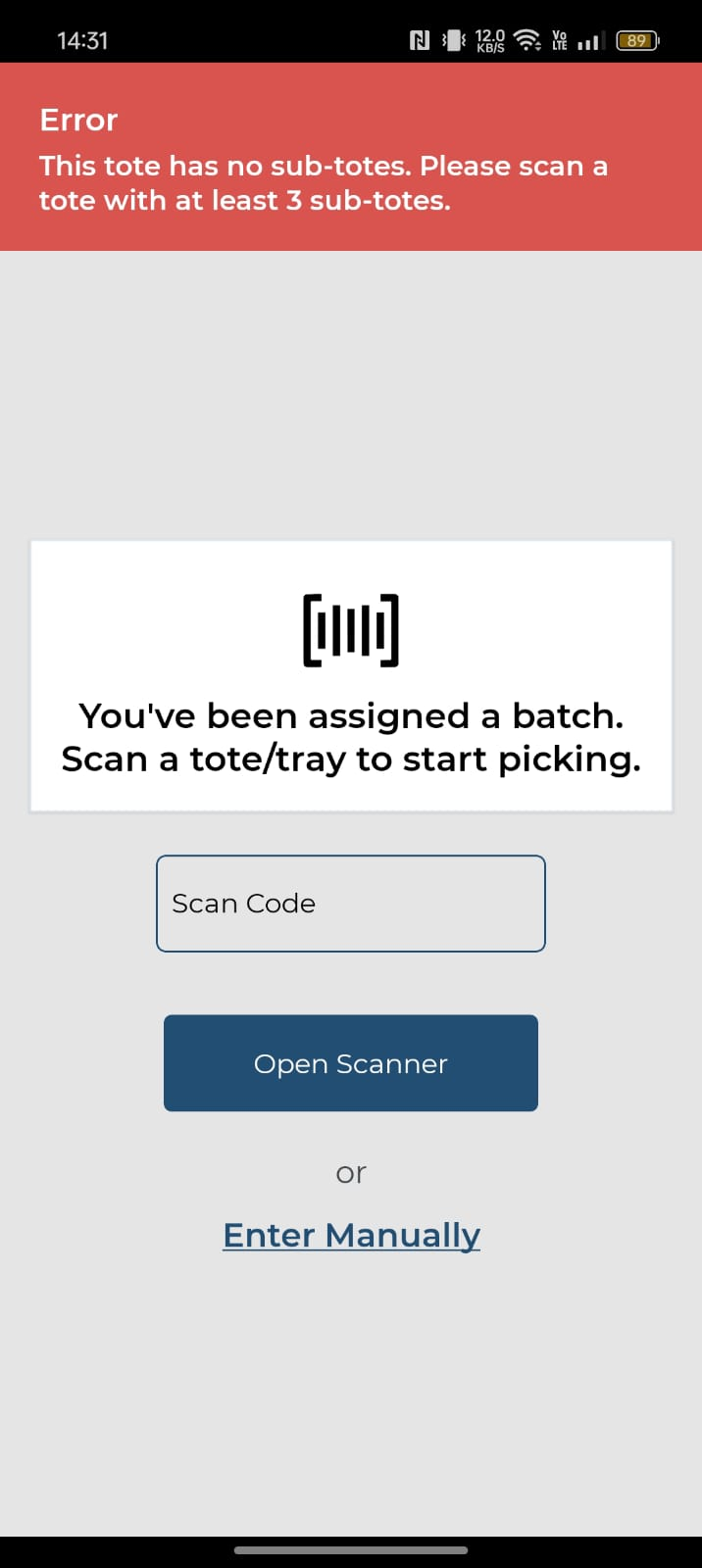
Scan the main tote with subtotes. Since this is a multi-line order, you will need to ensure all subtotes are scanned correctly.
-
If you encounter any errors, ensure you are scanning the main tote and all associated subtotes correctly.
Step 3: Pick Line Items
-
You will be directed to pick all line items for all the orders in the current picking session.
-
Follow the picking workflow as detailed in the Associate Workflow: Picking guide.
Step 4: Confirm the Pick
Once all line items are picked, you will need to confirm the pick to complete the process.
By following these steps, associates can efficiently handle multi-order picking, ensuring all items are correctly picked and ready for the next stage in the fulfillment process.