
Multi-order packing allows you to efficiently pack items for multiple orders in a single workflow. This process is best performed on the desktop app. This guide provides detailed steps to help you navigate the multi-order packing process.
Note: Multi-order packing can only be done on the desktop app and not on the mobile app.
Steps to Perform Multi-Order Packing
Step 1: Navigate to Packing
-
Open the Desktop app.
-
Go to the Packing section.
Step 2: Select the Packing Station
Select the appropriate Packing station.
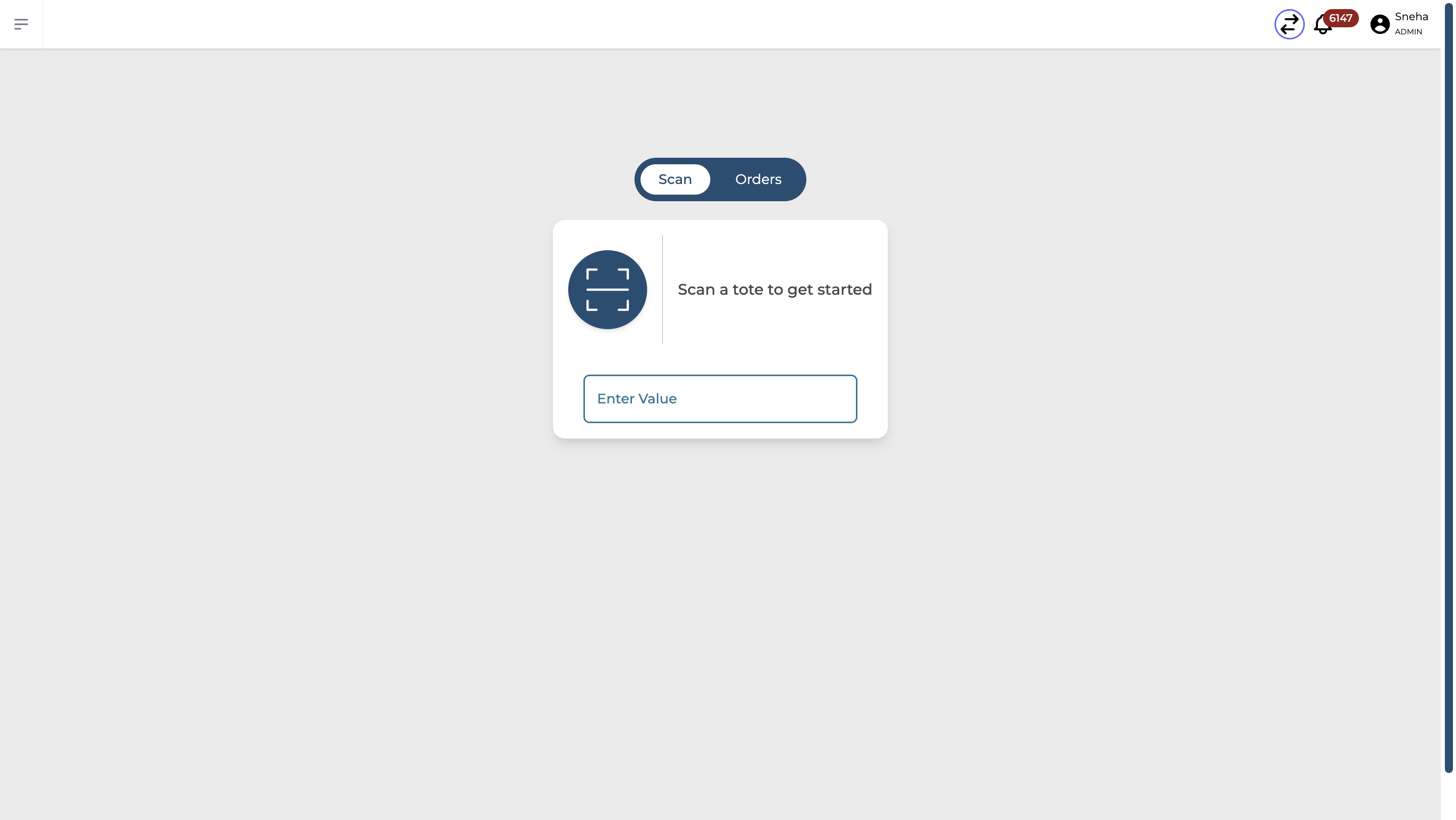
Step 3: Scan the Tote with Subtotes
-
Scan the main tote with subtotes, ensuring you use the same tote and subtotes from the picking process.
-
After scanning the main tote, you will be prompted to scan each subtote.

Step 4: Scan Subtotes and Pack Orders
-
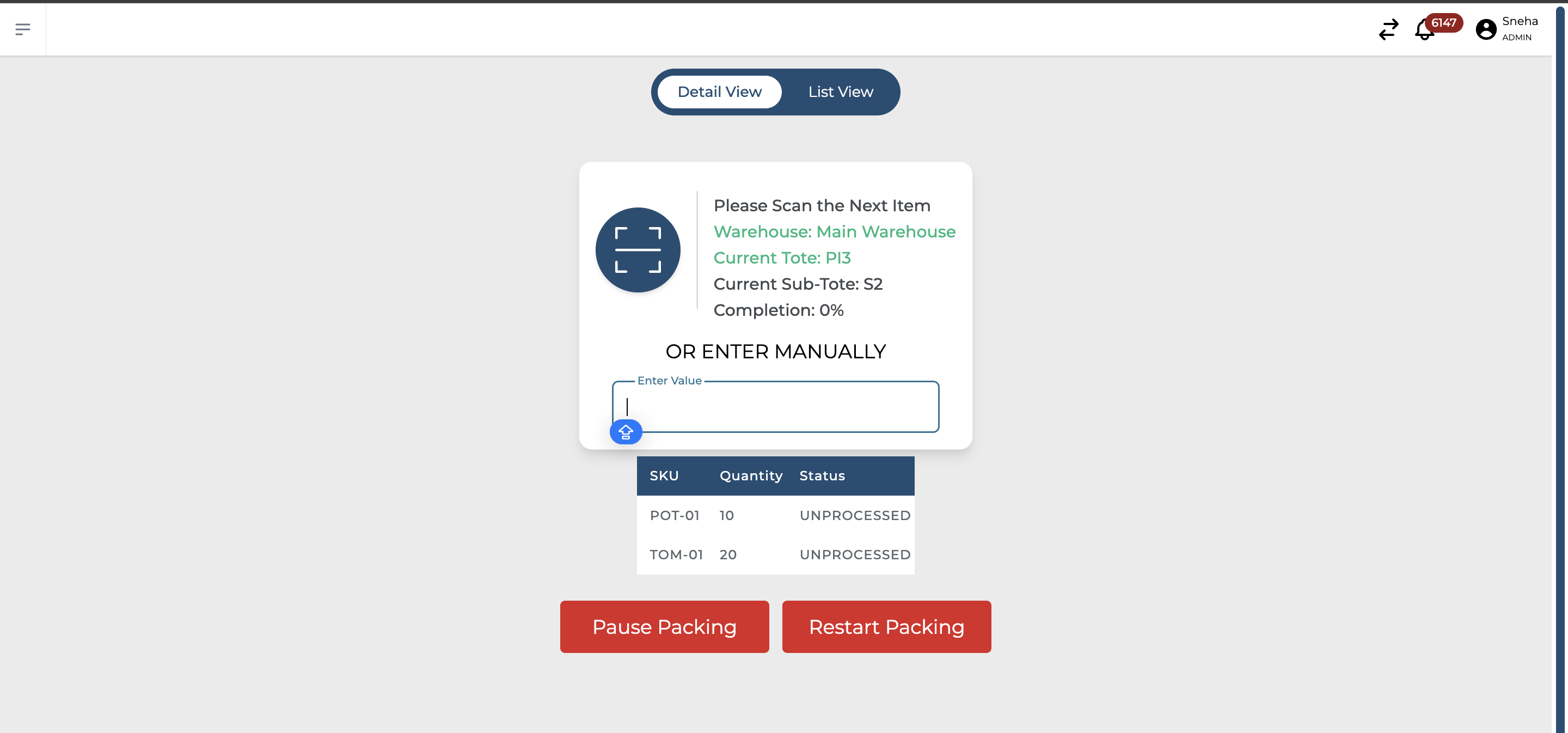
Scan each subtote. You will be directed to pack the order associated with that subtote.
-
You should see the line items for that order, each with a status of either Unprocessed or Confirmed (unpacked or packed).
Step 5: Pack the Items
-
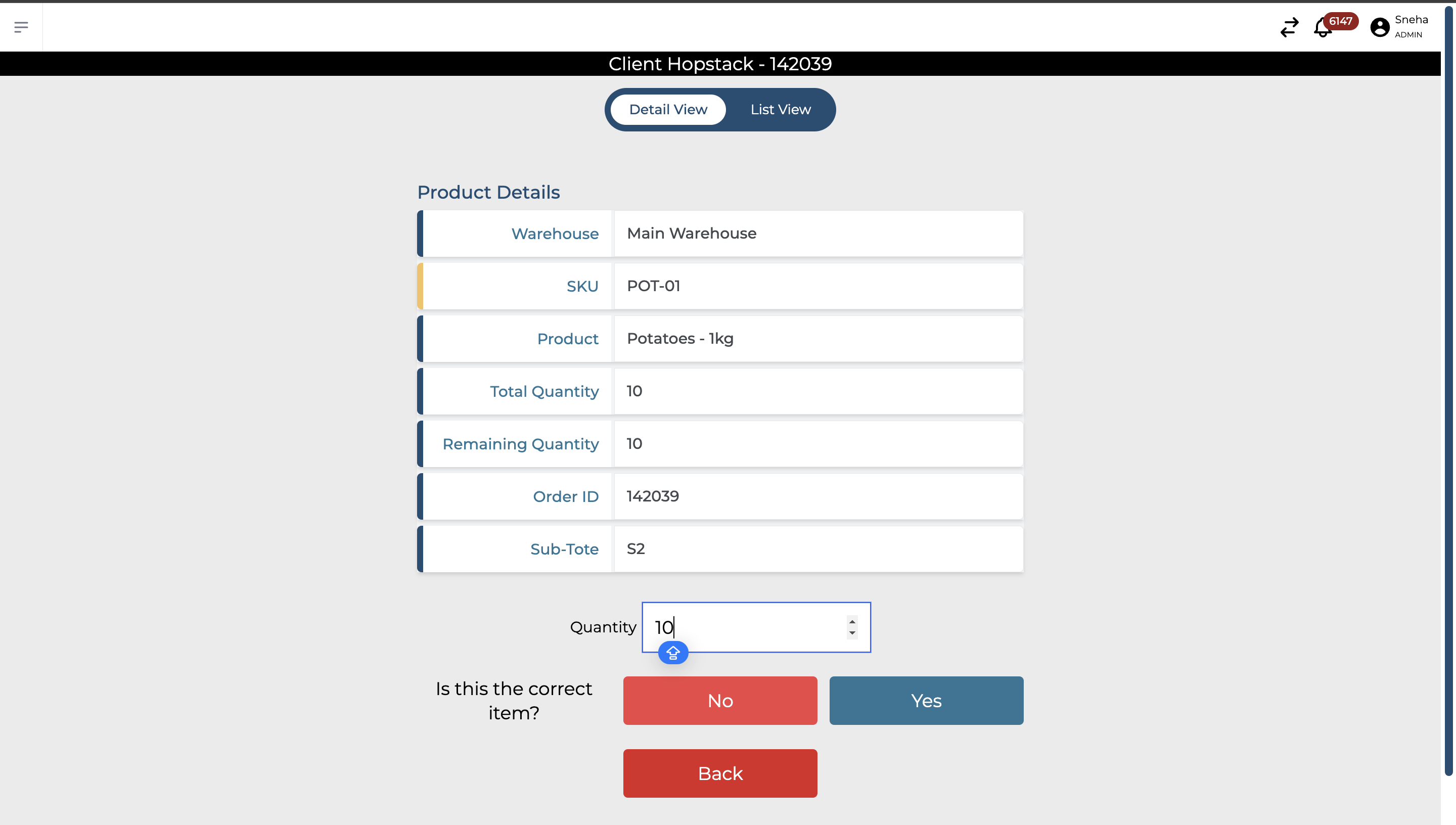
Scan the product and proceed to pack it.
-
After packing each product, you will be prompted to scan and pack the next product for that order.
Step 6: View Line Items
-
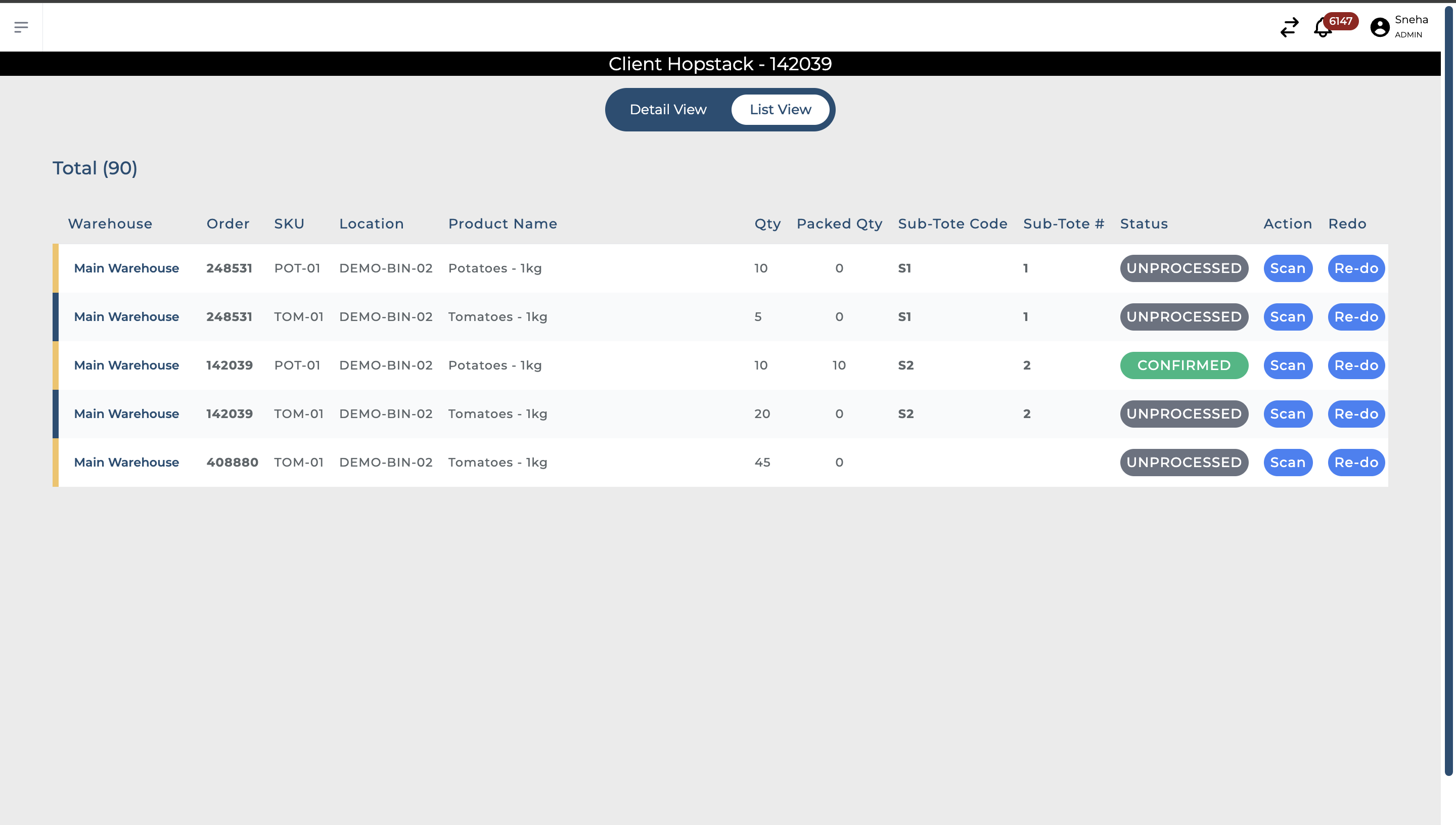
Use the list view to see all line items on the tote, along with the status of each item for the orders you have picked.
Step 7: Confirm Packing
-
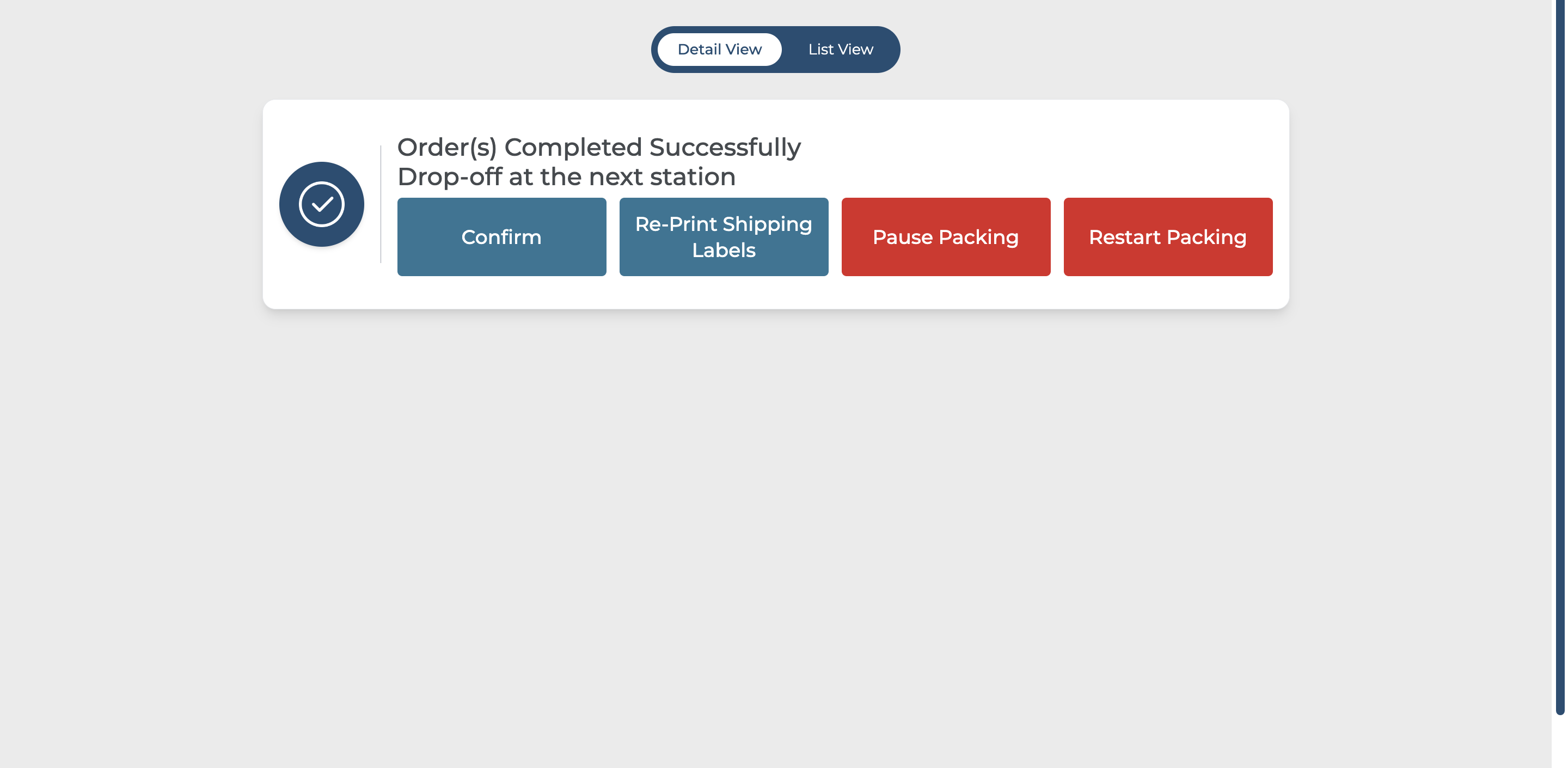
Once you have packed all items associated with each subtote, confirm the packing.
-
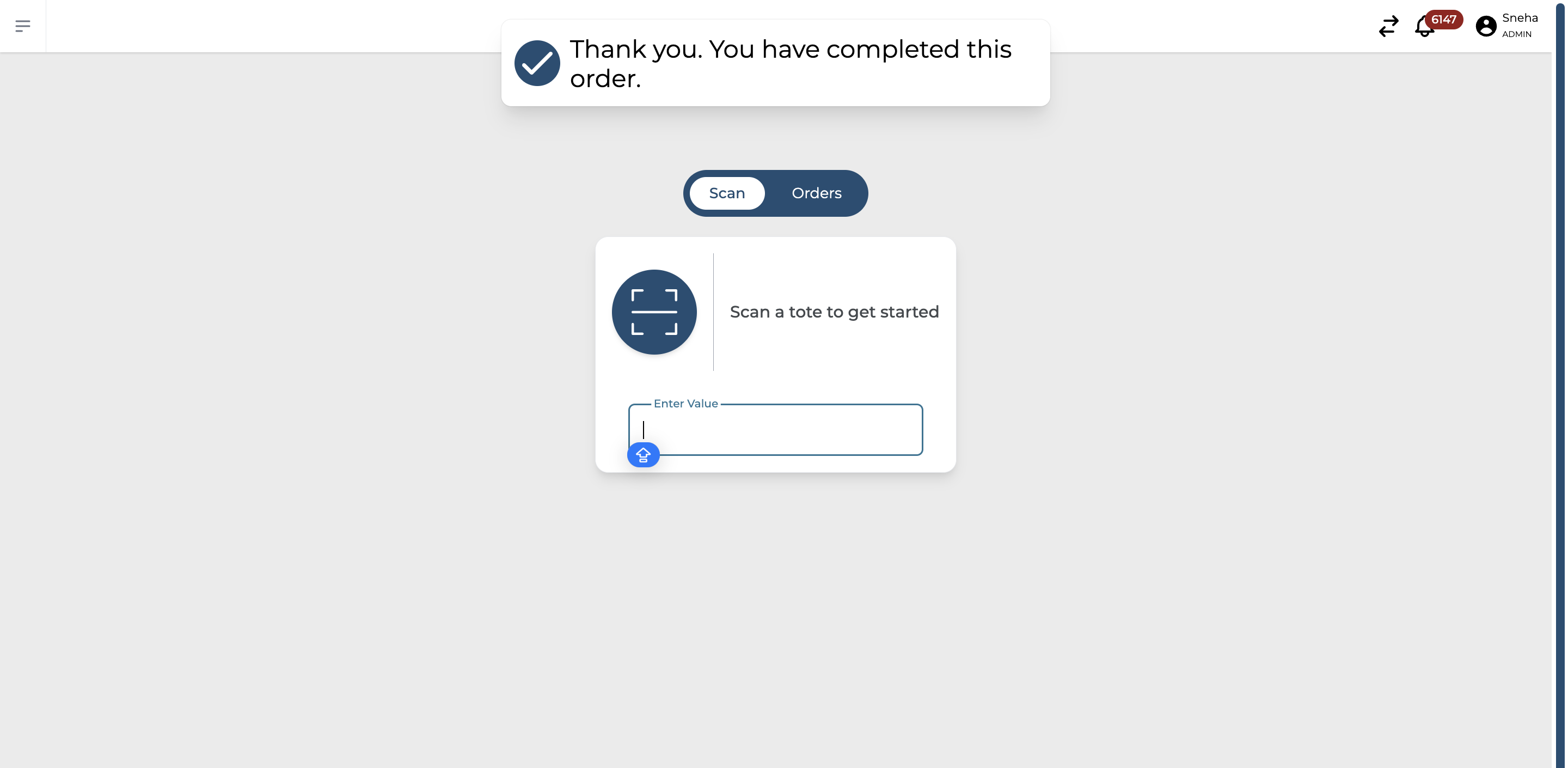
You will receive a confirmation upon completion.
By following these steps, you can efficiently manage and pack multiple orders, ensuring accuracy and completeness in the packing process.