
This guide will help you establish the integration between Shopify and Hopstack
This guide is only applicable to those users who have read & write access to Integrations Management.
Part 1: Adding Hopstack’s App to your Shopify Account.
-
Login into your Admin portal of the Shopify store you would like to link to Hopstack. The URL for login is admin.shopify.com/login
-
In the Left navigation bar look for the “Apps” menu and expand it similar to the screenshot below
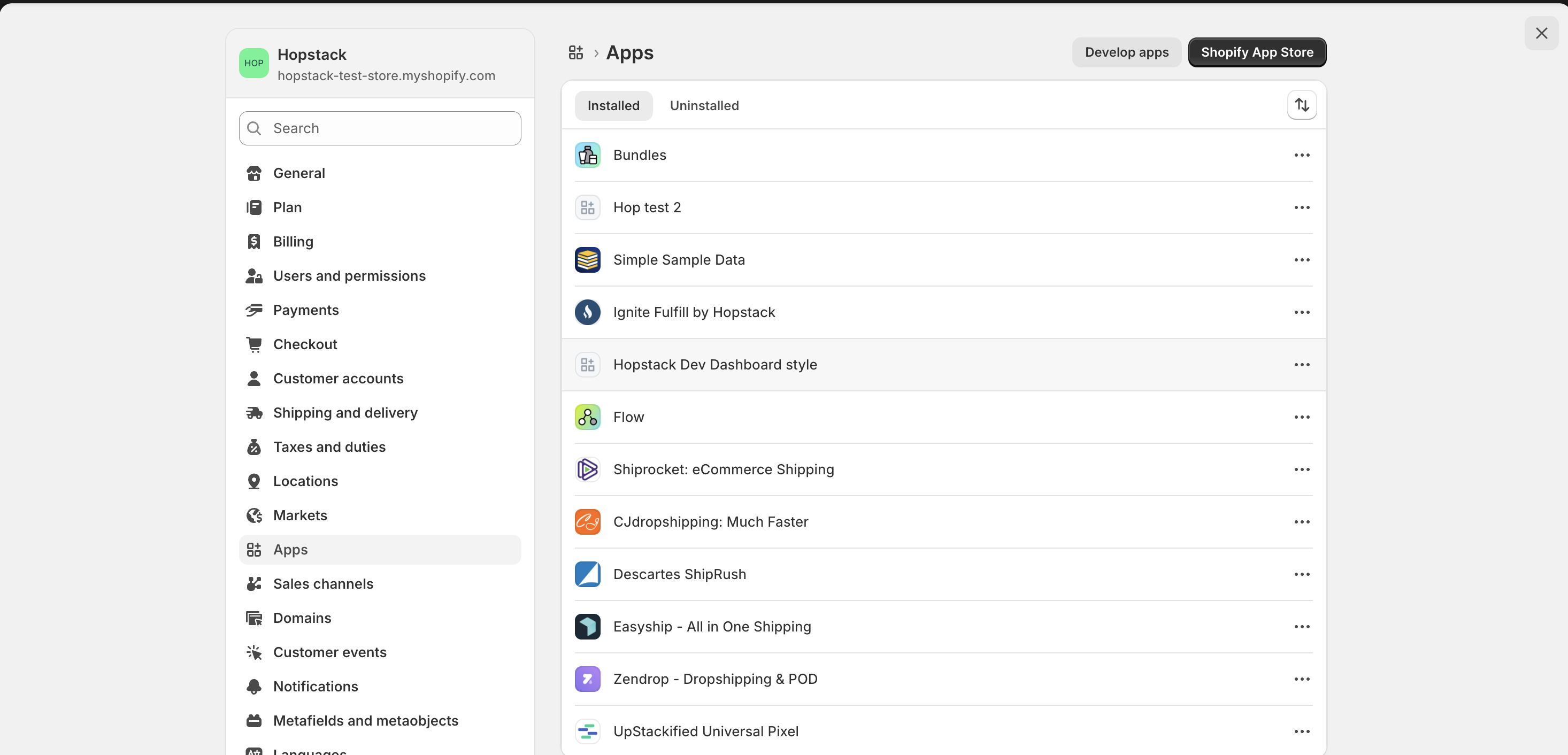
3. Click on “Apps and sales channel settings” from the “Apps” menu. You should see the following screen.
4. Click on “Develop Apps” at the top of the screen. You should see a screen that looks like this.
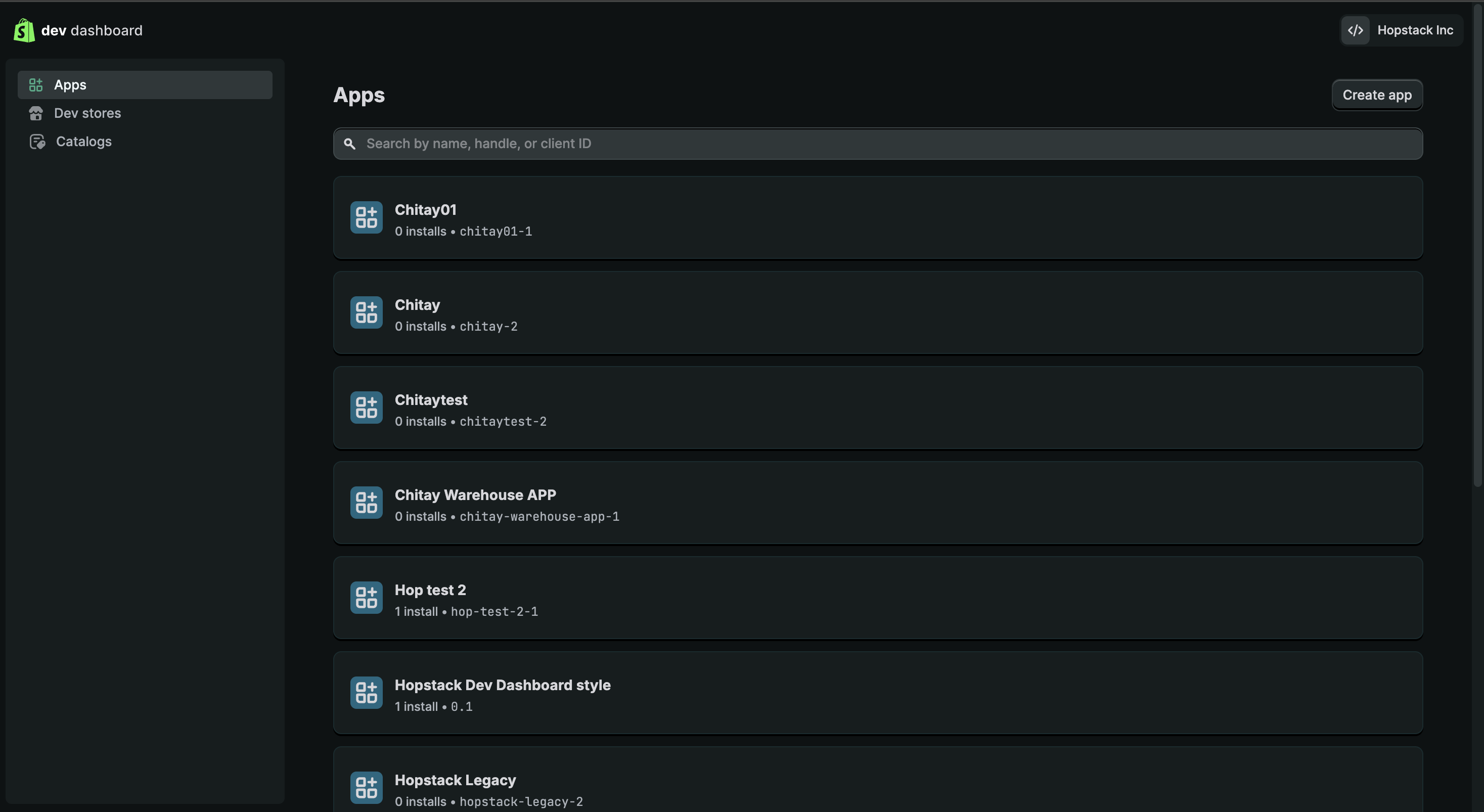
5. Click on “Create App” and enter the App name as “Hopstack” and click “Create App”
6. Upon successful completion, you will be guided to the app page, which should look like this.
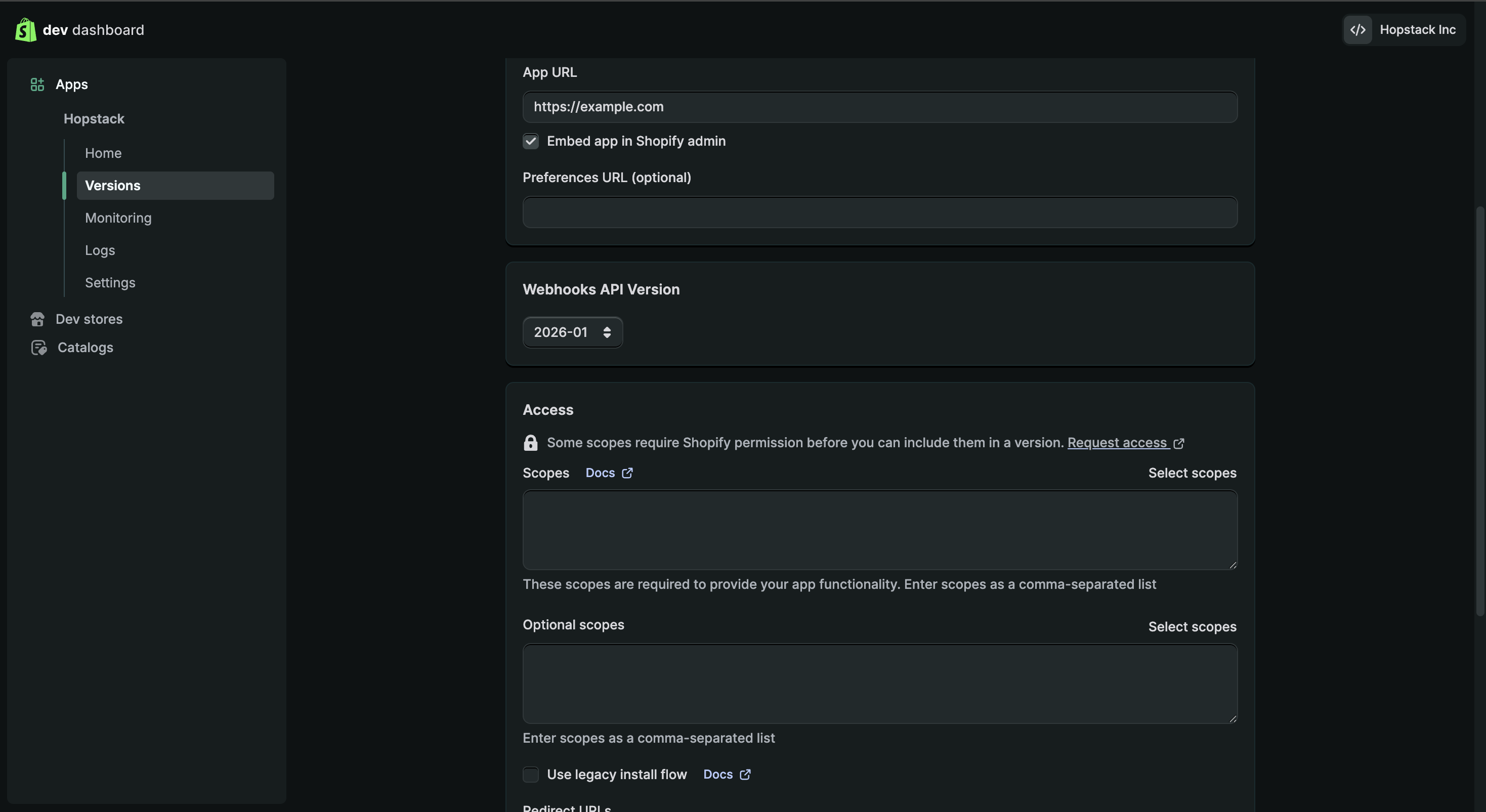
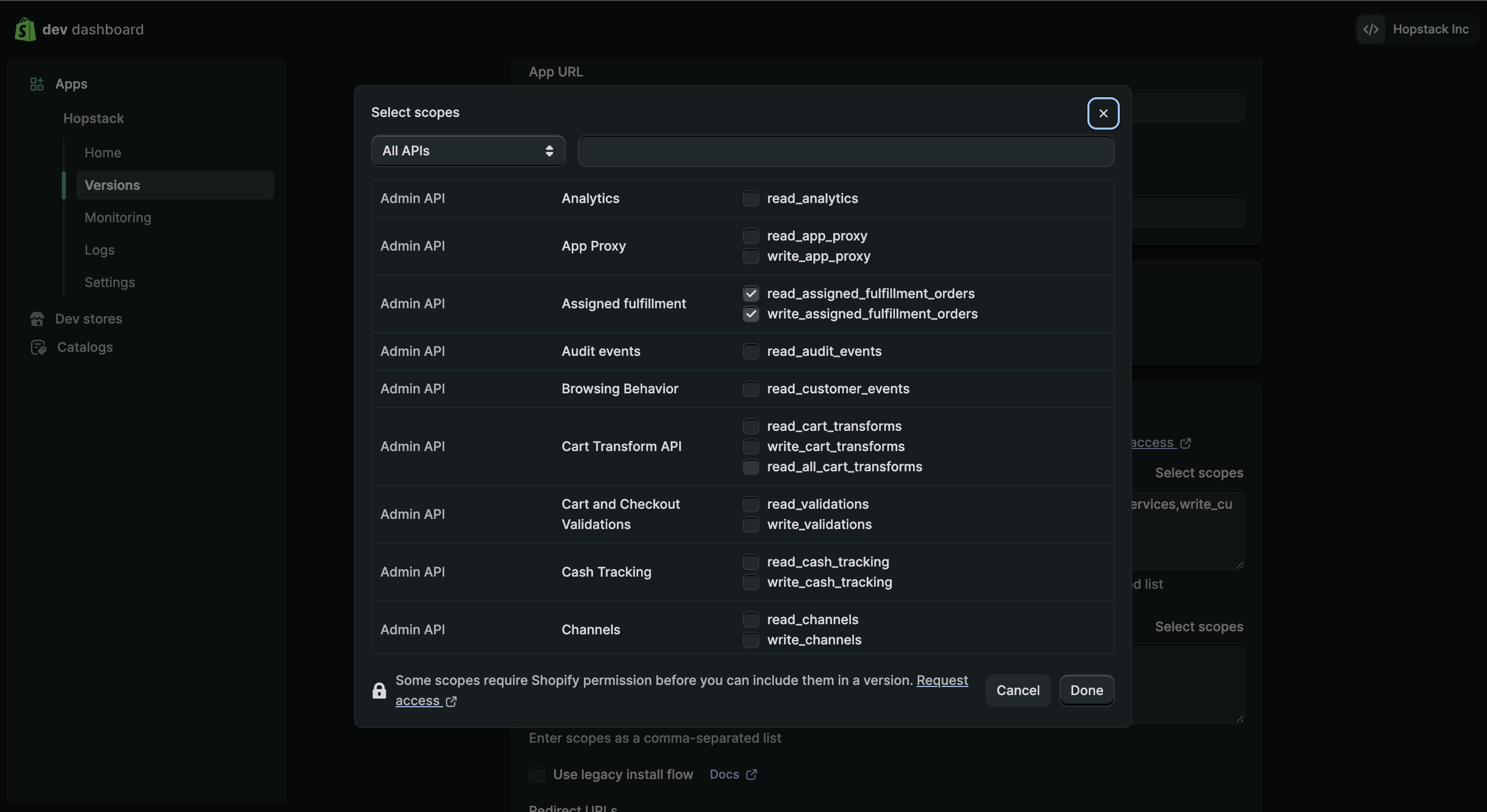
7. Click on “Select scopes” under Access. The permissions need to be enabled as per the screenshots attached below.
7. Under “Webhook API Version”, set the following value as “2025-04”.
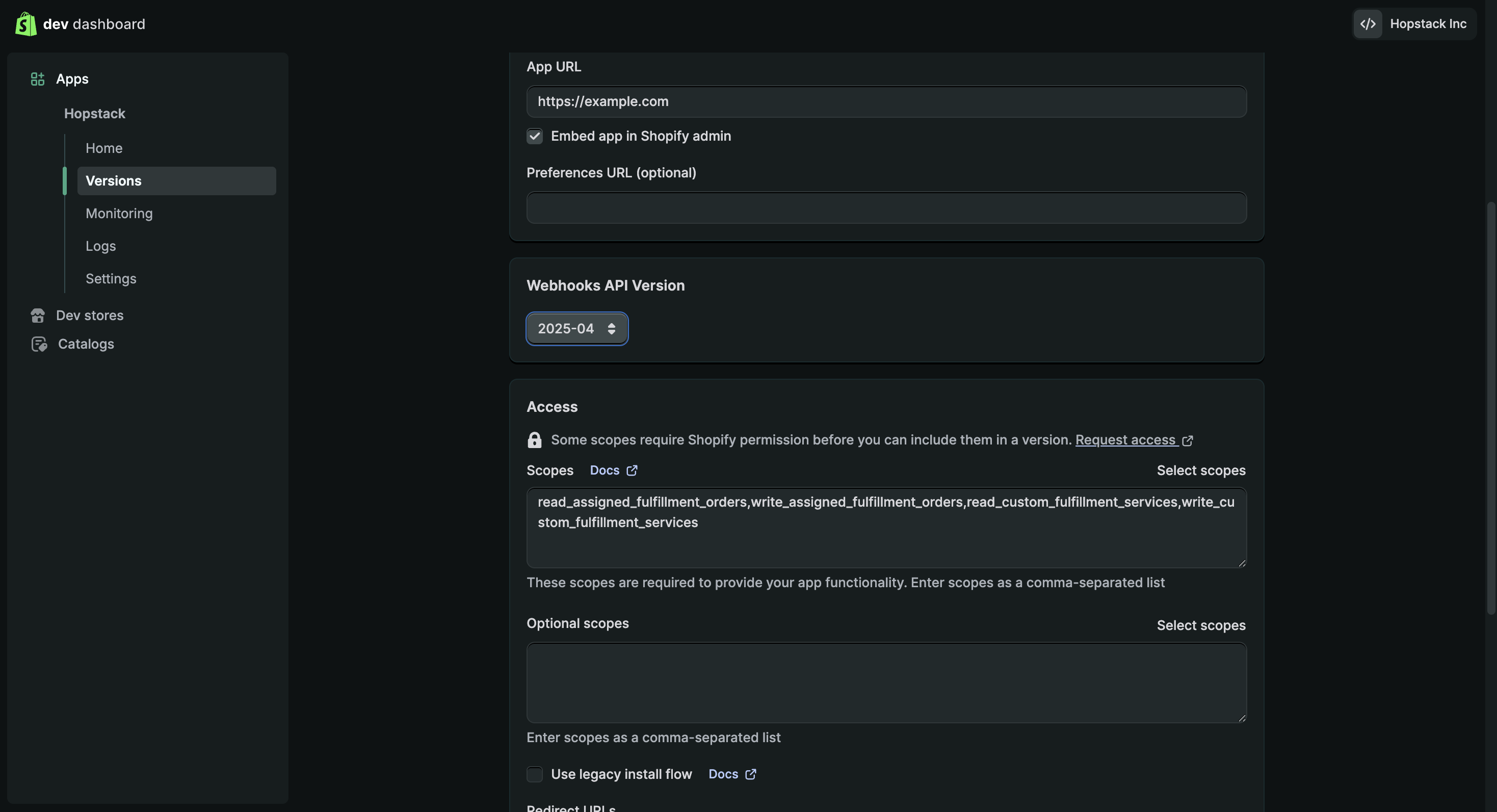
8. Once the Webhook scopes have been saved, click on the “Request Access”.
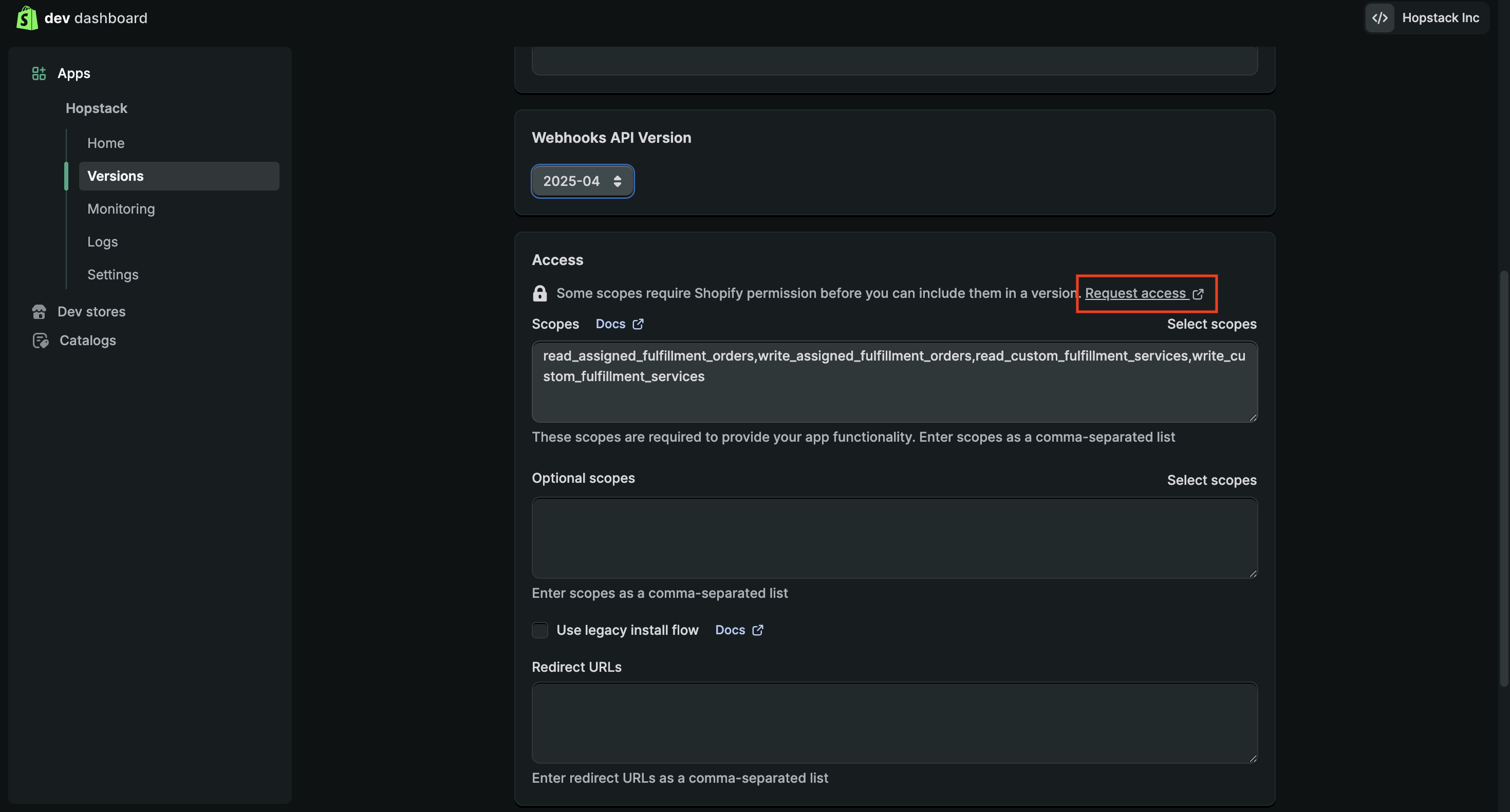
Once you click on “Request Access”, it will be redirected to the partner's app. Click on “Choose Distribution”.
-
If you are unable to locate the “Request Access” redirection link on Shopify, please refer to Step 3 in the same document.
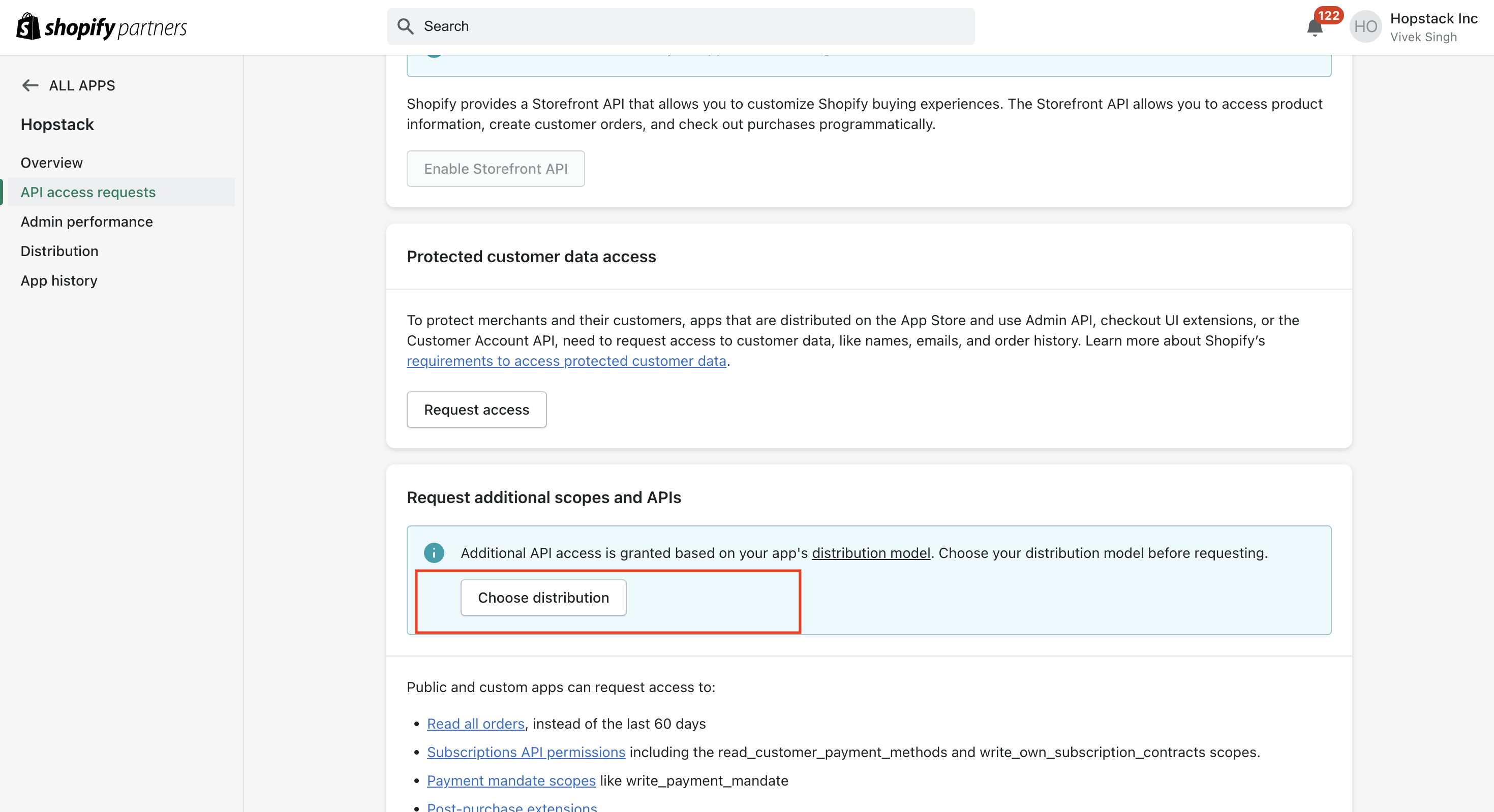
Select icon “Custom Distribution” and click on “Select”.
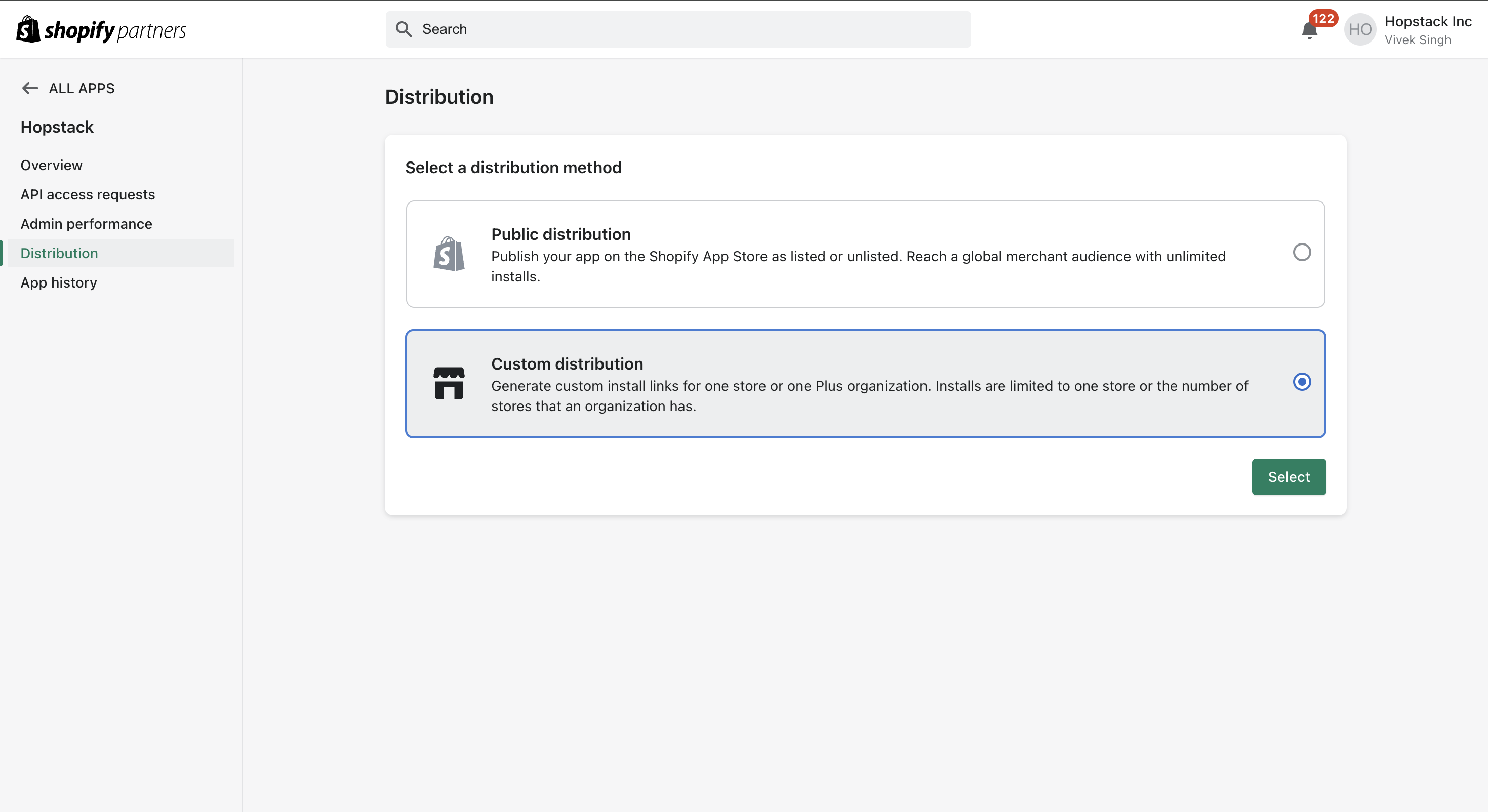
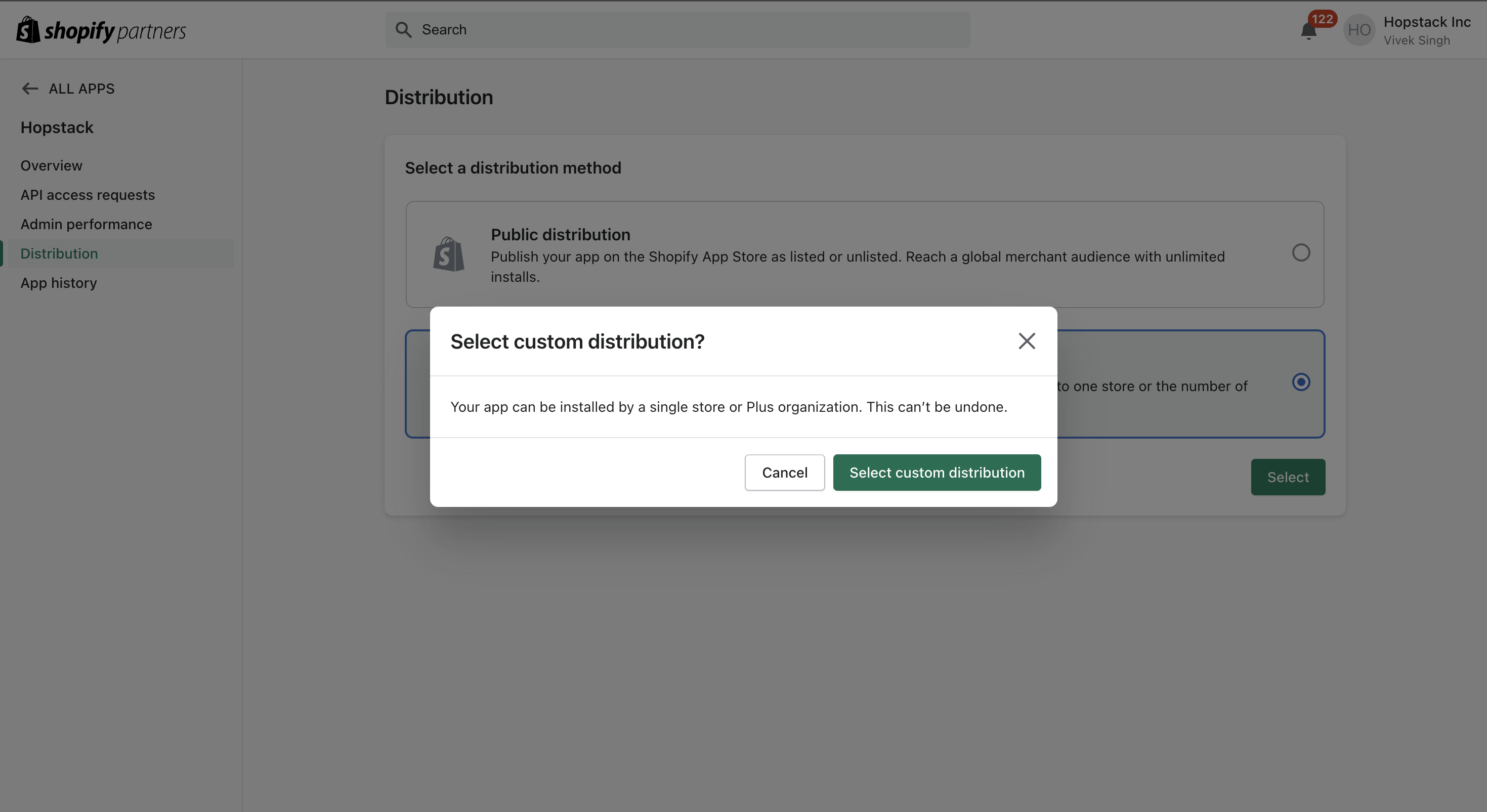
Update the store name in the “Store domain field” and click on “Generate Link”
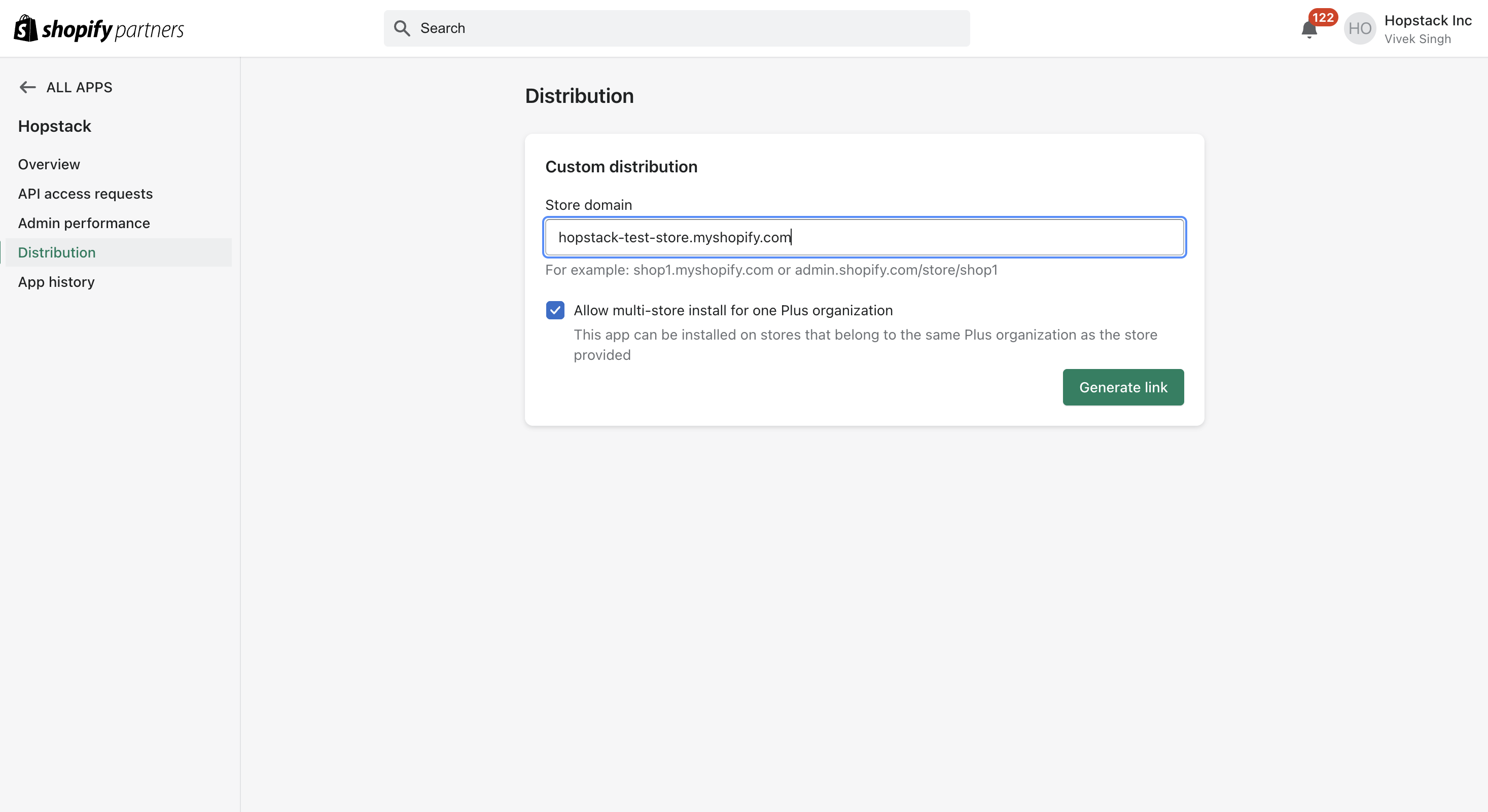
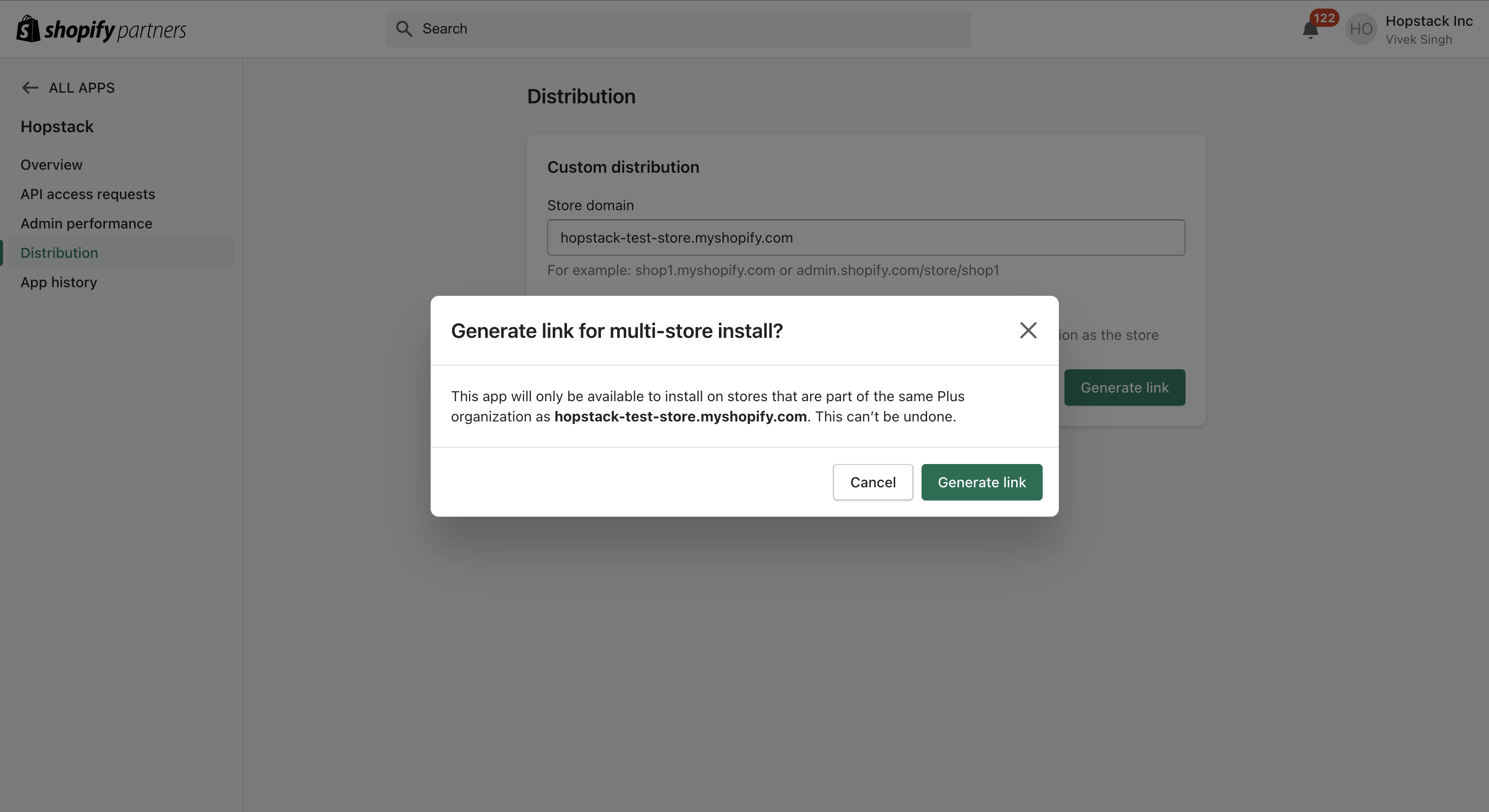
Copy the “Generated link” and paste it into your web browser. You will be displayed as per the below screen where you need to select the correct store
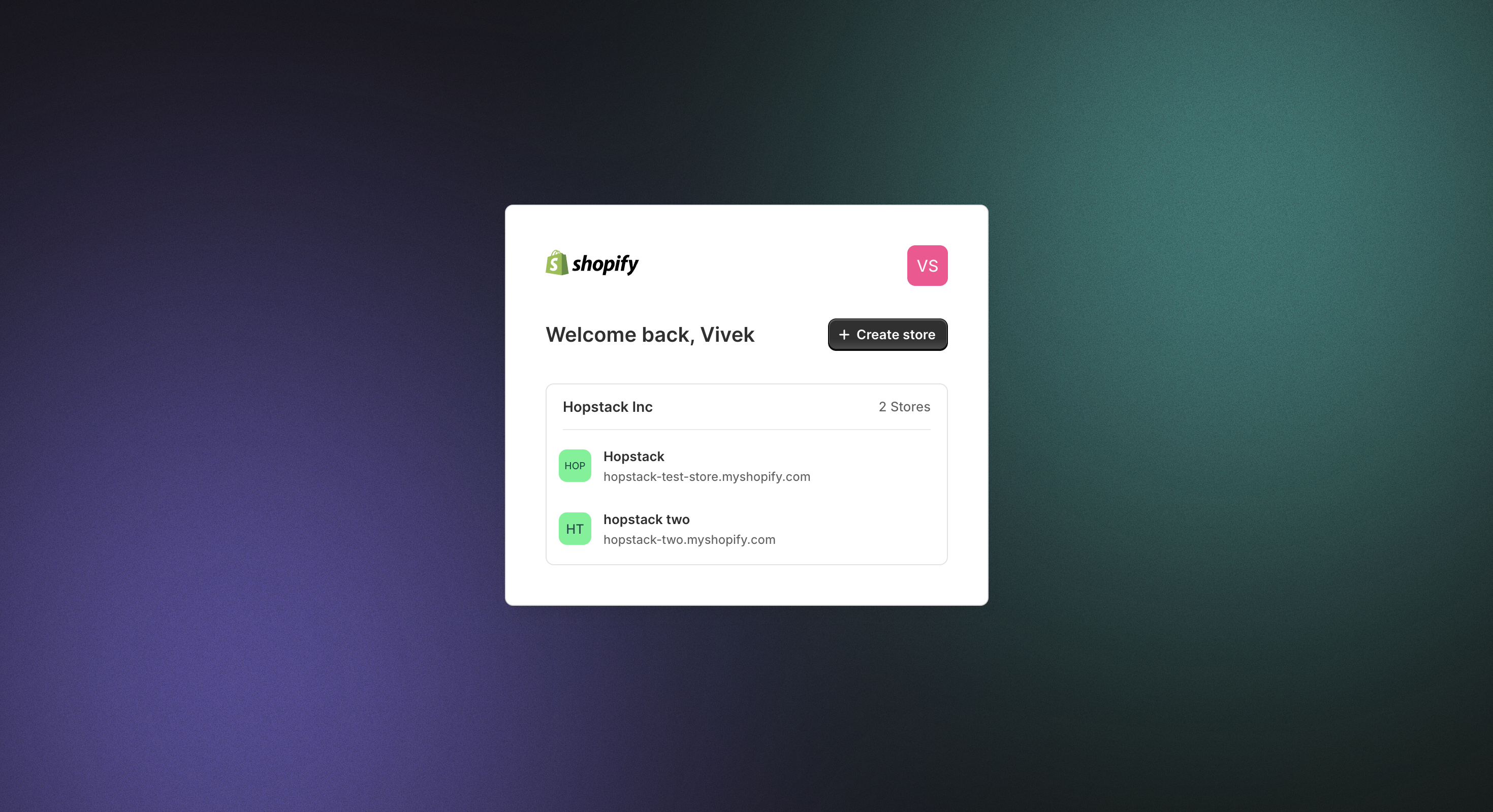
Once you store is slect you will be navigated to the following page. Click on “Install”
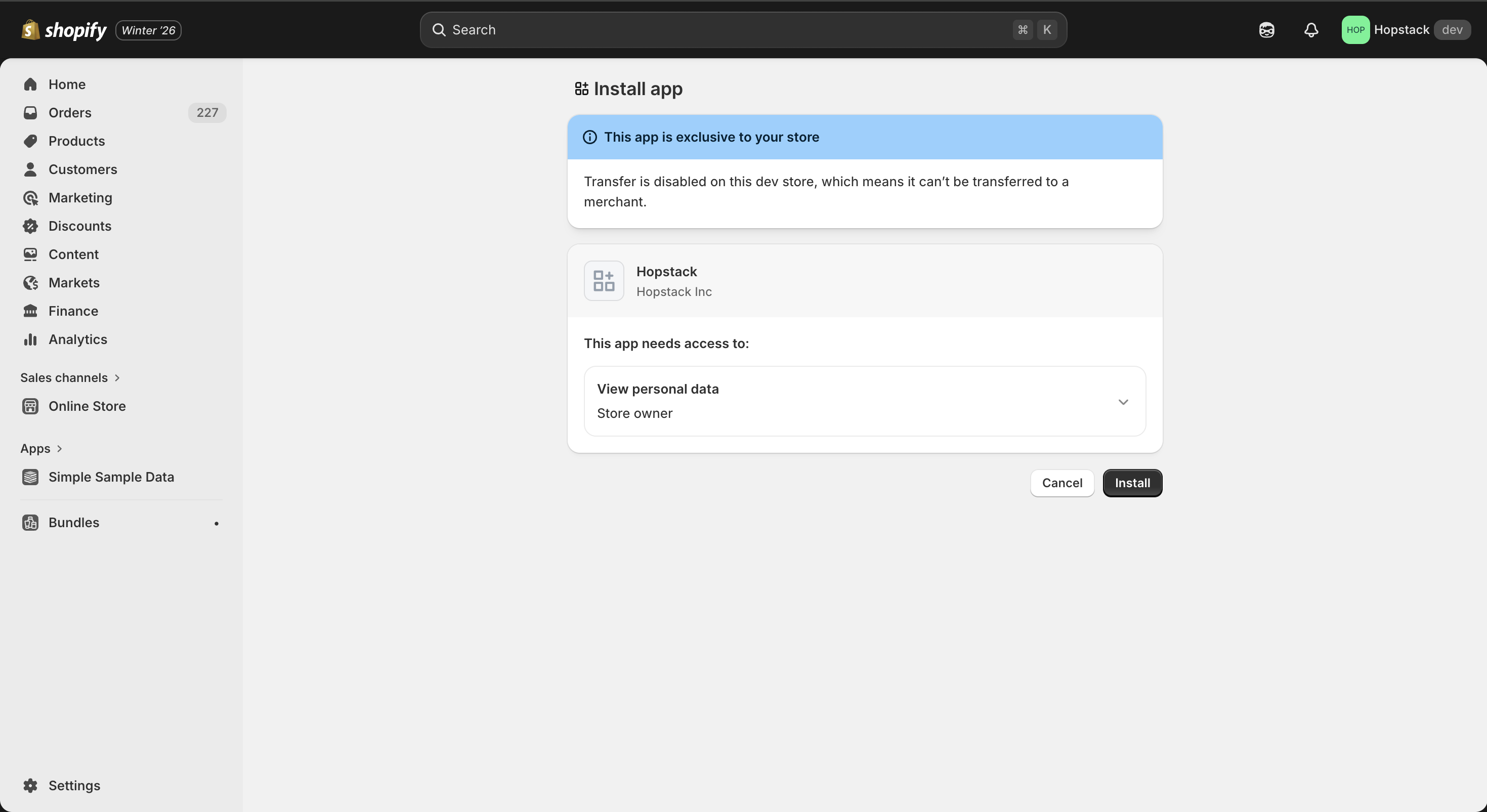
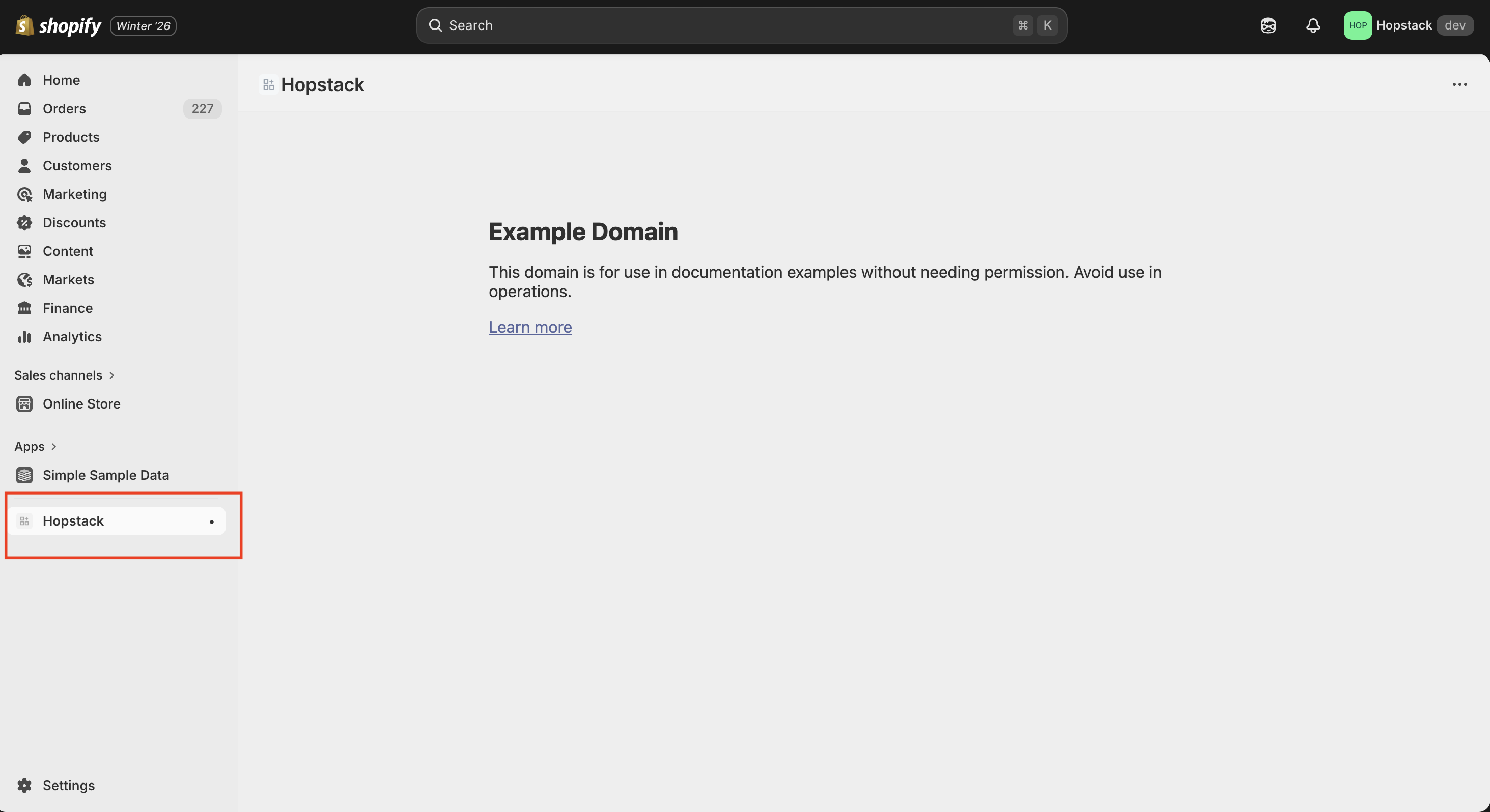
9. Click on “Install app” and the App will be visible on the left side on your Shopify Store as shown above.
10. IMPORTANT: Once installed, click on “Reveal token once”. You can only view the token 1 time so ensure it’s copied and saved somewhere secure for your ease of access.
11. Copy and save the API Key and API Secret Key from Shopify Dev Dashboard Settings
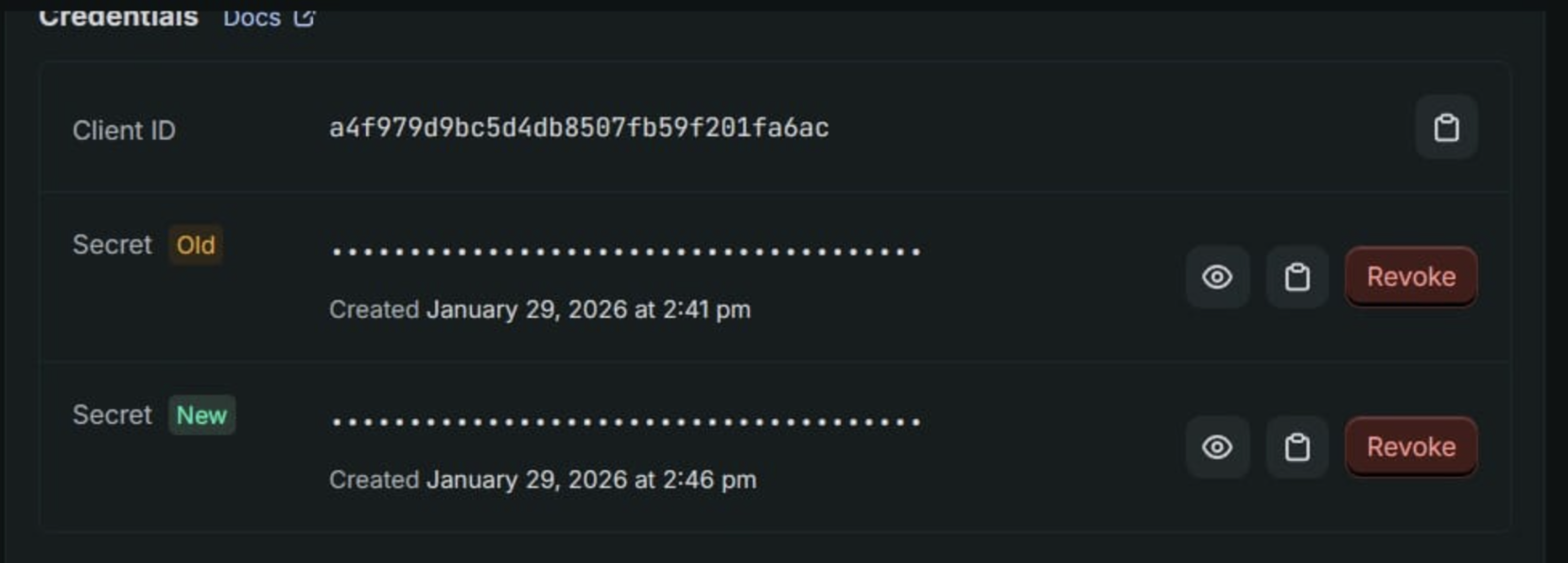
12. At the end of the setup, you should have 3 pieces of credentials. If any of these are missing, please ensure the above steps were followed.
-
Client ID
-
Client Secret Ket
-
Shopify Store Name
-
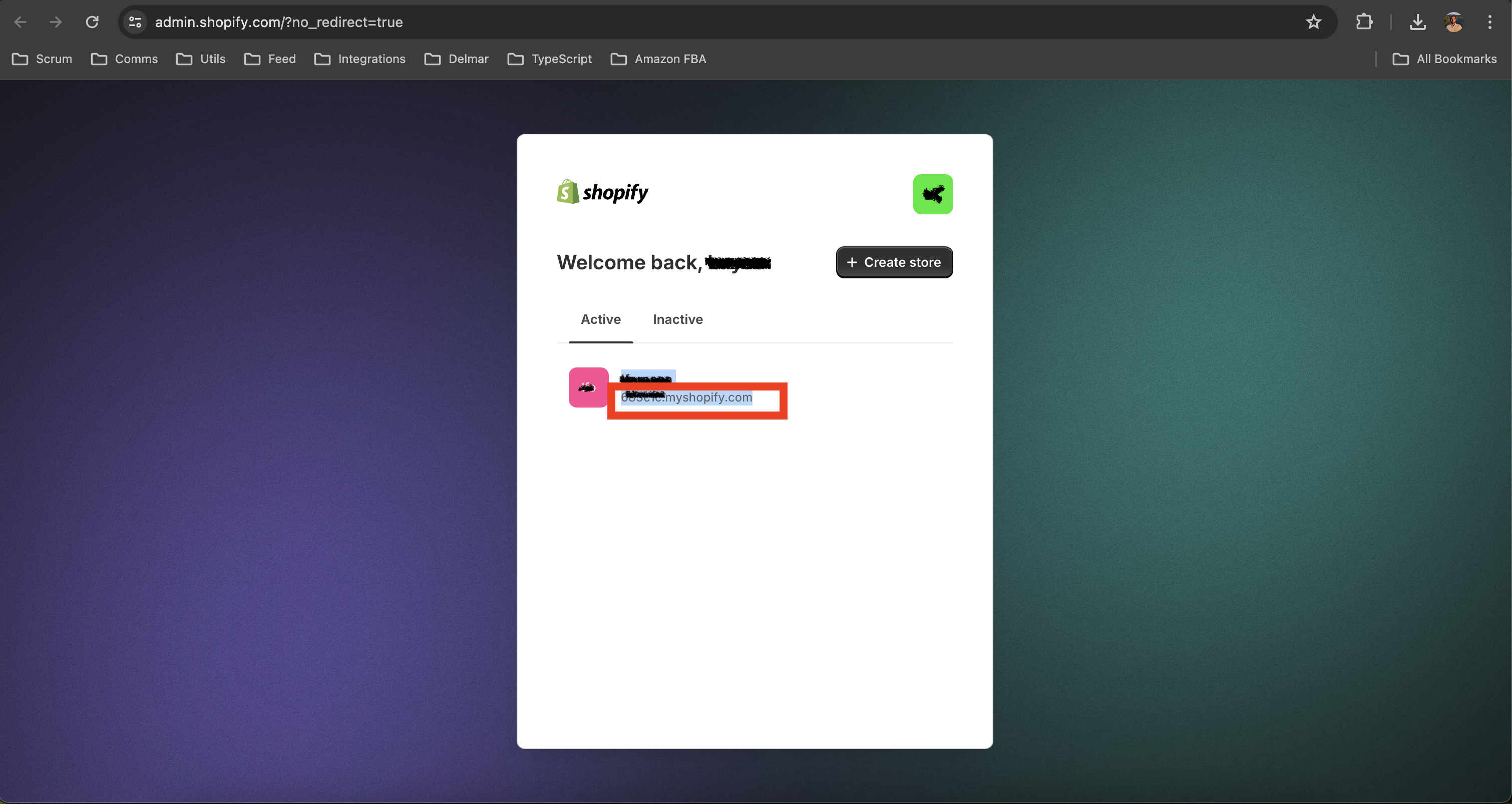
Store name: (hopstack.myshopify.com )
-
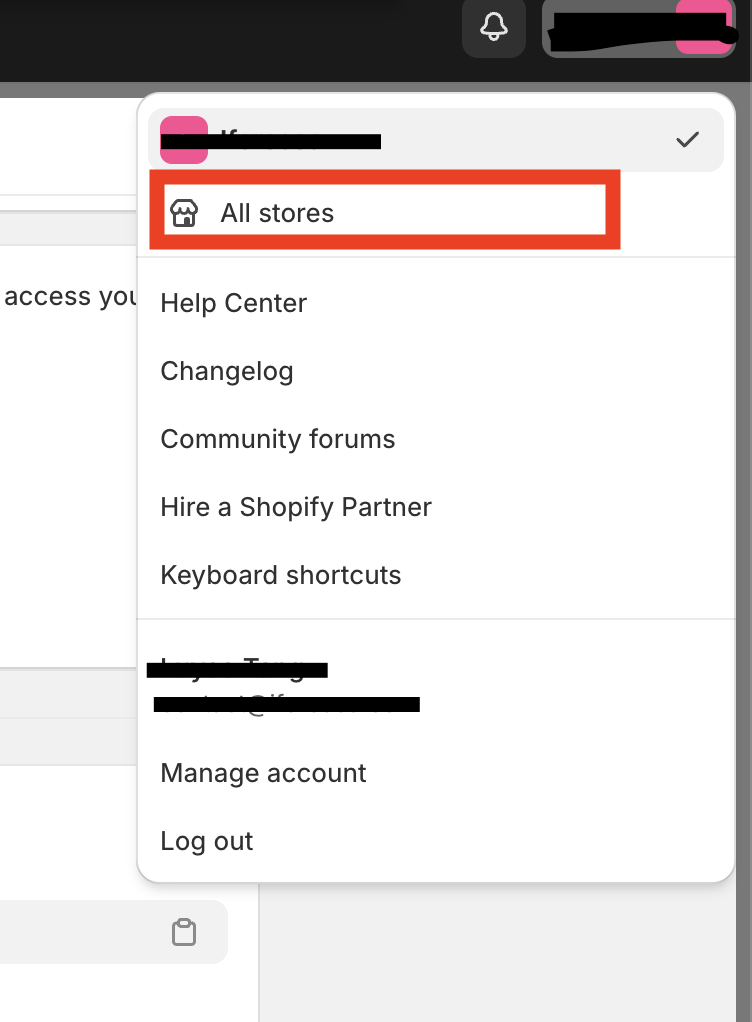
From your shopify dashboard page Go to the right-hand top corner at the user icon
-
Click on ‘all store’
-
There will be ‘active store’ list with the current account, Copy and remember that store name.
-
Step 2: Connecting Hopstack with Shopify
-
Login to Hopstack Portal through the link and credentials provided.
-
Navigate to “Integration Management” under “Setup” on the left sidebar
-
Click on “Connect” on the “Shopify” integration. Enter the details that were stored securely earlier in this document.
Client ID - API Key for legacy from Shopify and Client Secret- Access Token from Shopify
Store Name - Online store name e.g. hopstack.myshopify.comShopify -
Make sure you select the locations during the integration of Shopify.
Please make sure you add the complete Shopify store link as mentioned.
For eg. hopstack.myshopify.com
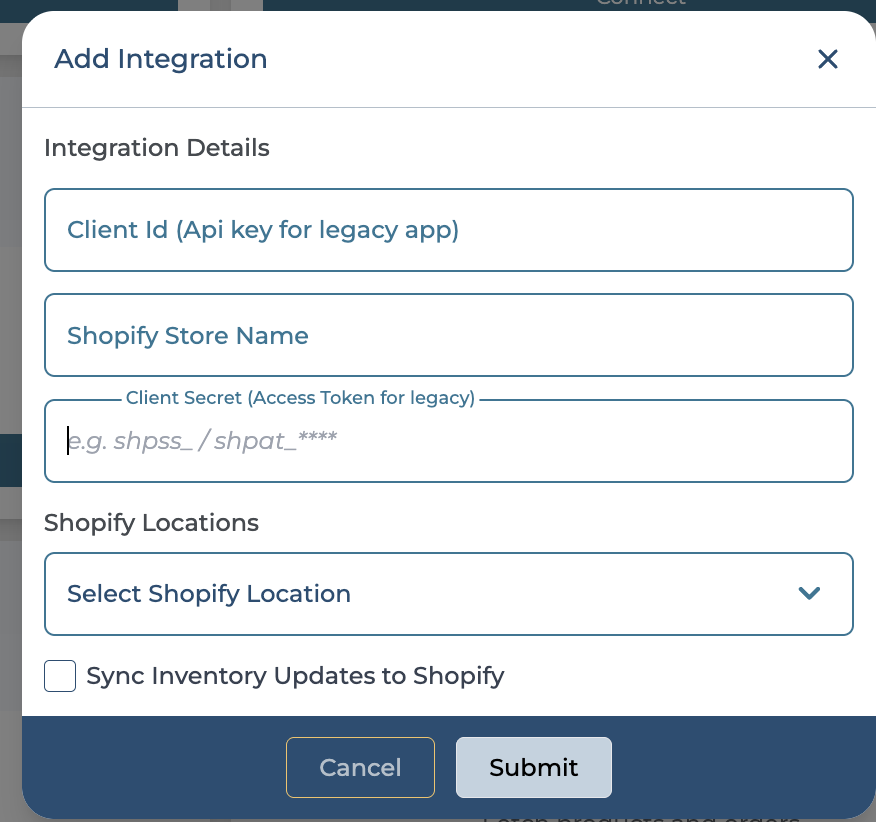
5. Once you click on “Submit”, you’re completely set up and good to go.
6. You can verify the connection by clicking on “Test”. If there’s an error, kindly log out of the integration and re-enter the credentials.
Your Shopify account and Hopstack account should now be connected.
Step 3: Redirectional Link not found on Shopify
If the redirection link does not appear on Shopify after all permissions (scopes) have been enabled, please follow the steps below.
-
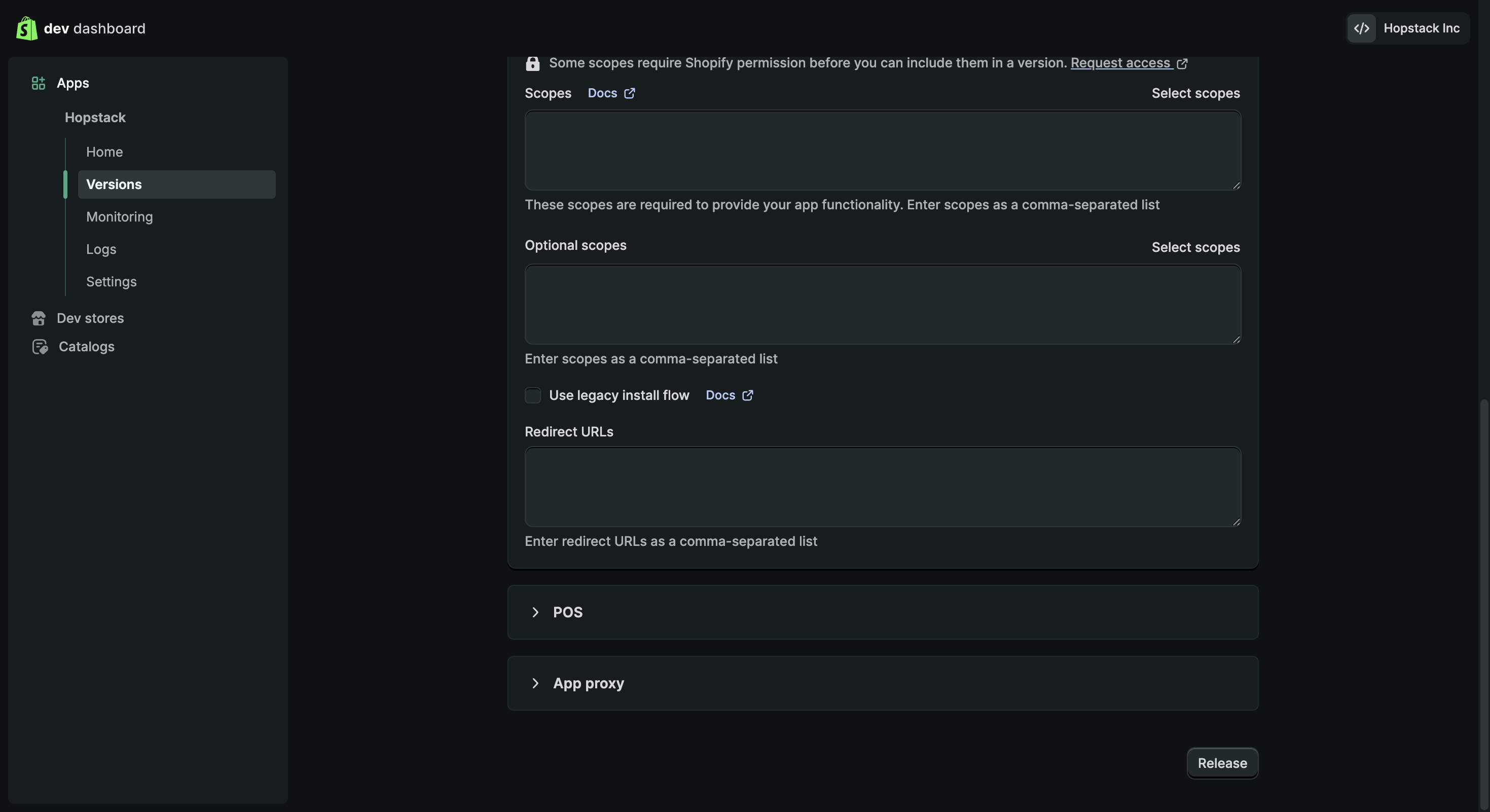
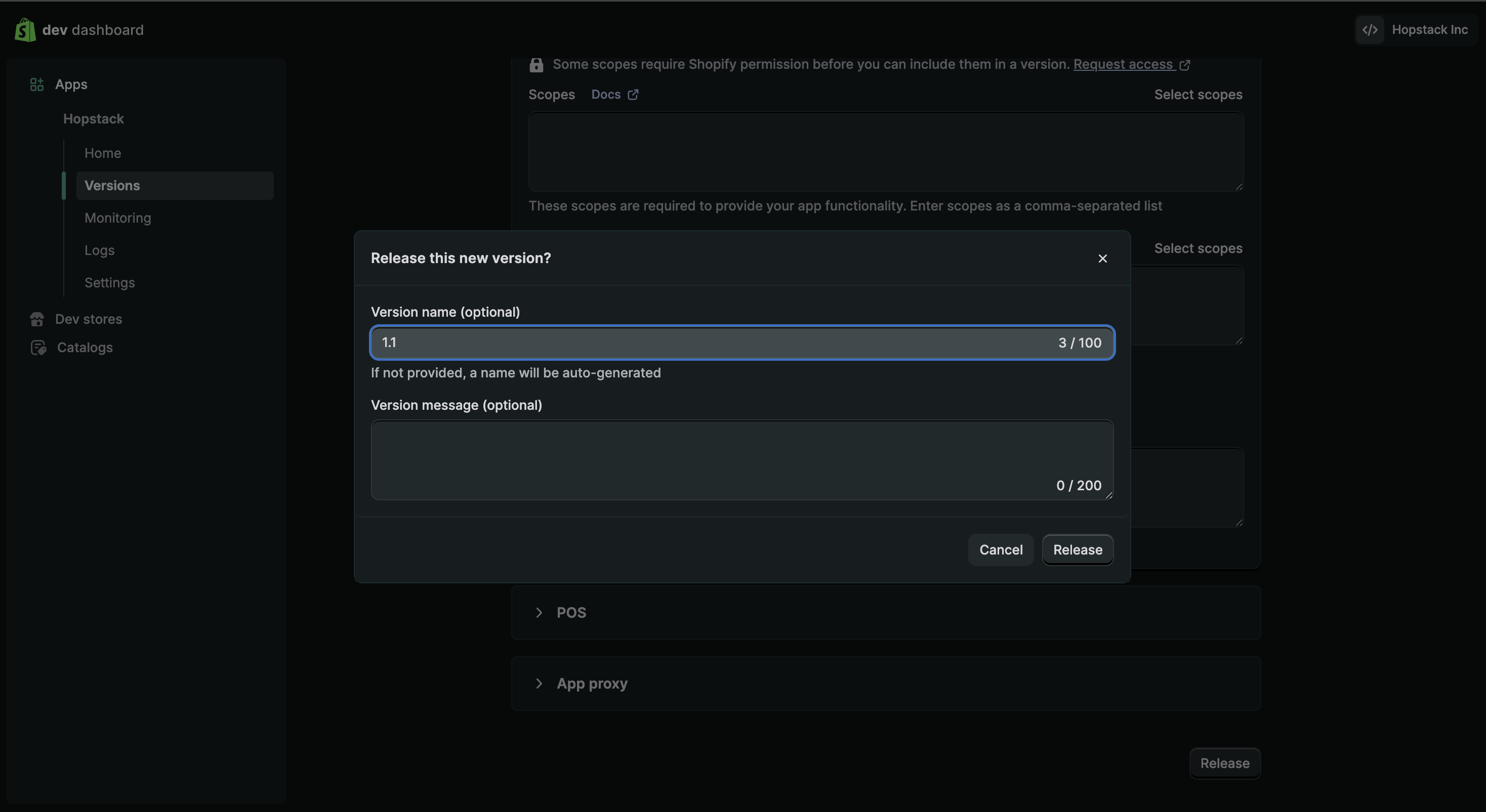
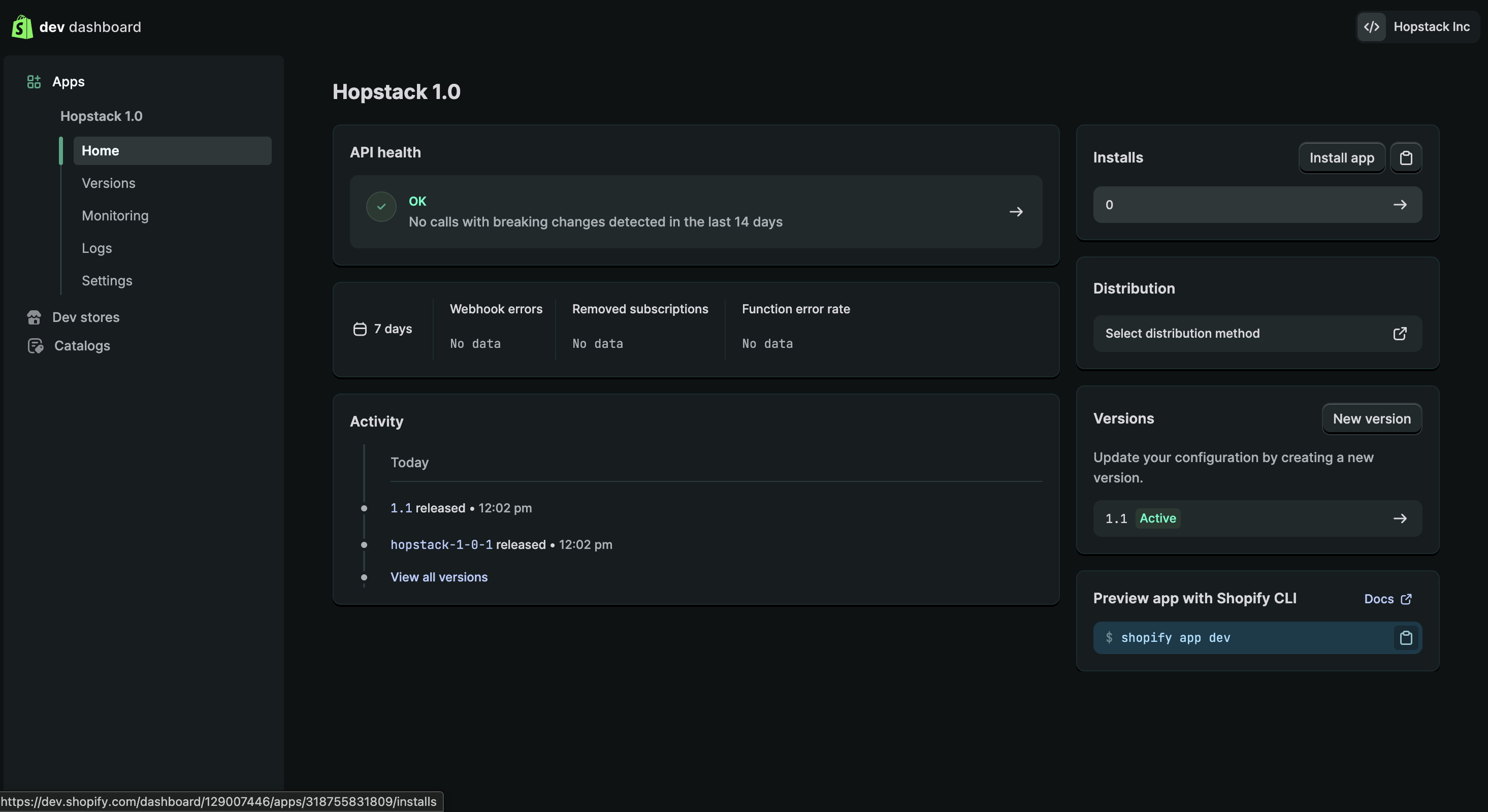
On the Shopify Dev Dashboard, please release the App by defining the Name and the version(1.0).
-
On the Shopify Dev Dashboard, click on Install
-
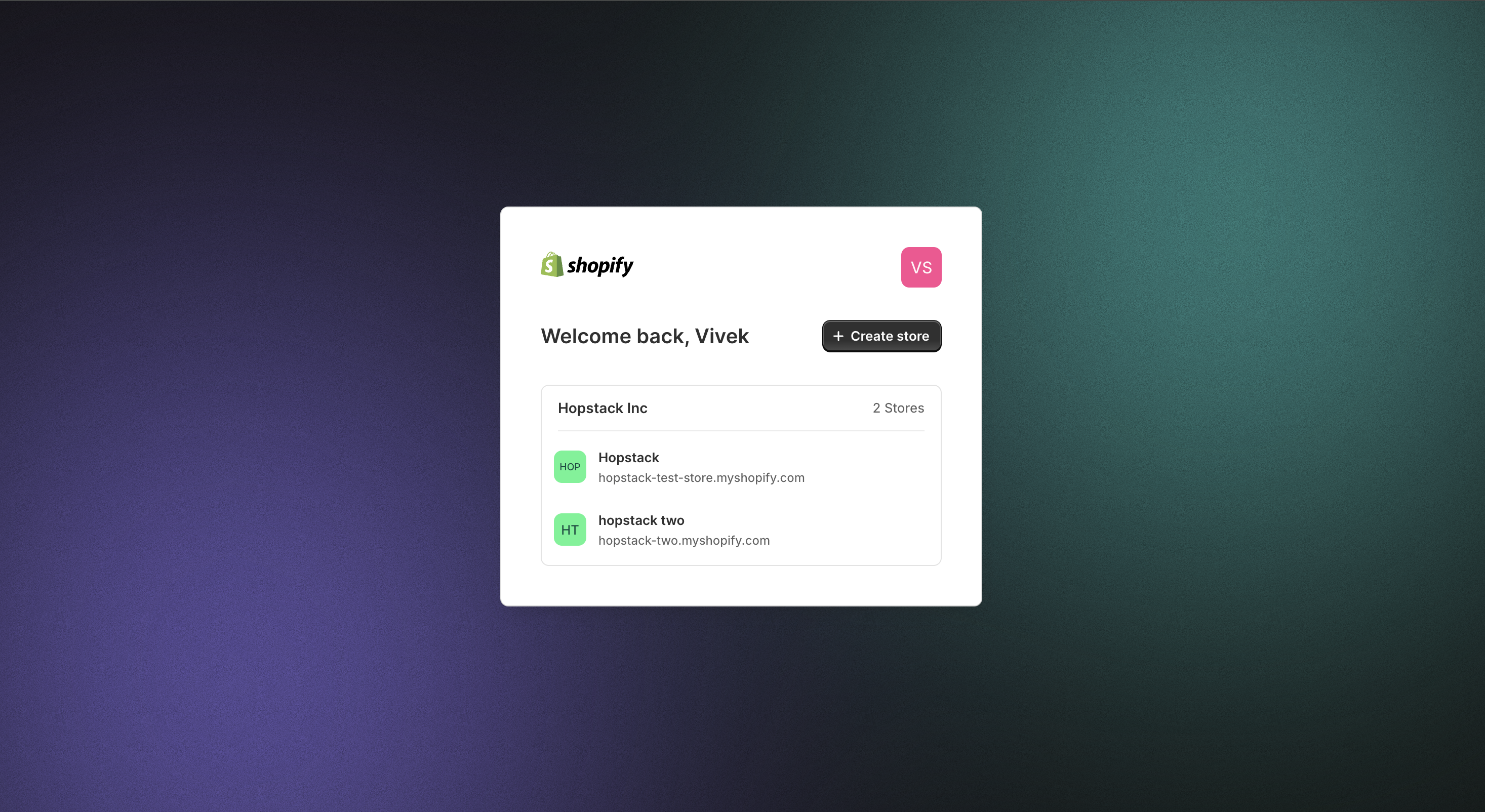
Once you click Install, you will be redirected to the Shopify merchant dashboard, where you must select the correct store.
-
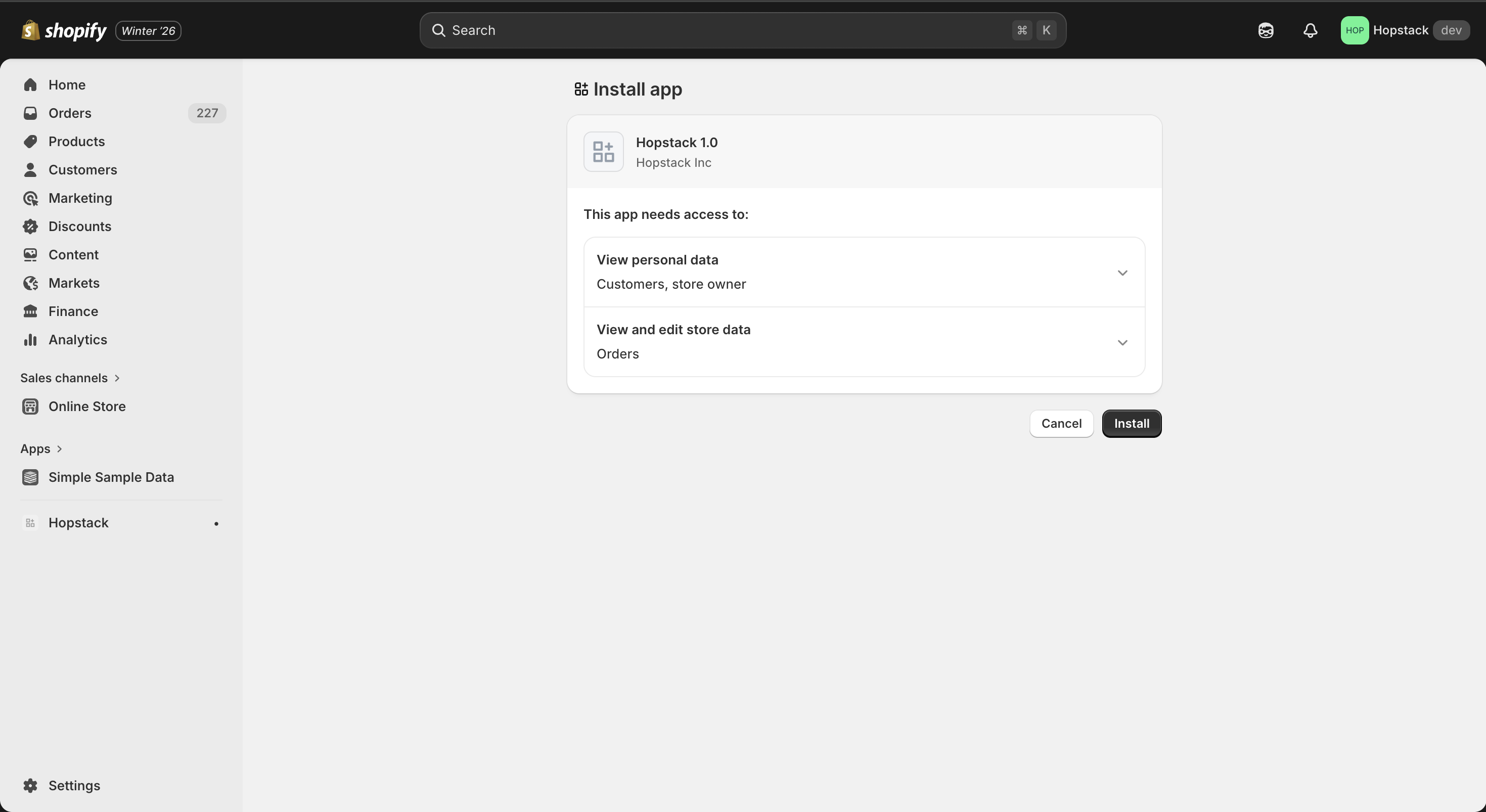
Install the App
-
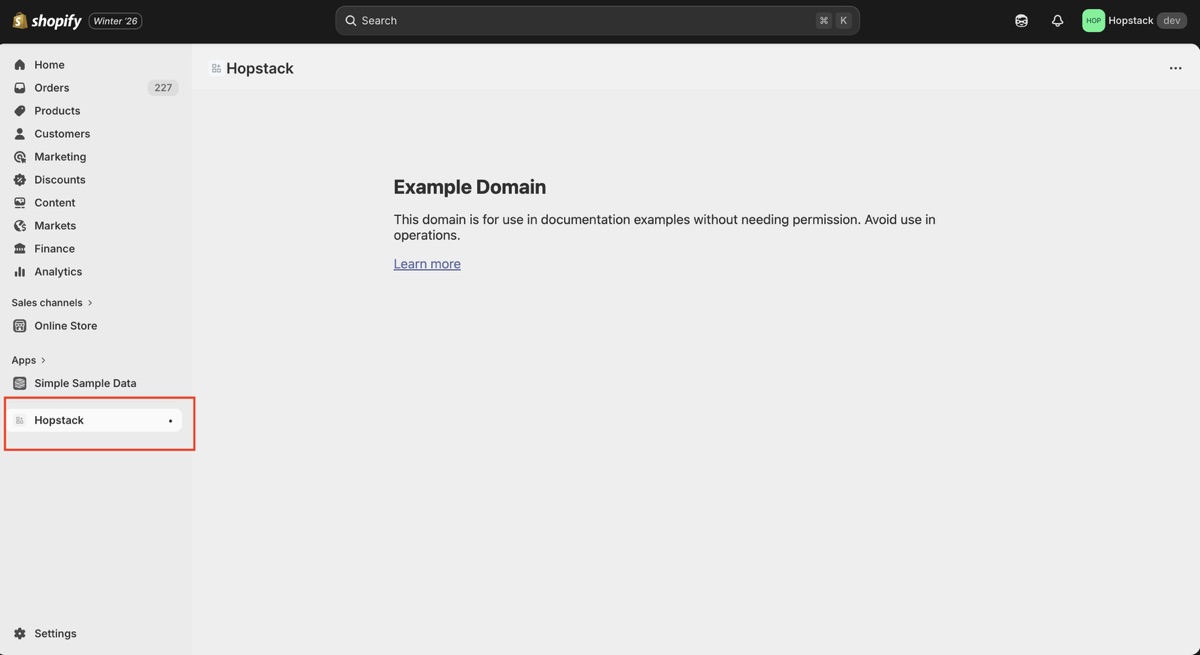
Once installed, you will see the app name in the bottom-left corner of Shopify.
6. Copy and save the API Key and API Secret Key from the Dev Dashboard settings
Once you have all the details, you can proceed with the Shopify Integration on the platform as mentioned in Step 2.
-
Please reach out to your account manager or support team for any concerns or issues during the integration process.