
In the event that you have forgotten your password, our secure reset process enables you to easily establish a new password and regain access to your account. Please follow the steps outlined below:
Step 1: Access the Reset Option
-
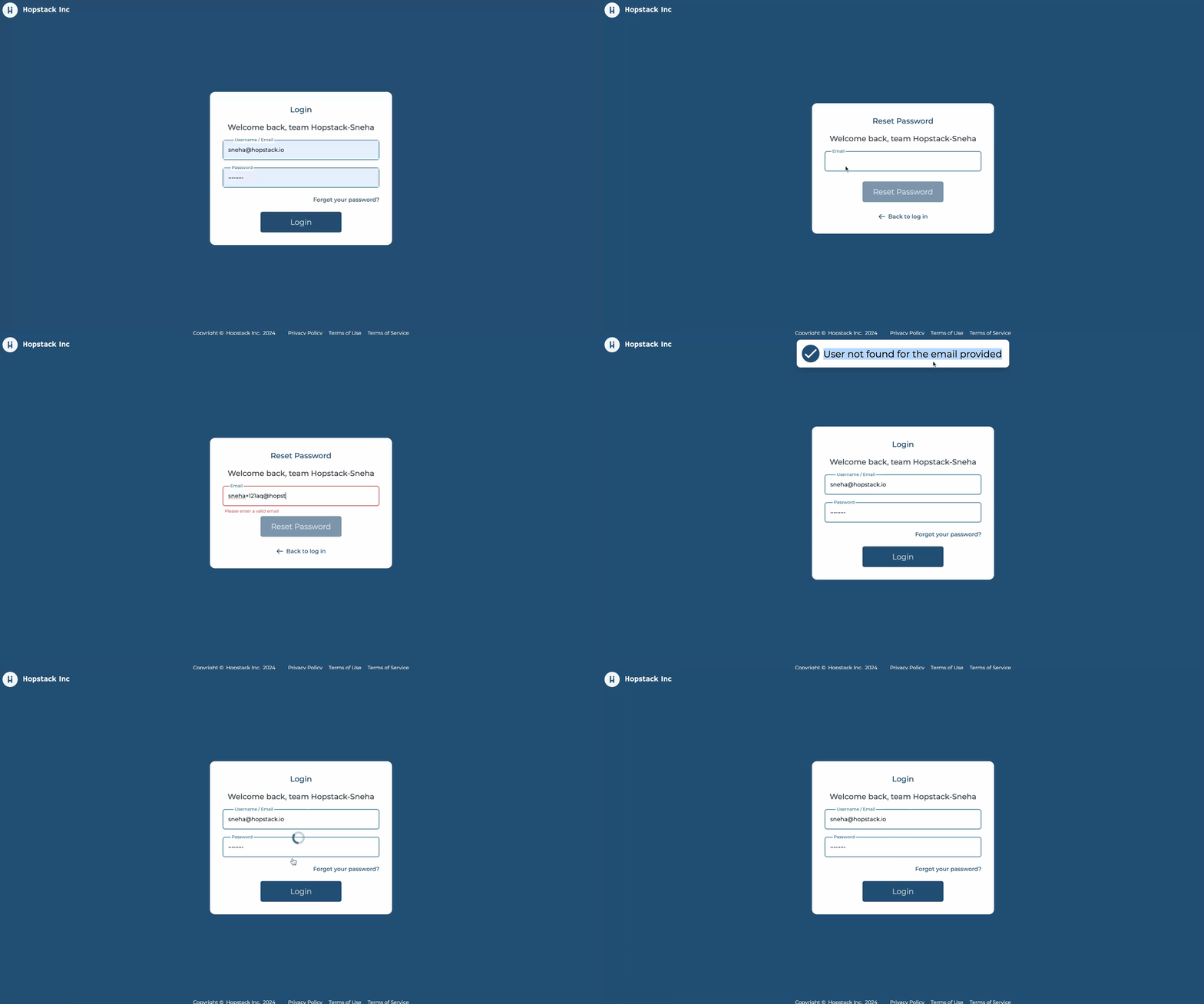
On the login screen, locate and click on the "Forgot your password?" link.
Step 2: Provide Your Email Address
-
You will be directed to a page where you're asked to enter the email address associated with your account.
-
After entering your email, click on the submit button to proceed.
Step 3: Email Verification
-
Our system will verify the provided email address. If the email is not associated with an existing account, you will see an error message: "User not found for the email provided."
-
If this occurs, please ensure you've entered the correct email address and try again.
Step 4: Reset Password Email
-
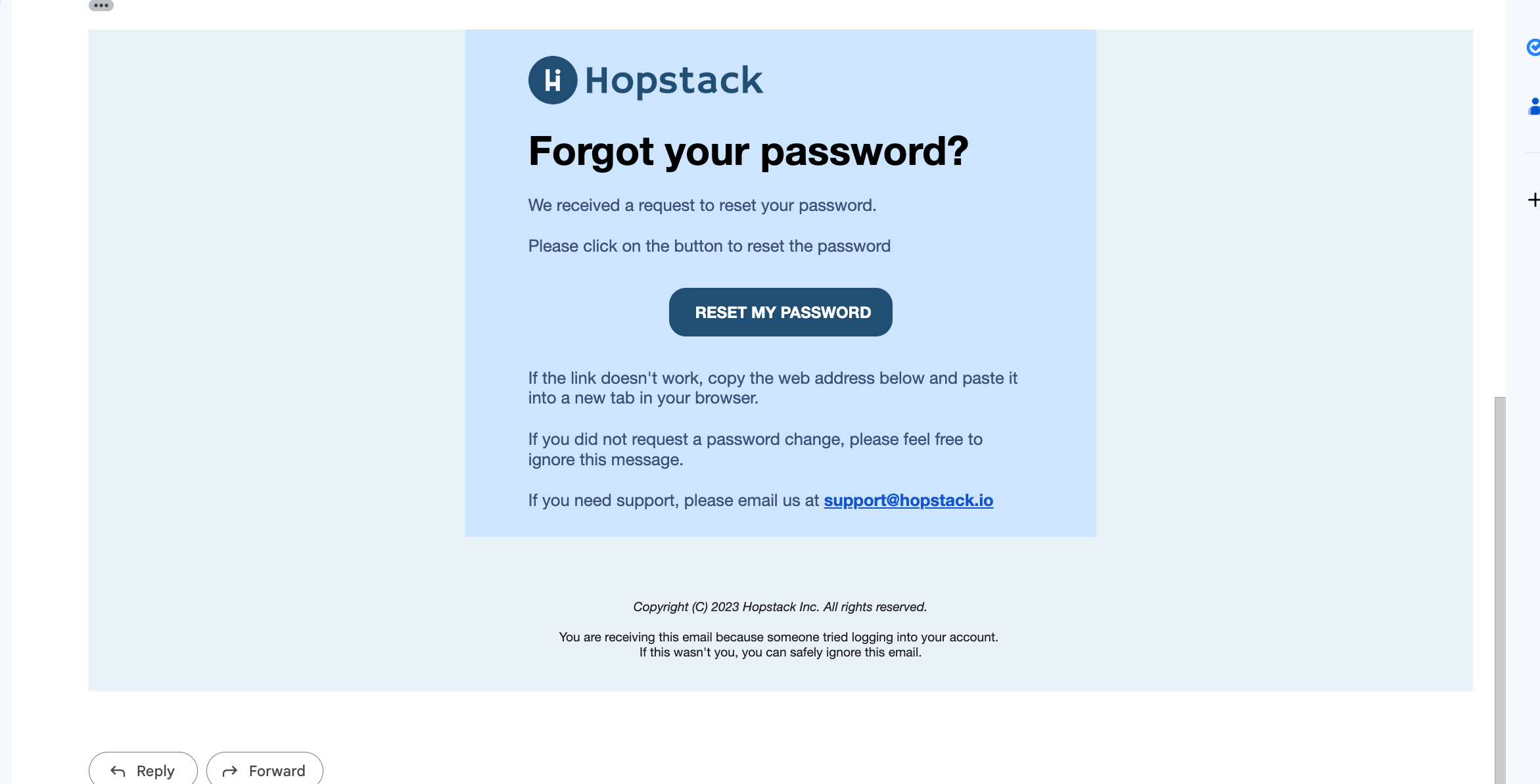
Once your email is verified, you will receive an email with a "Reset My Password" button.
-
Click on this button to be redirected to the password reset screen on our platform.
Step 5: Create Your New Password
-
You will need to enter a new password and then re-enter it under Confirm Password to ensure accuracy.
-
Password Requirements:
-
Must be a minimum of 8 characters in length.
-
Cannot be a sequence of the same letter or number.
-
Both password fields must match exactly.
-
Step 6: Submit Your New Password
-
After entering your new password and confirming it, click on the "Submit" button to finalize your password reset.
Step 7: Return to Login
-
Once your password has been successfully reset, you will be redirected back to the login screen.
-
Now you can log in using your new password.
Additional Tips:
-
Make sure your new password is strong and secure to protect your account.
-
If you encounter any issues during this process, please contact our support team for assistance.