
Creating sub-totes is an essential part of organizing your inventory and streamlining your order picking process. Follow the steps below to create and manage sub-totes efficiently.
Steps to Create Sub-Totes
1. Access Tote Management
-
Go to the Setup section.
-
Navigate to Tote Management.
-
Click on Add Tote to create a main tote if you haven't done so already.
2. Add Sub-Totes
-
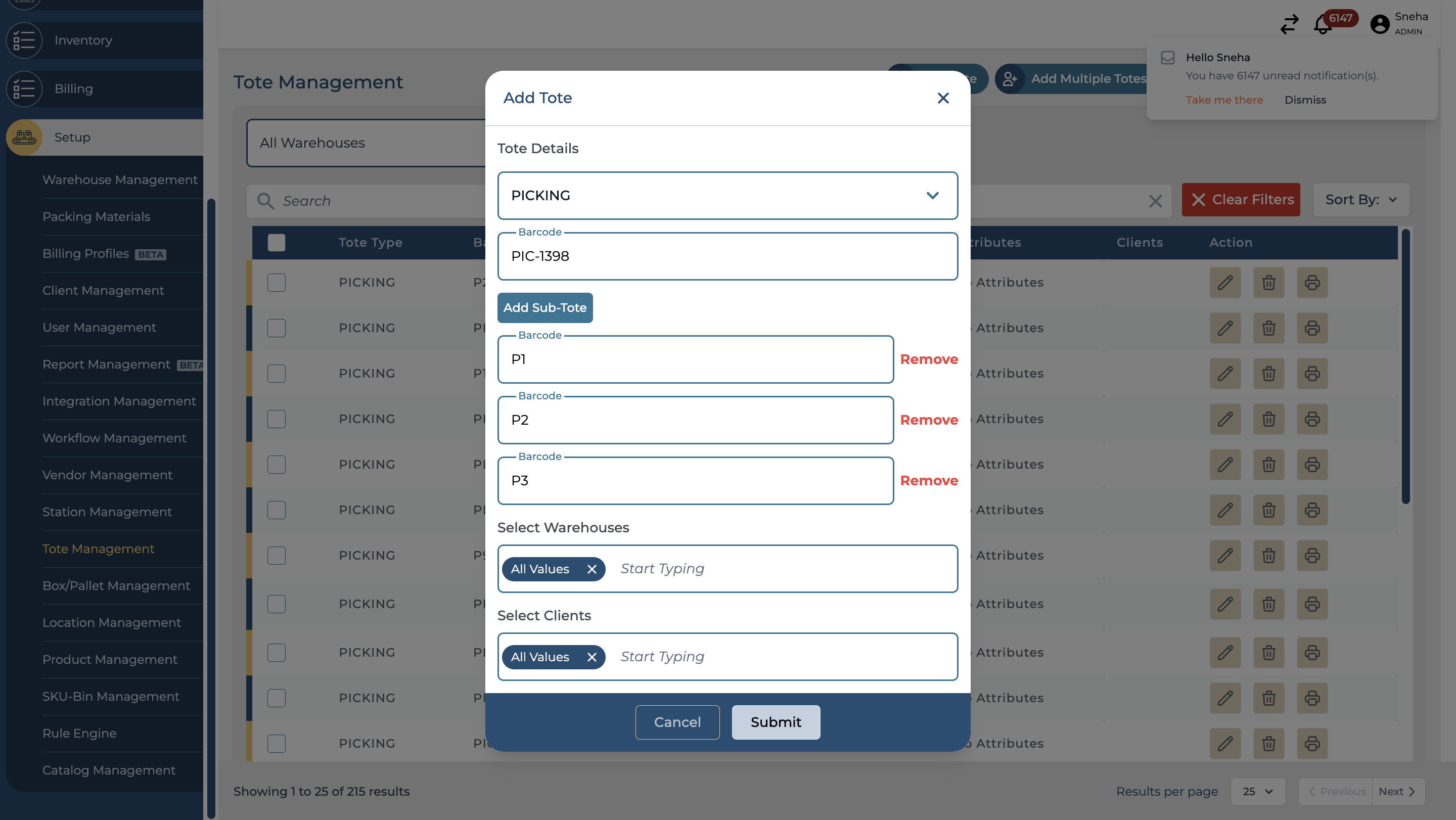
Click on Sub-Totes to start adding sub-totes to the main tote.
-
Important: The main tote is identified by the first barcode.
3. Manage Sub-Totes
-
Add Sub-Totes: You can add as many sub-totes as needed. Each sub-tote will be listed under the main tote.
-
Proper Assignment: Ensure that each sub-tote is added correctly, as they are crucial for efficient order picking.
-
Remove Sub-Totes: If you need to remove a sub-tote, click on the Remove button next to the sub-tote you wish to delete.
Additional Information
For more details on creating and managing totes, refer to the comprehensive guide available here.