
-
Open the setup.
-
Look for the section named
Bundles. -
Click the button labeled
Add New Product / Bundle / Kit. -
Find and select
Bundle / Kit. -
Click on
Create Single Bundle.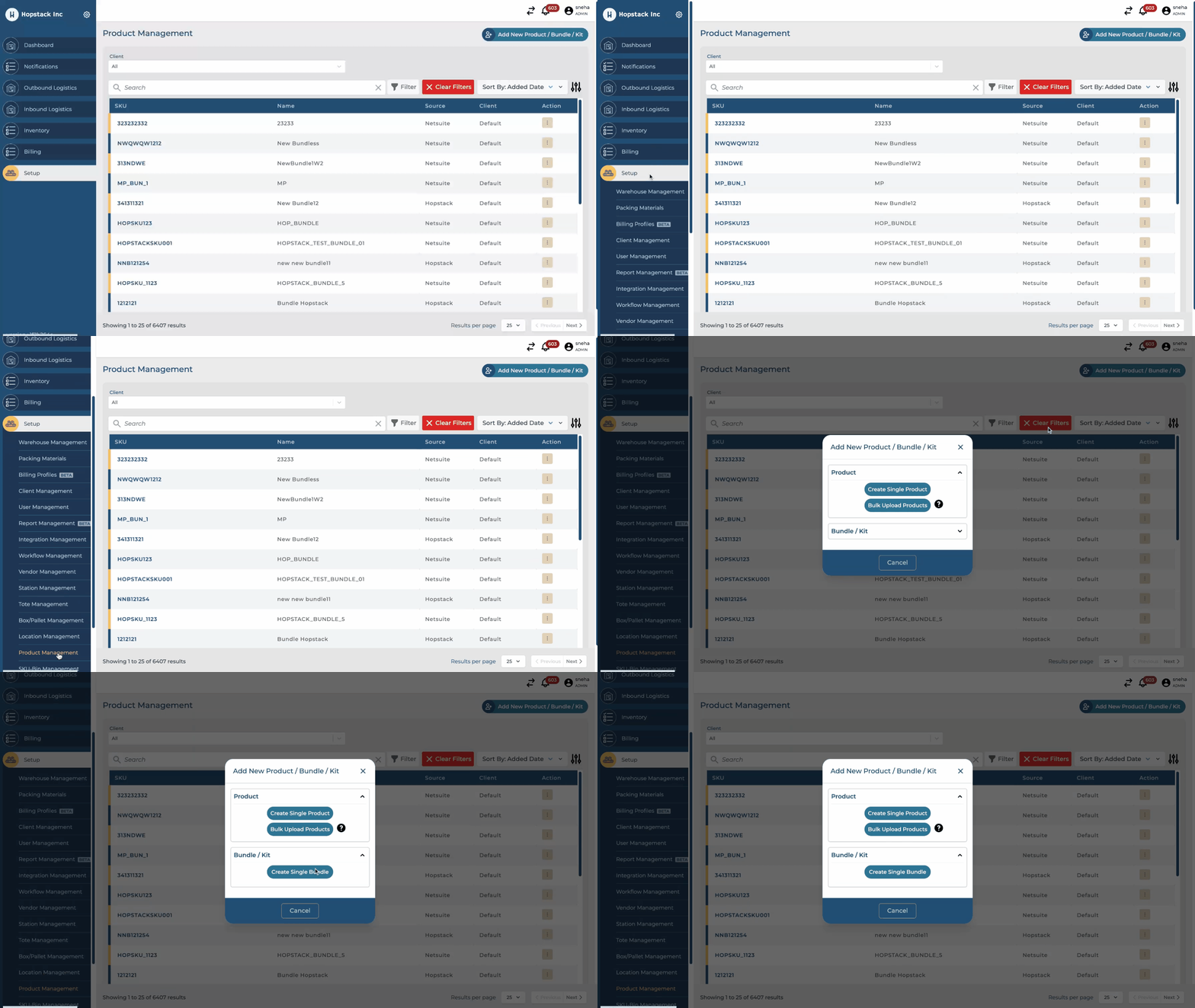
Basic Details
-
Source: Input the source of the bundle. For example, it could be "NetSuite".
Bundle Details
-
Name: Enter the name of the bundle.
-
SKU: Input the Stock Keeping Unit identifier.
-
Bundle Description: Provide a brief description of the bundle.
-
Bundle Category: Select a category from the dropdown or add a new one.
-
Bundle Type: Specify the type of bundle.
Select Products
-
Add the product.
-
Provide the following details:
-
SKU
-
Form Factor
-
Quantity
-
Codes
-
UPC(s): Enter Universal Product Codes, separating multiple values with commas.
-
EAN(s): Enter European Article Numbers, separating multiple values with commas.
-
LPN(s): Input any relevant License Plate Numbers.
Attributes
-
Perishable: Choose the appropriate setting.
-
Lot ID/Batch ID required: Use the given setting.
-
Expiry Date required: Specify if the product has an expiry date.
-
Weight: Enter the weight.
-
Unit: Select the weight unit (e.g., Kg, lb).
-
Dimensions: Input the length, width, and height of the product.
-
Unit: Choose the unit for the dimensions (e.g., cm, inch).
-
Size: Select the size from the options.
-
Shape: Select the shape from the options.
-
Color: Choose a color for the product.
-
Text Attribute: Add any additional text attributes.
-
Number Attribute: Add any numerical attributes.
Unit of Measurement
-
Base Unit of Measure: Set to "1".
-
Quantity: Specify the quantity.
-
Base UOM: Input the base unit of measurement.
-
Target UOM: Define the target unit of measurement.
Images
-
Upload Image: Upload images from your device.
-
Alternatively, Add URL: Provide the direct link to the image if it's hosted online.
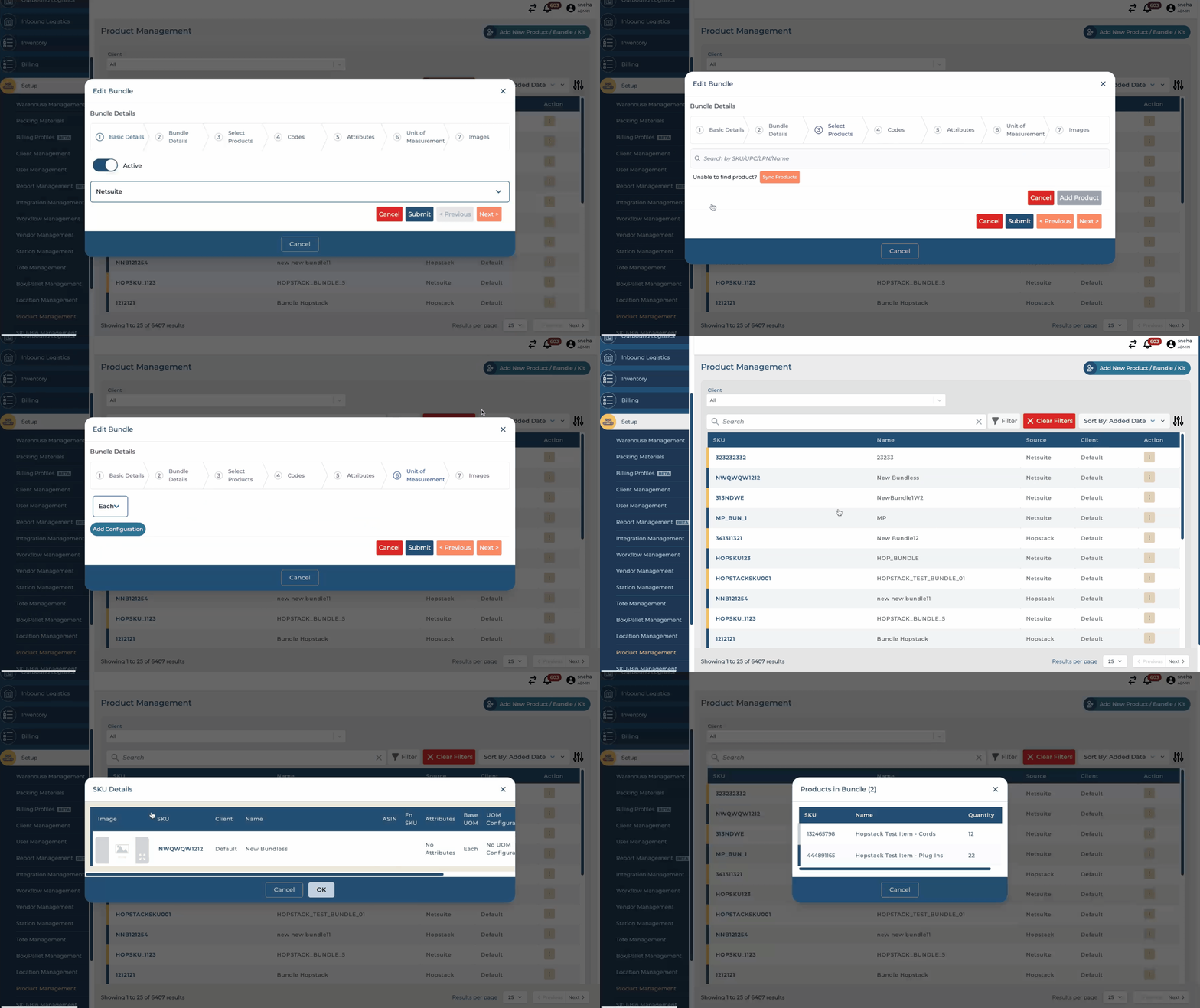
Please Note: You can’t edit a bundle that is already in the process of picking, bundling or putaway.