
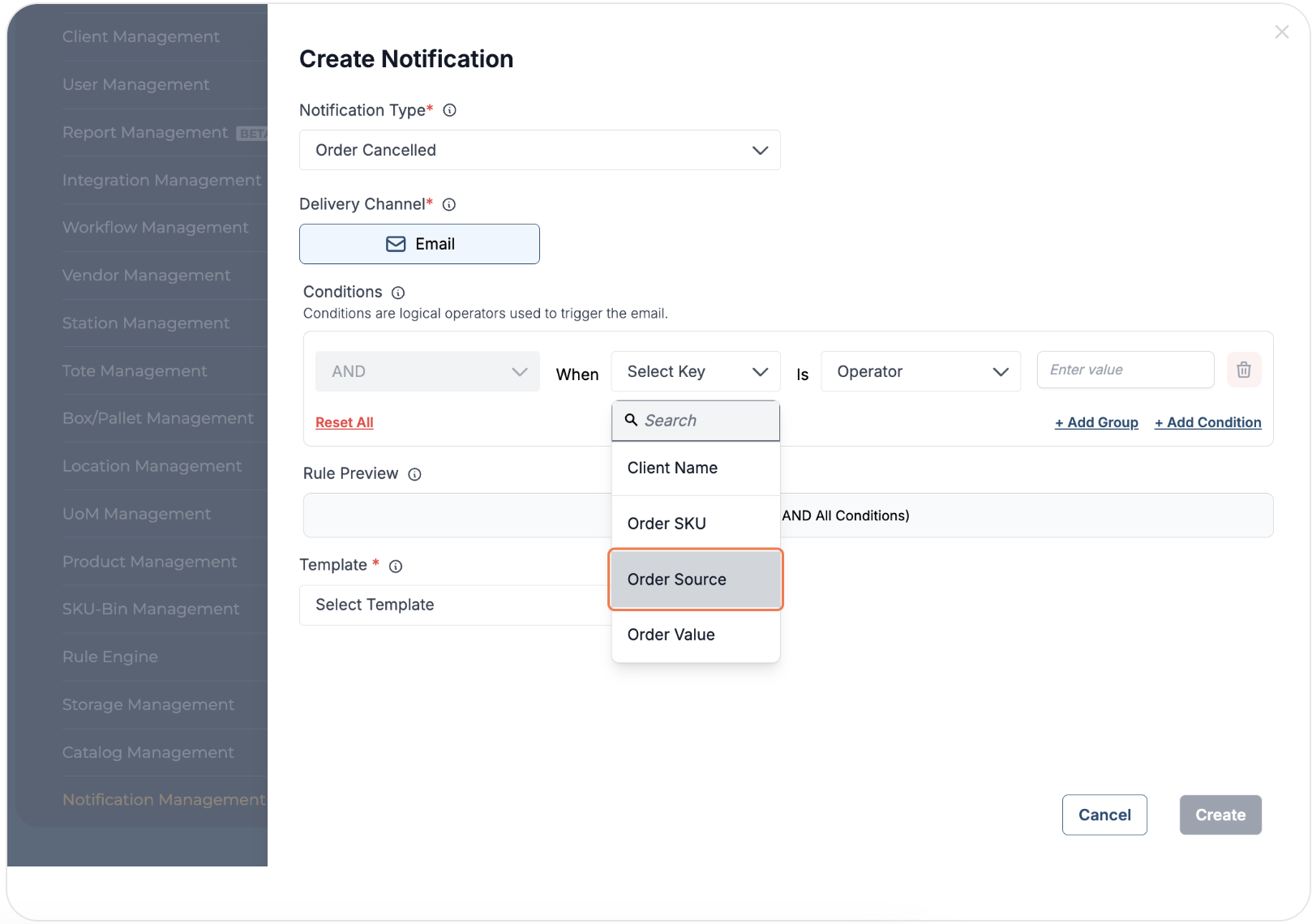
The new Consumer Notifications module enables businesses to send real-time email updates to customers, ensuring they stay informed about their orders. Admins can configure notification rules using multi-layered conditions based on parameters like Client Name, Order Source, SKU, and Order Value, ensuring that customers receive only the most relevant updates at the right time.
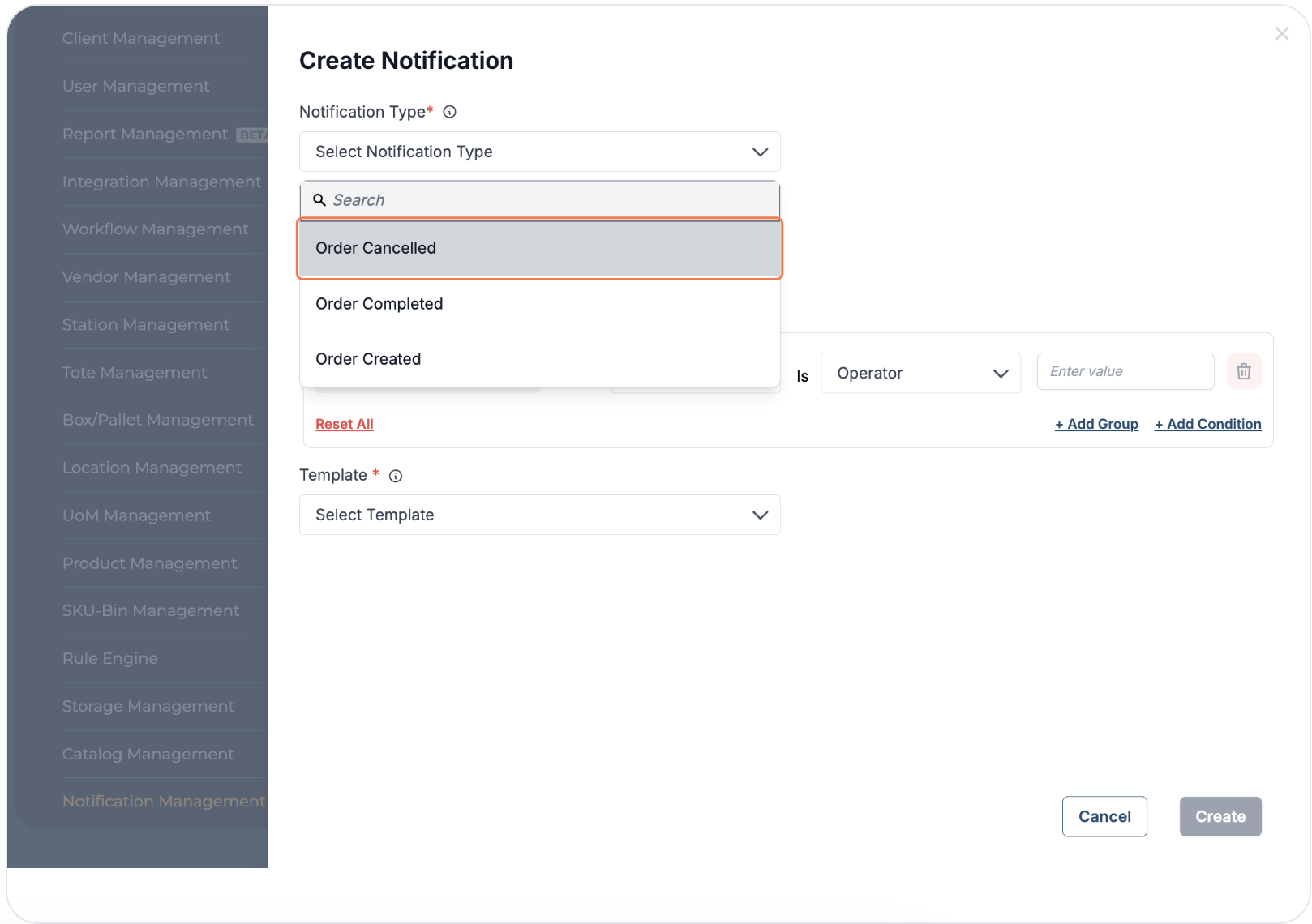
Events that trigger the Consumer Notification e-mails are:
-
Order Creation
-
Order Cancellation
-
Order Completion
User workflow:
-
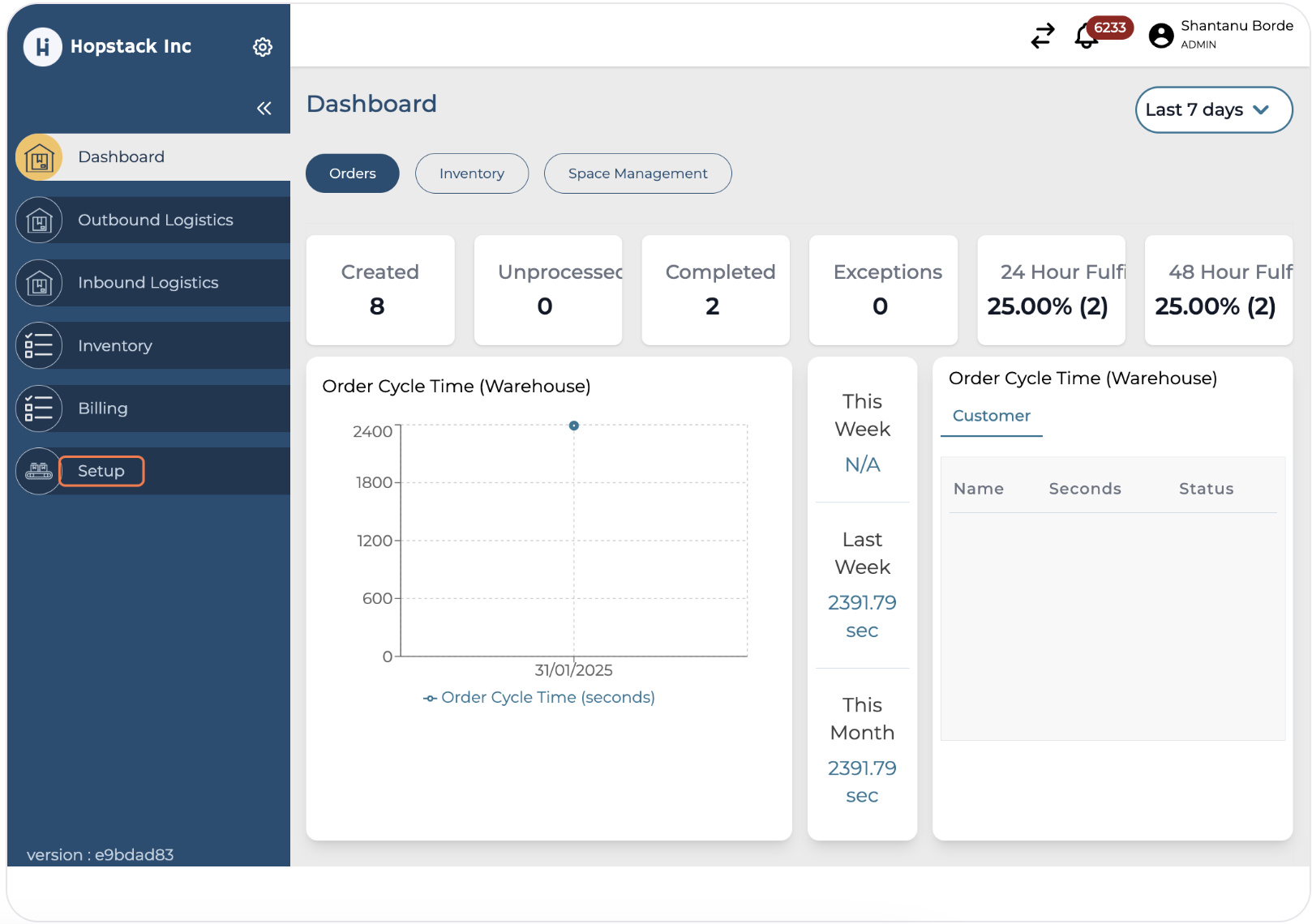
Click on "Setup"
-
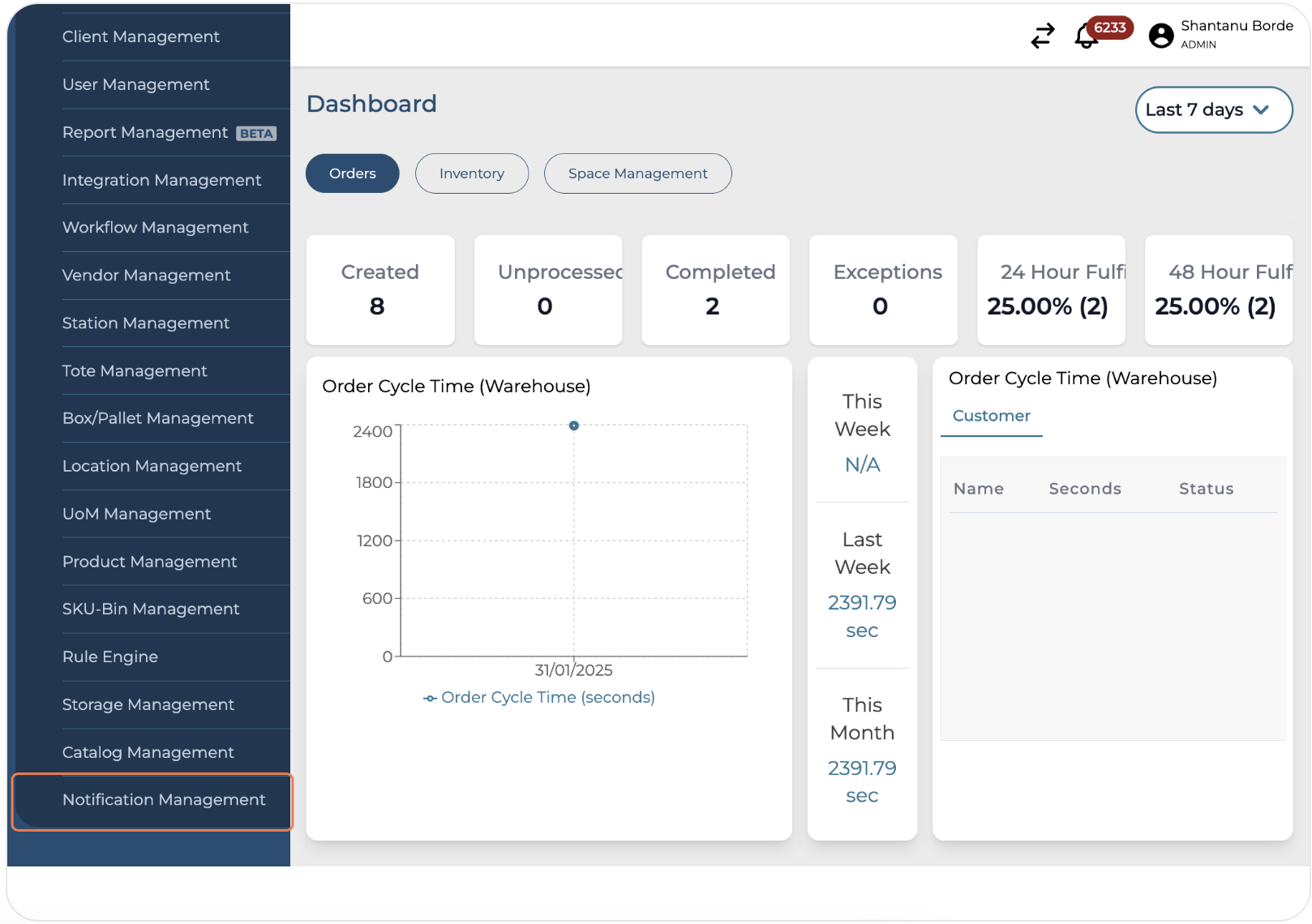
Click on "Notification Management"
-
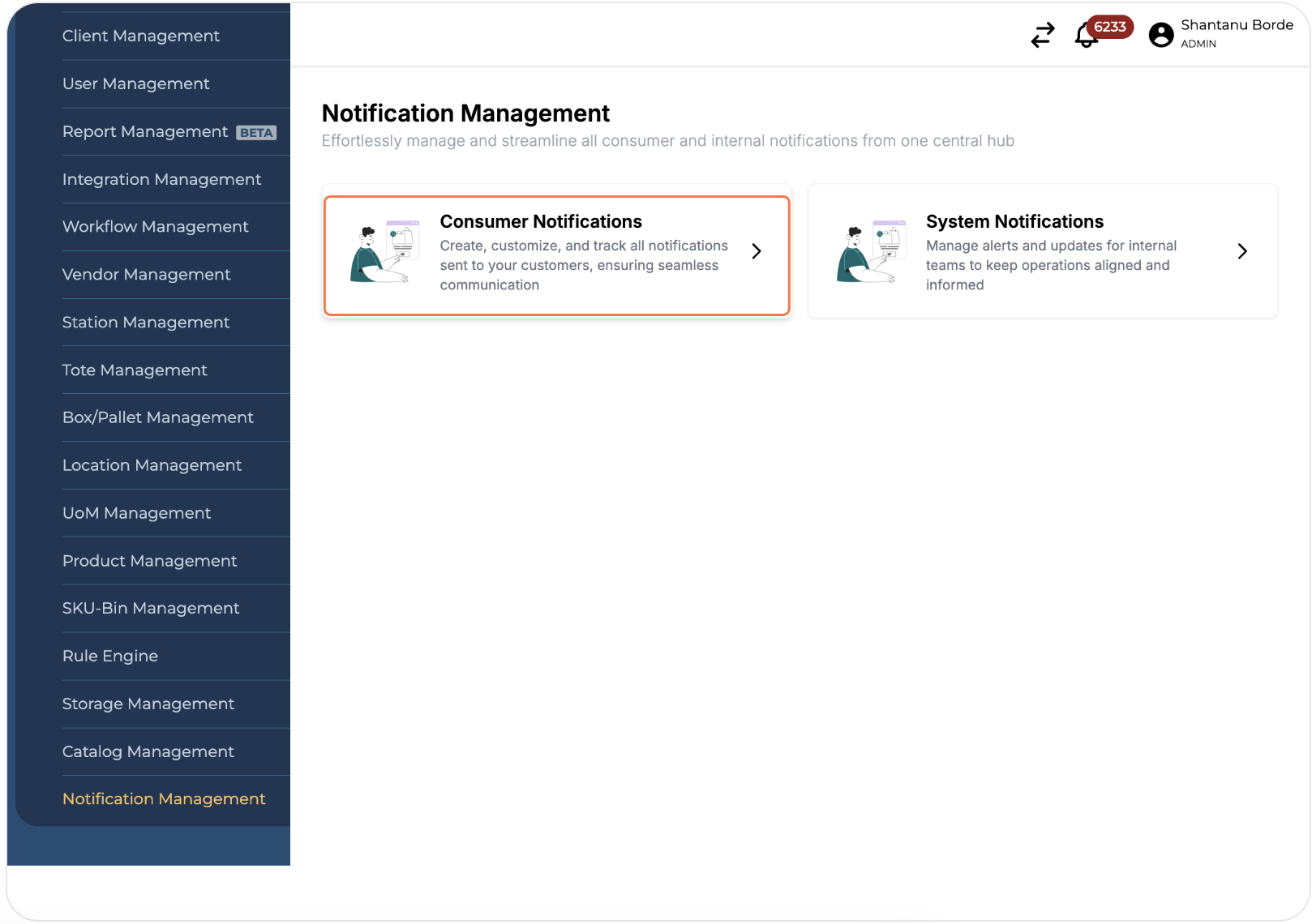
Click on "Consumer Notifications"
-
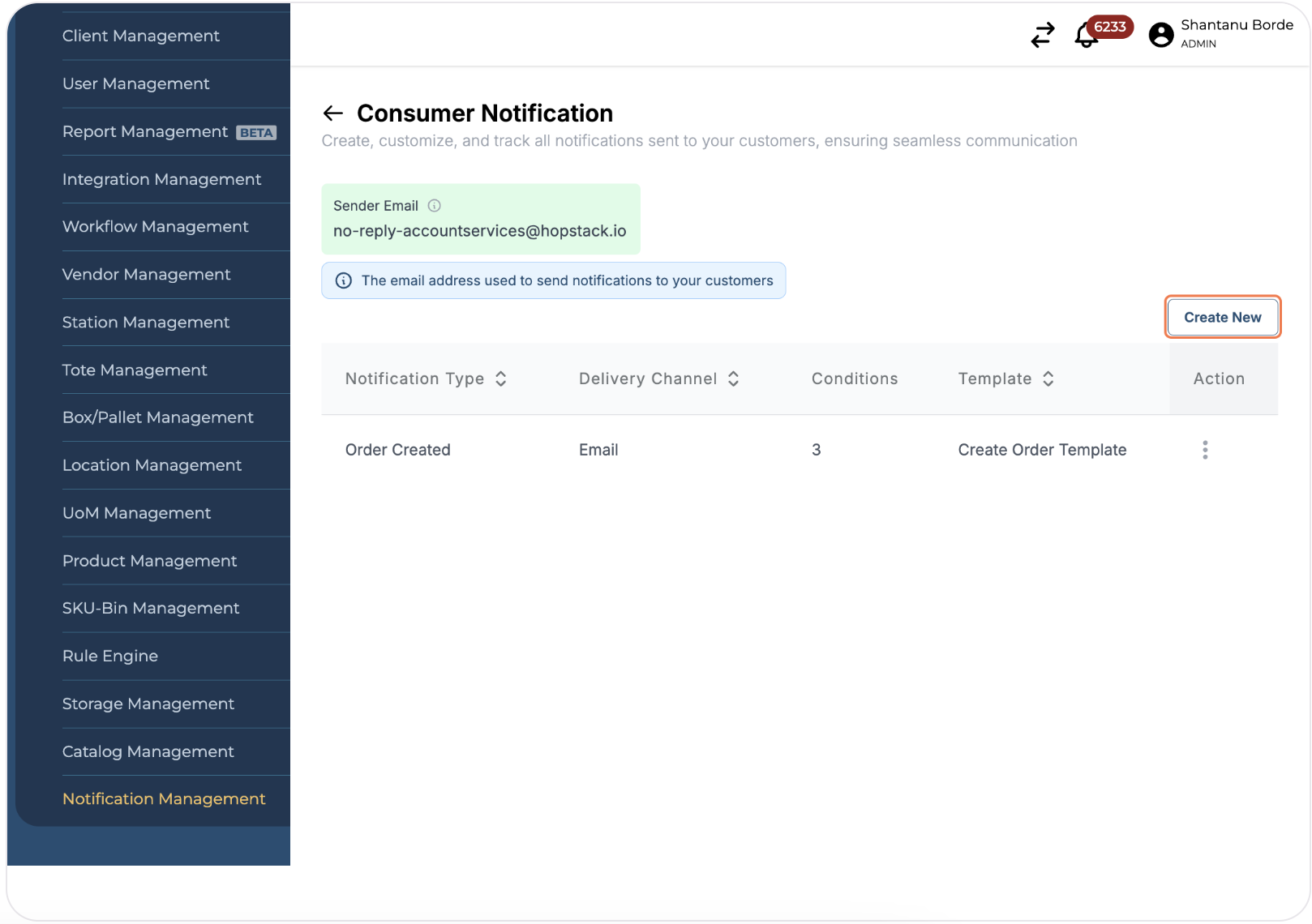
Click on "Create New" to create a new Notification Rule
-
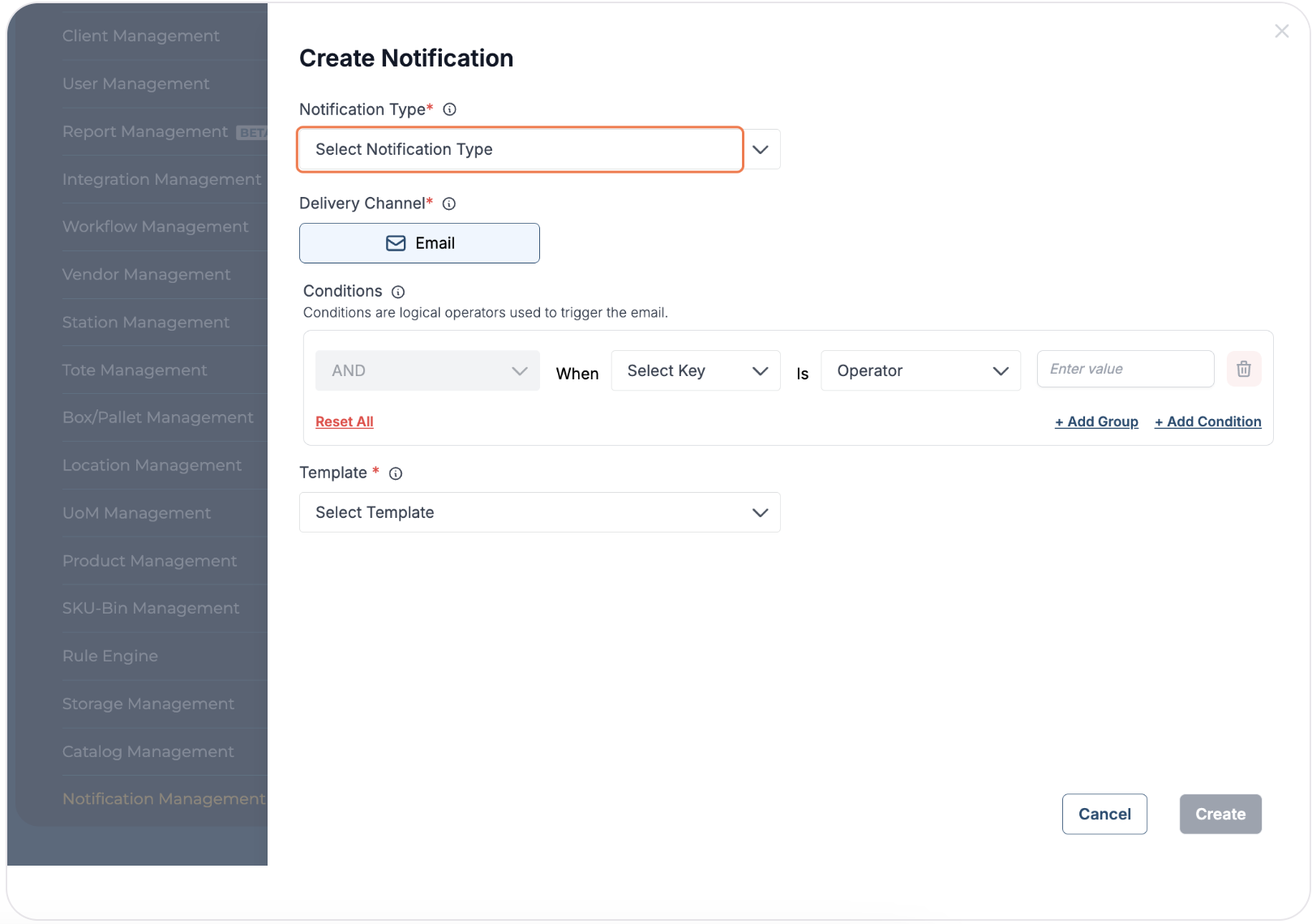
Click on "Select Notification Type" Dropdown
-
Select the relevant Notification Type
-
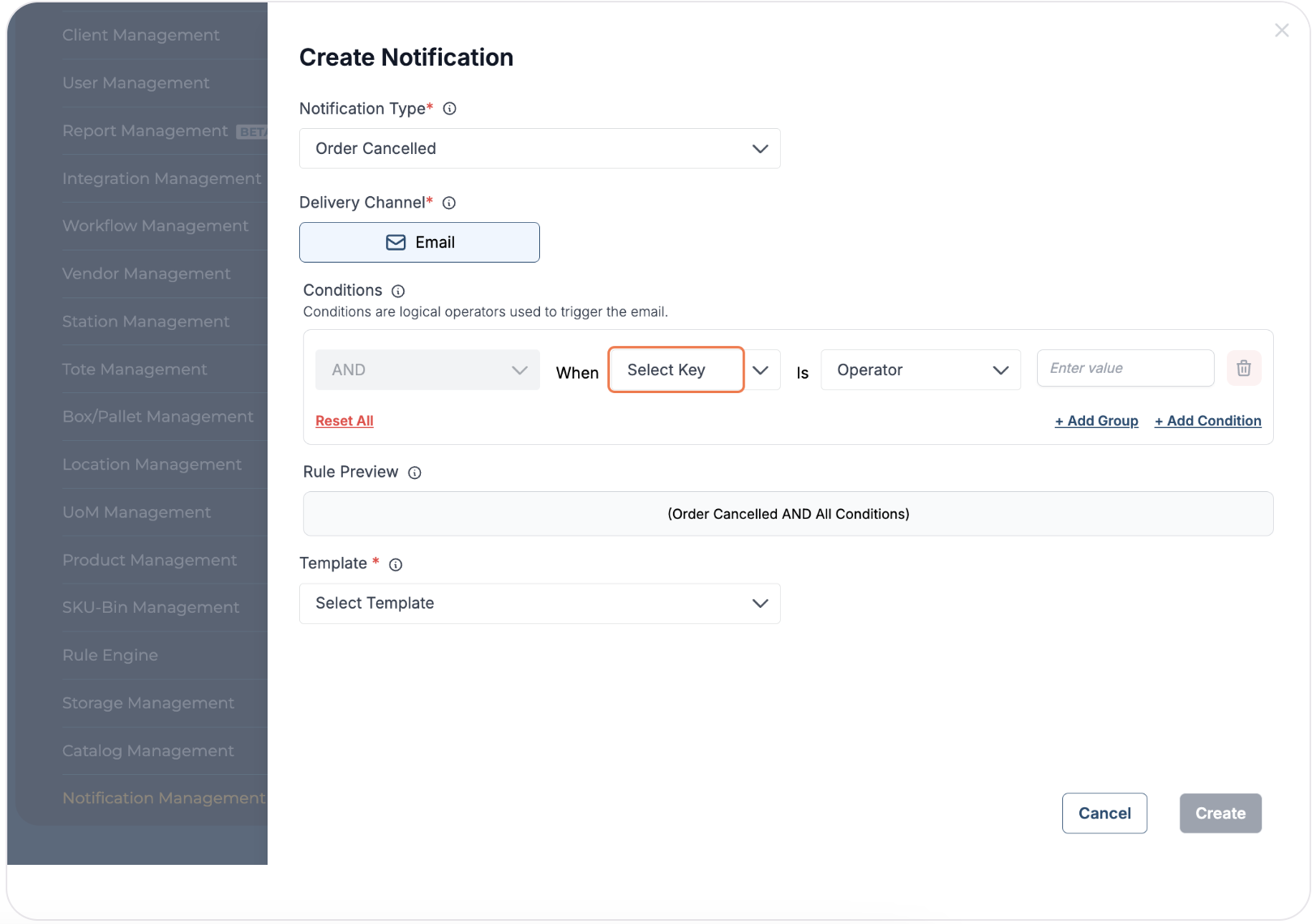
Click on "Select Key" dropdown
-
Select the relevant option from the dropdown
-
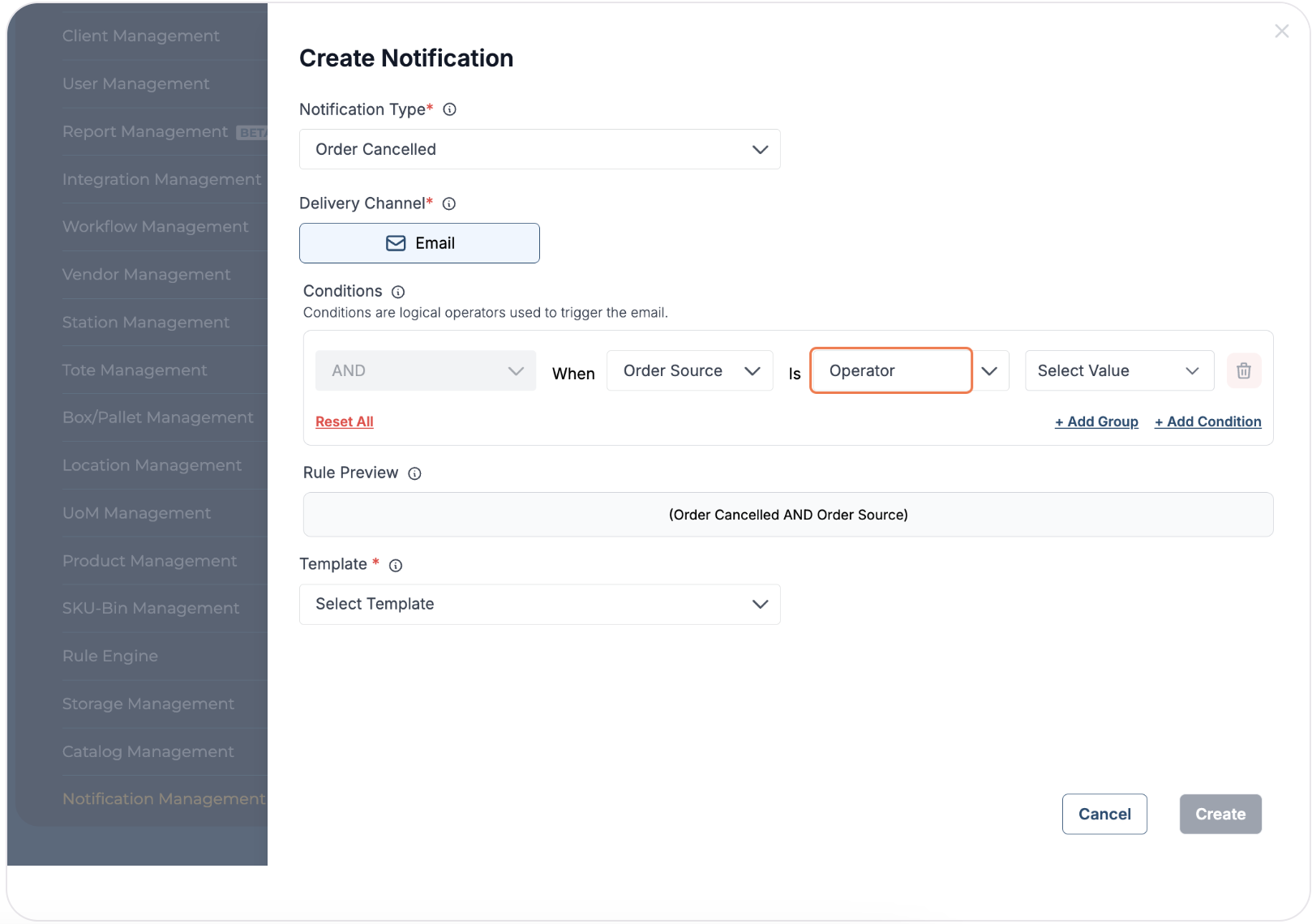
Click on "Operator" dropdown
-
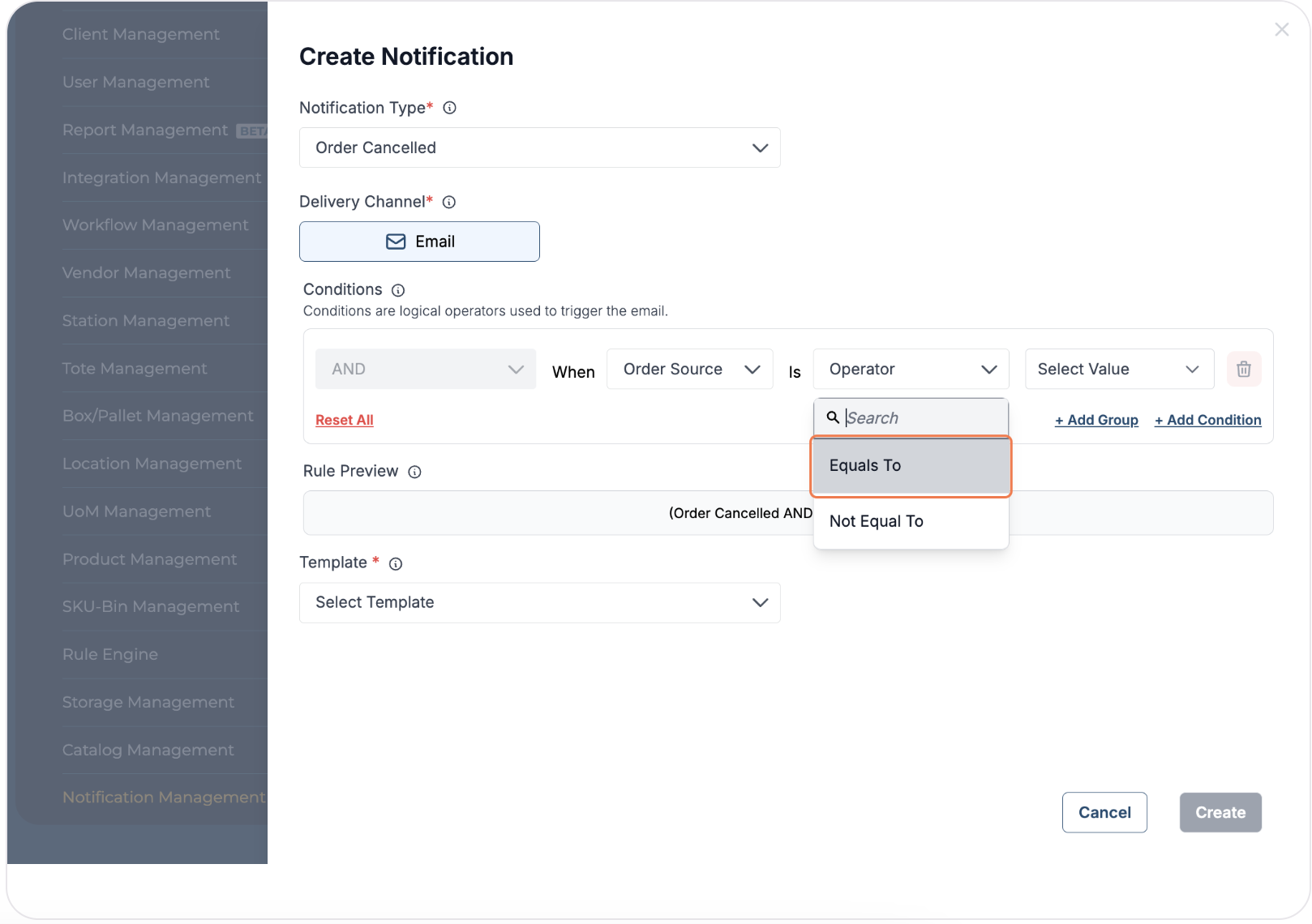
Select the relevant option from the dropdown
-
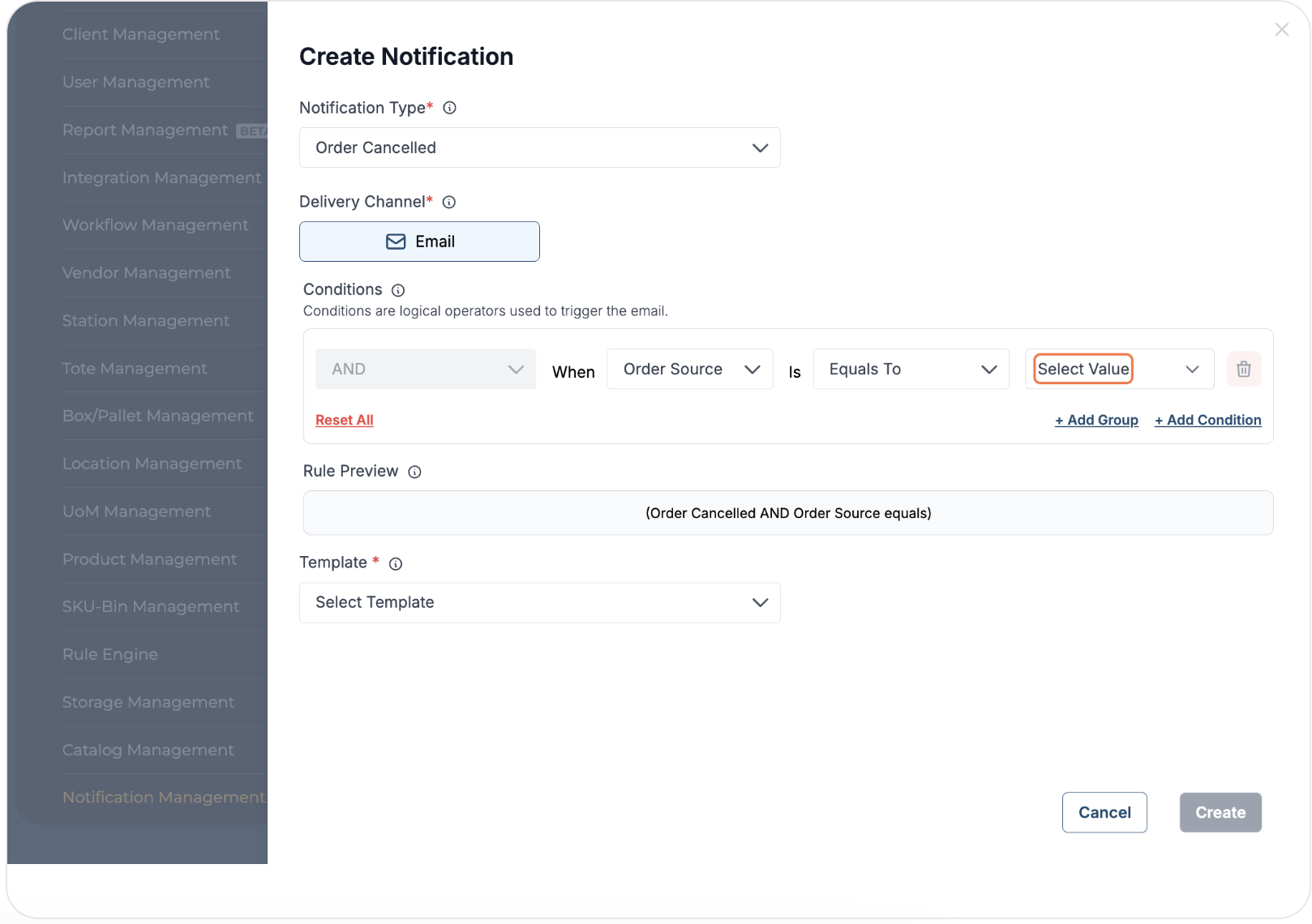
Click on "Select Value" dropdown
-
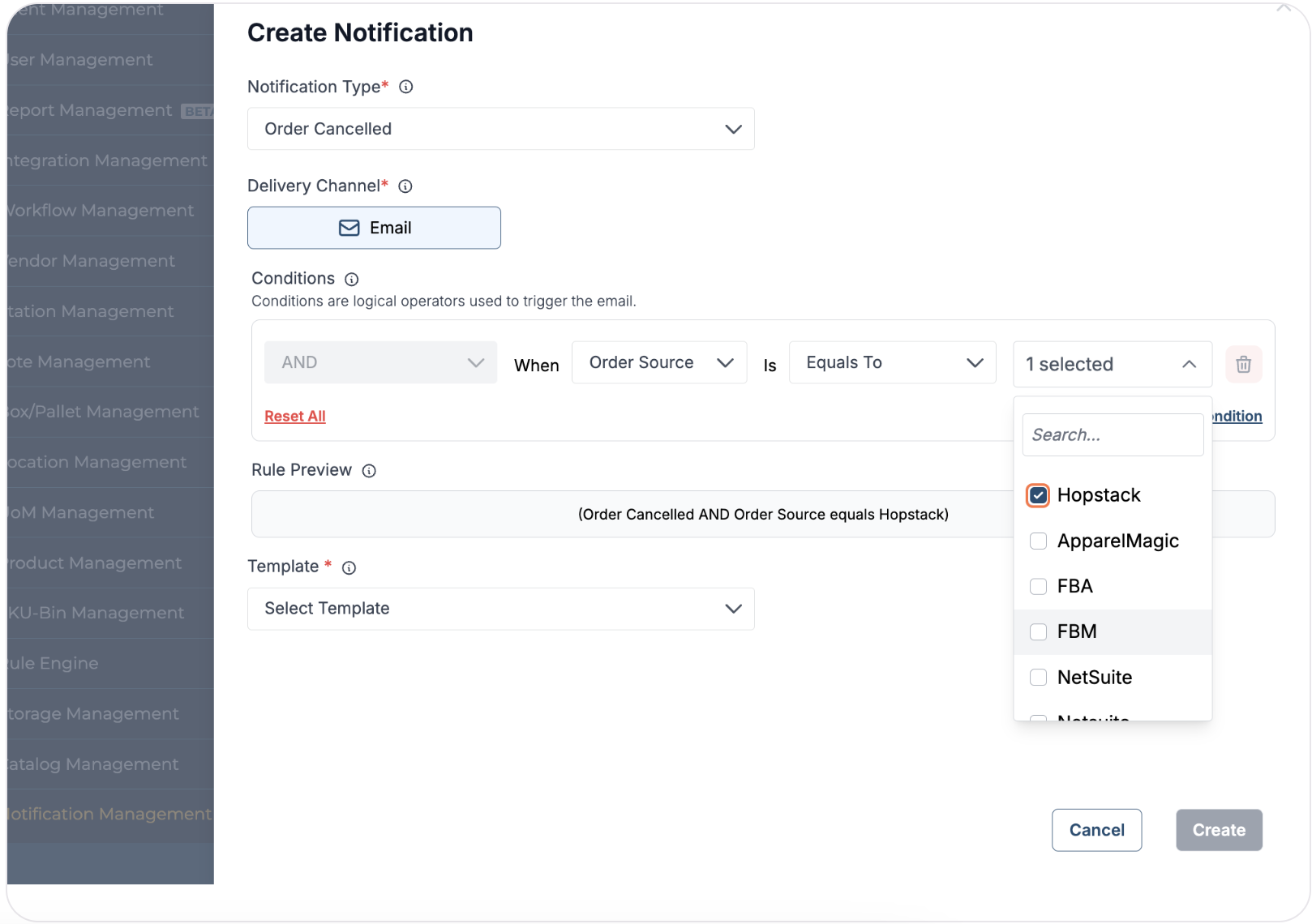
Select the relevant option(s) from the multi-select dropdown
-
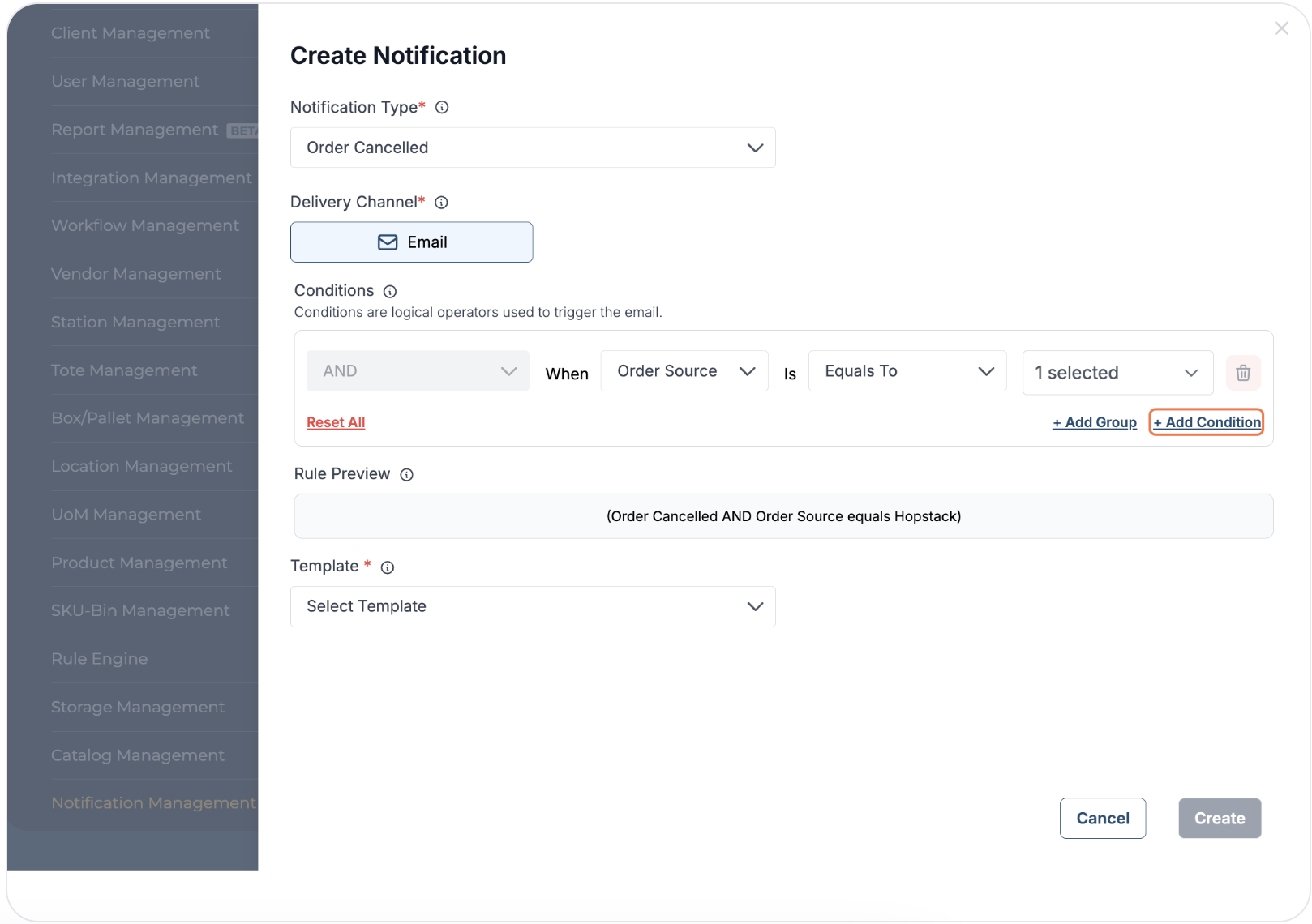
Add as many conditions as required by clicking on "+ Add Condition"
-
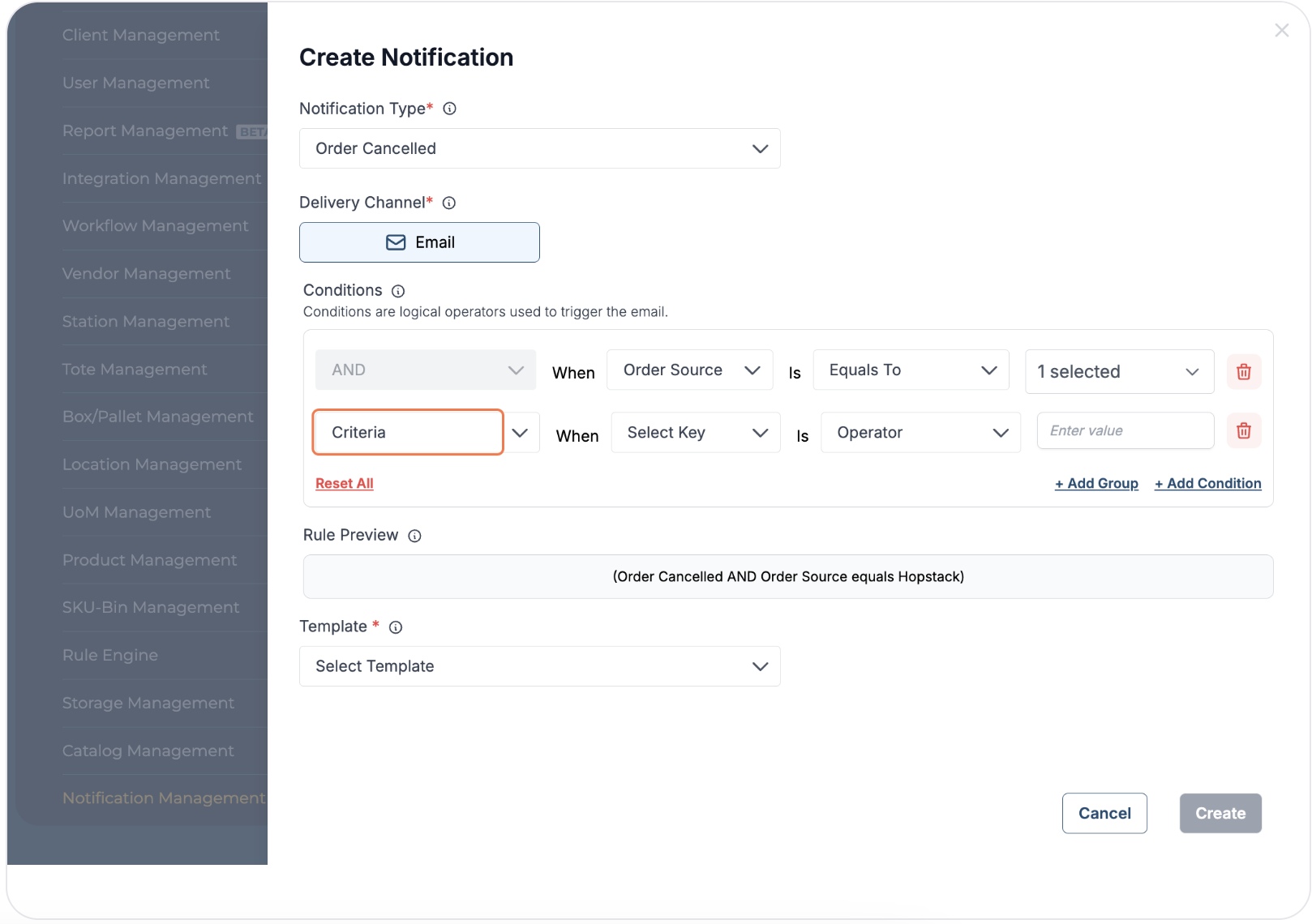
Click on "Criteria" dropdown of the new condition
-
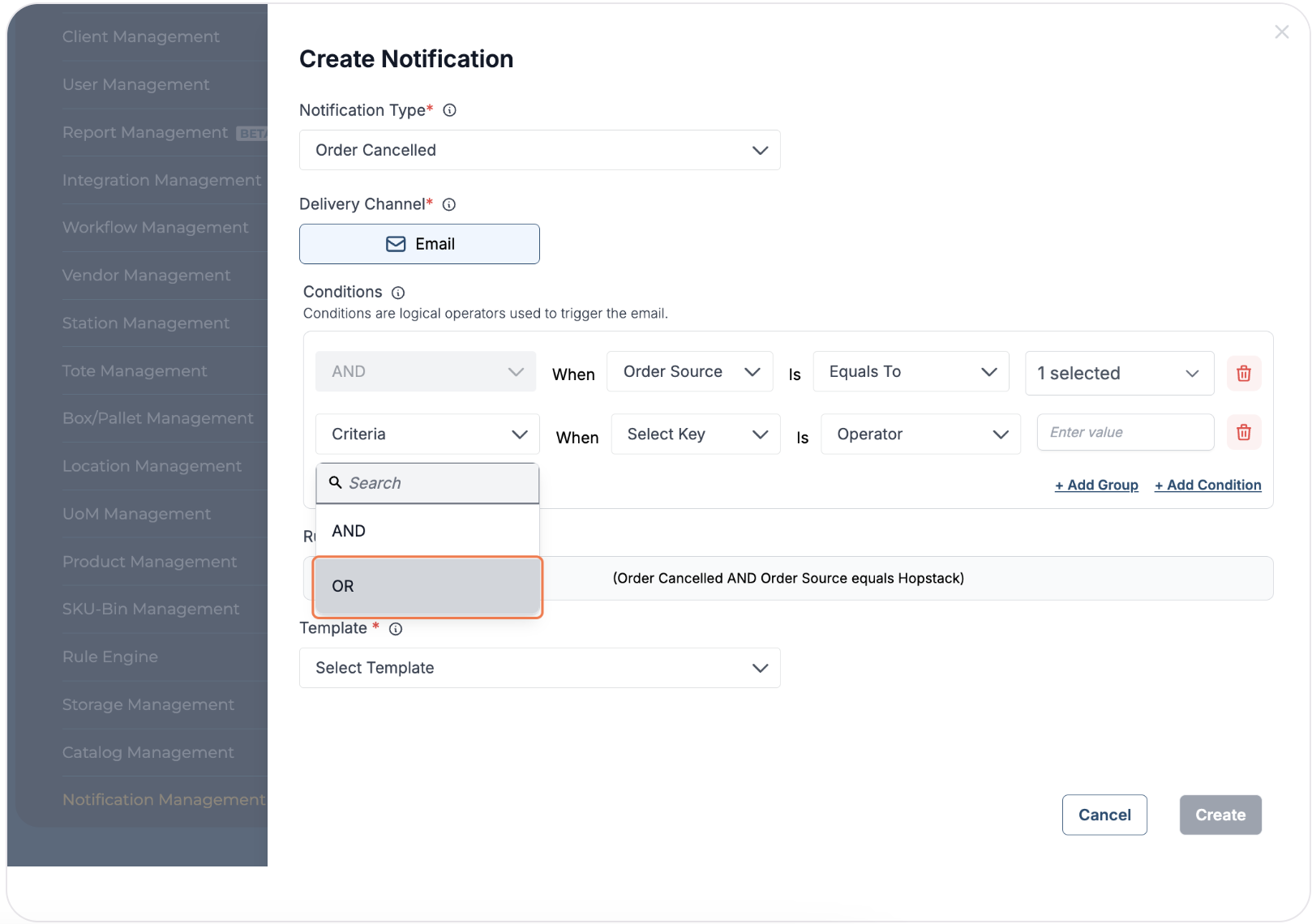
Select the relevant option from the dropdown and proceed to define the new condition as required
-
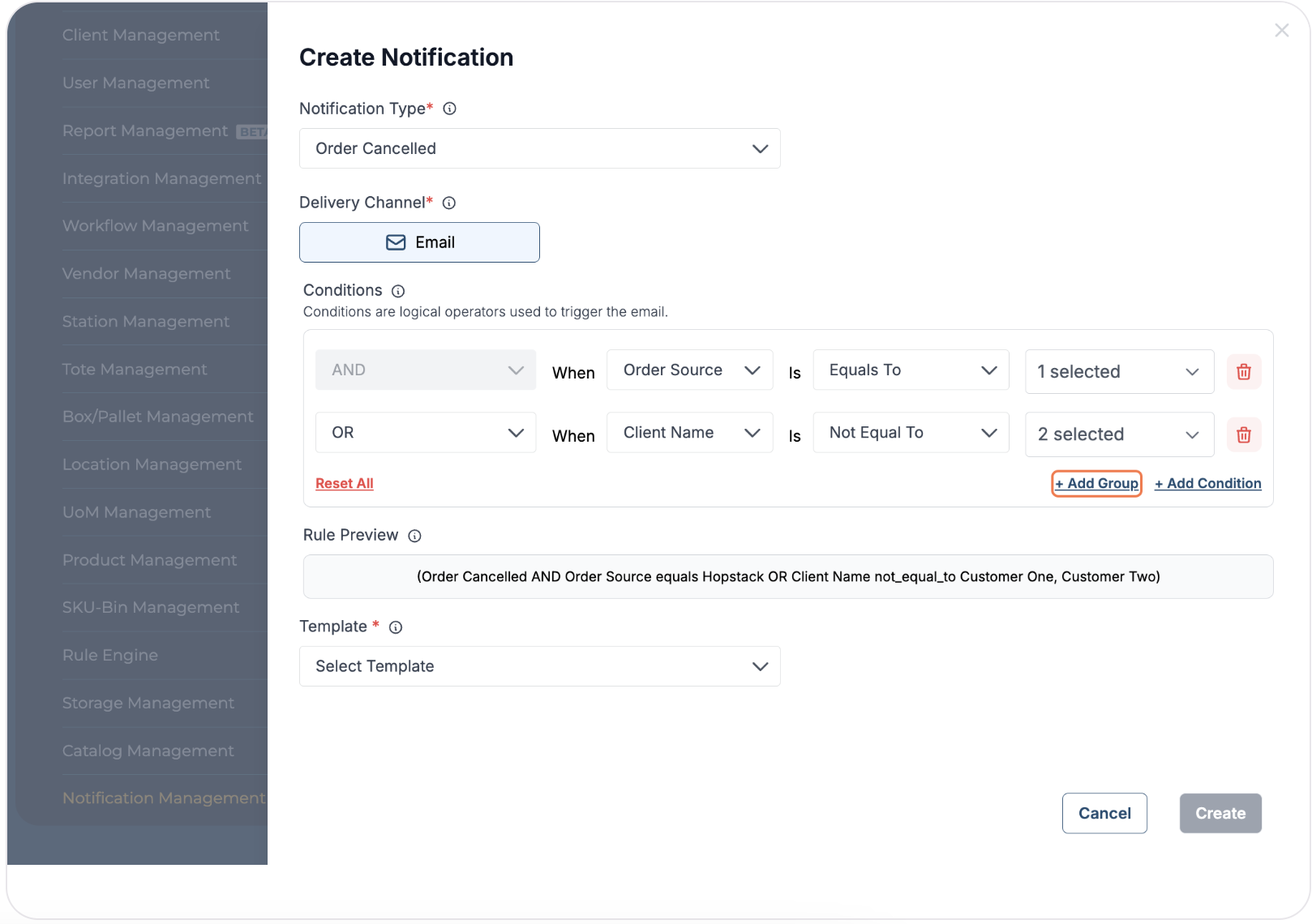
Add as many condition groups as required by clicking on "+ Add Group"
-
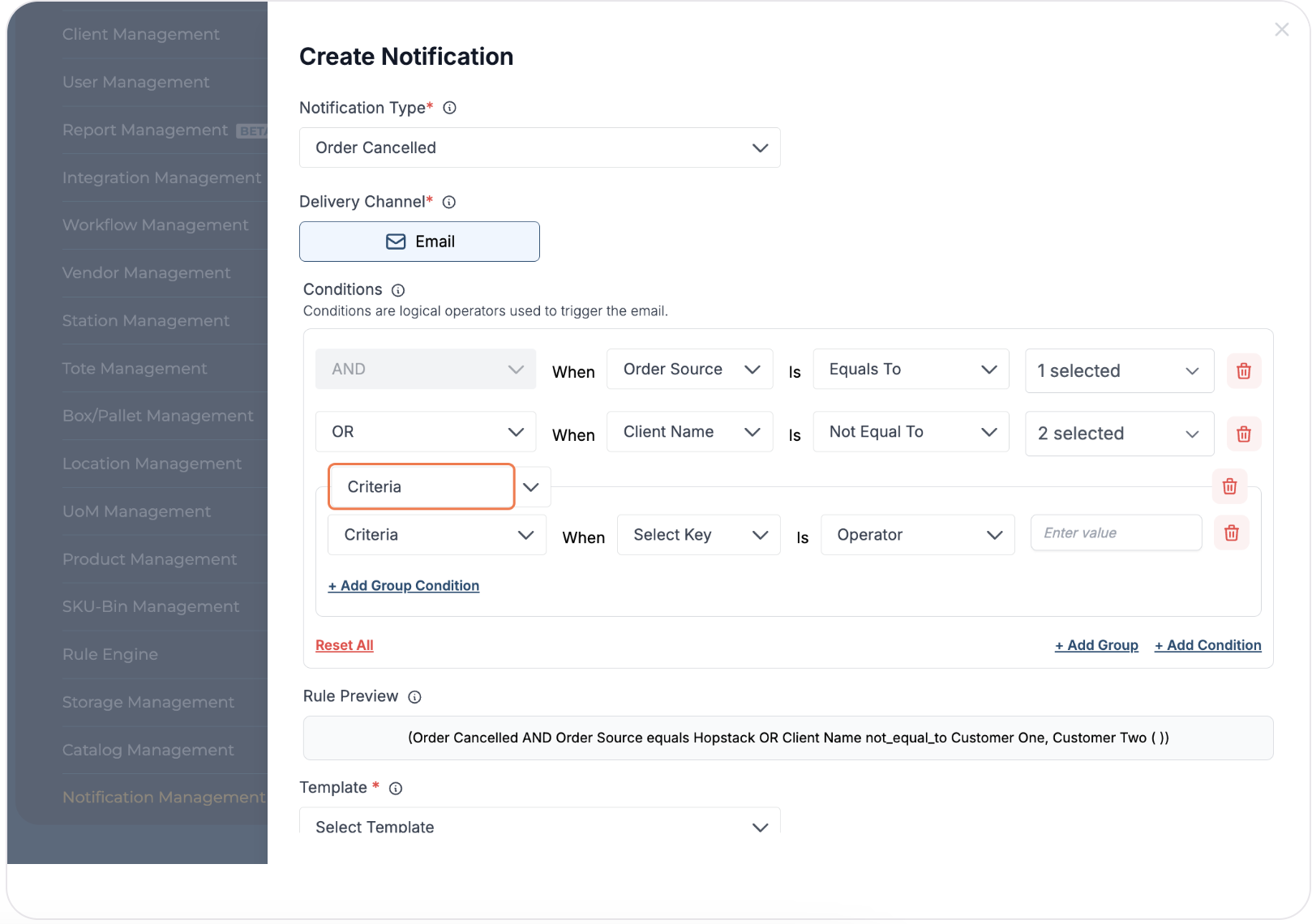
Click on "Criteria" dropdown of the new condition group
-
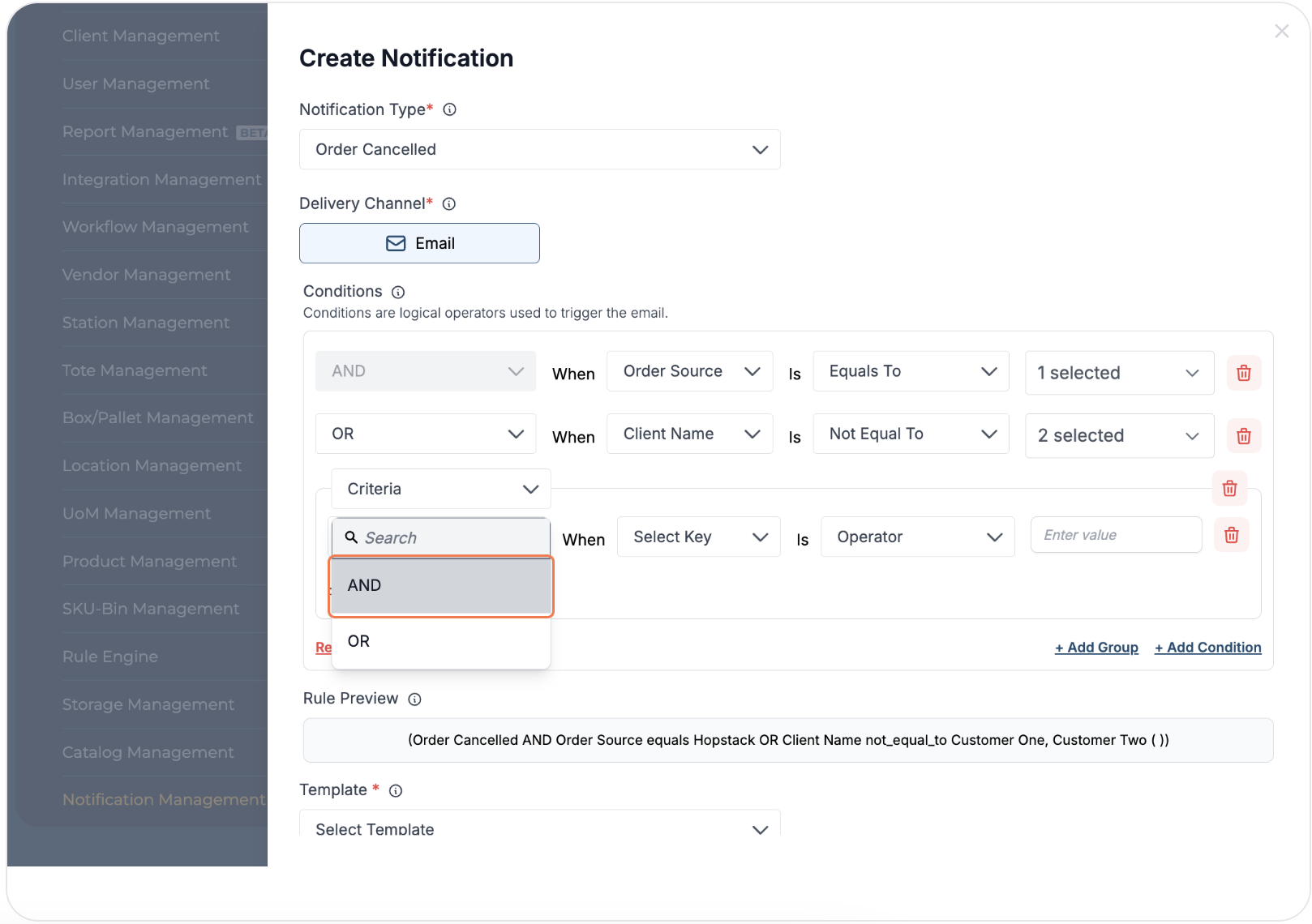
Select the relevant option from the dropdown and proceed with adding the conditions as described previously
-
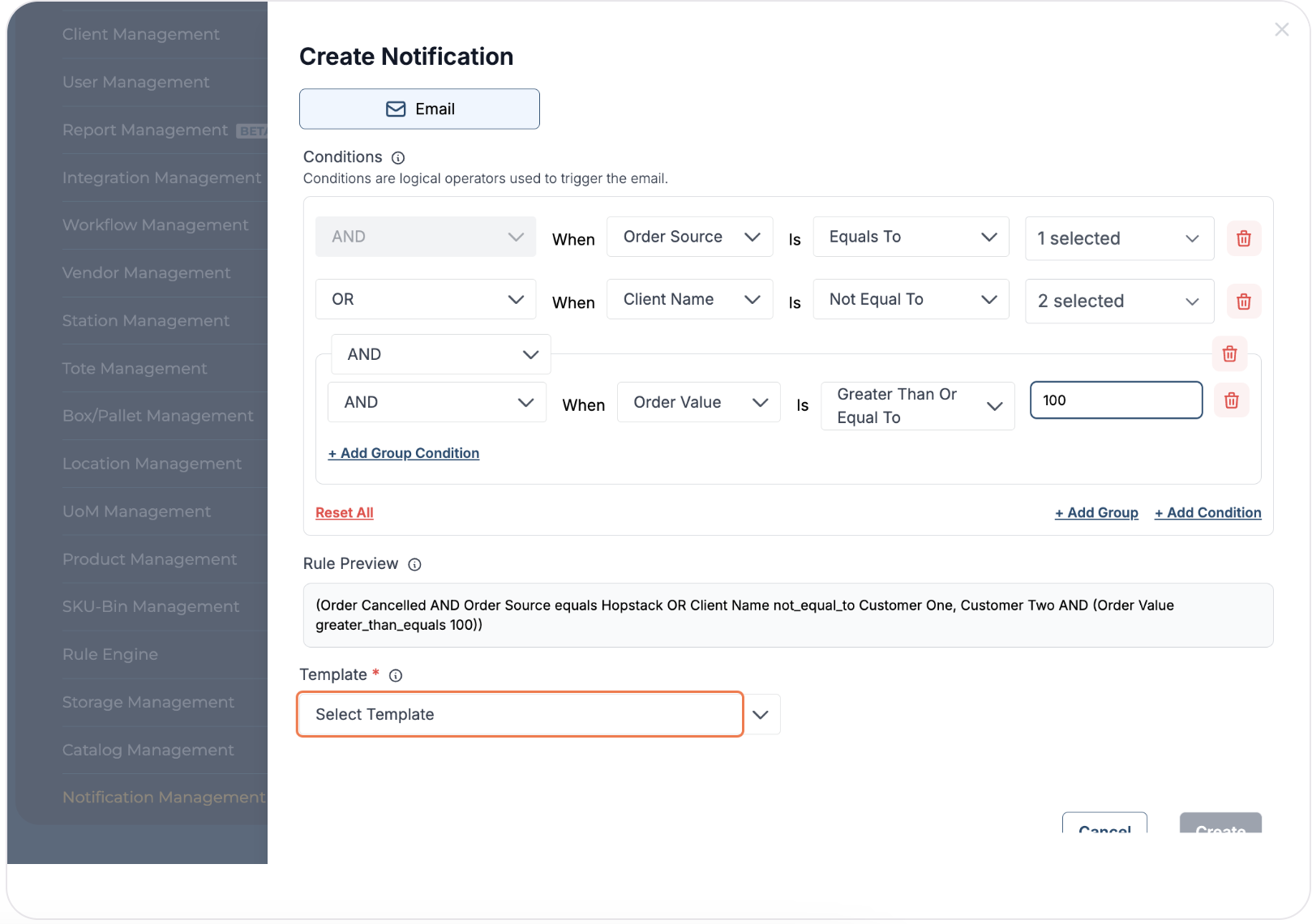
Click on "Select Template" dropdown
-
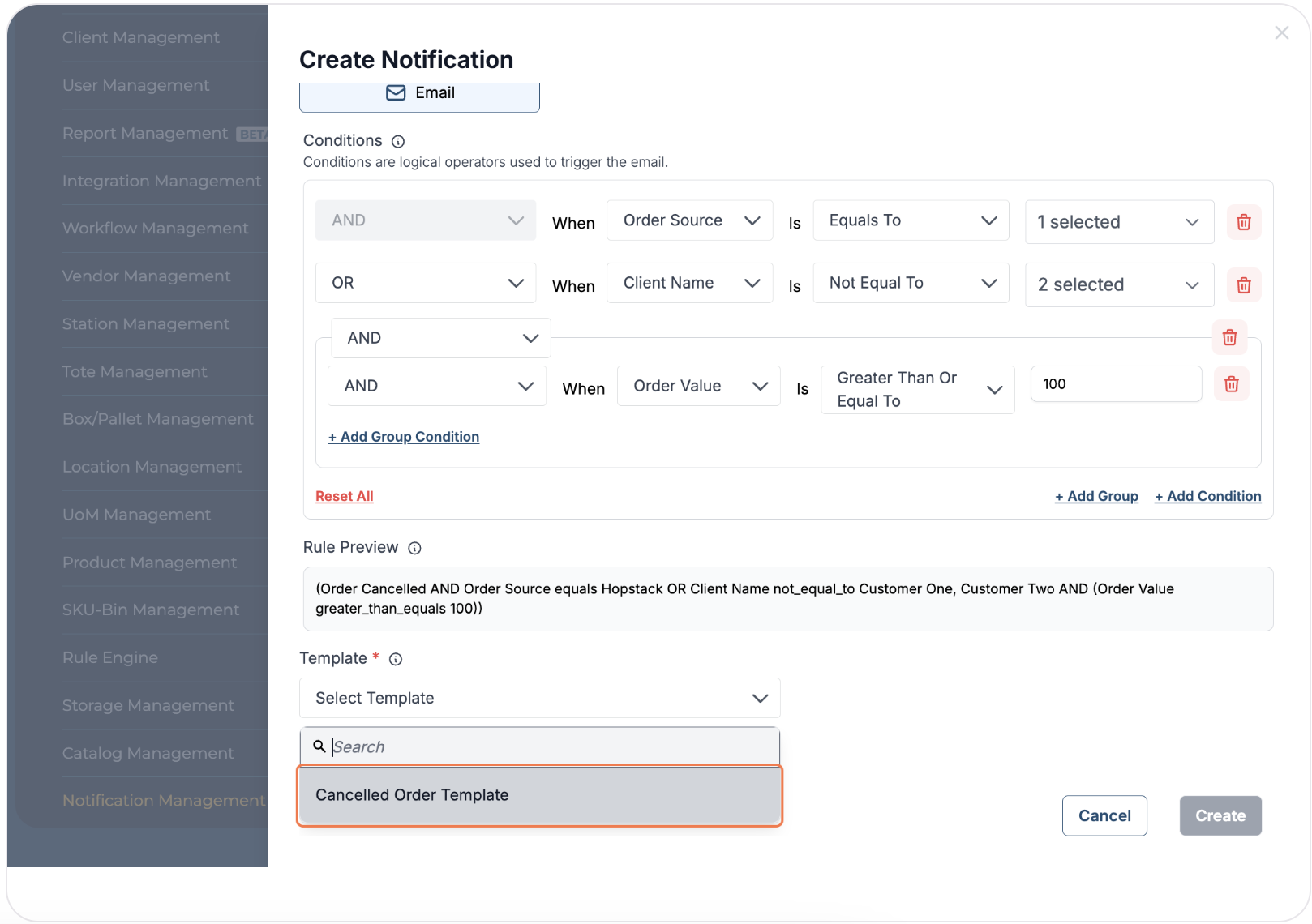
Select the template
-
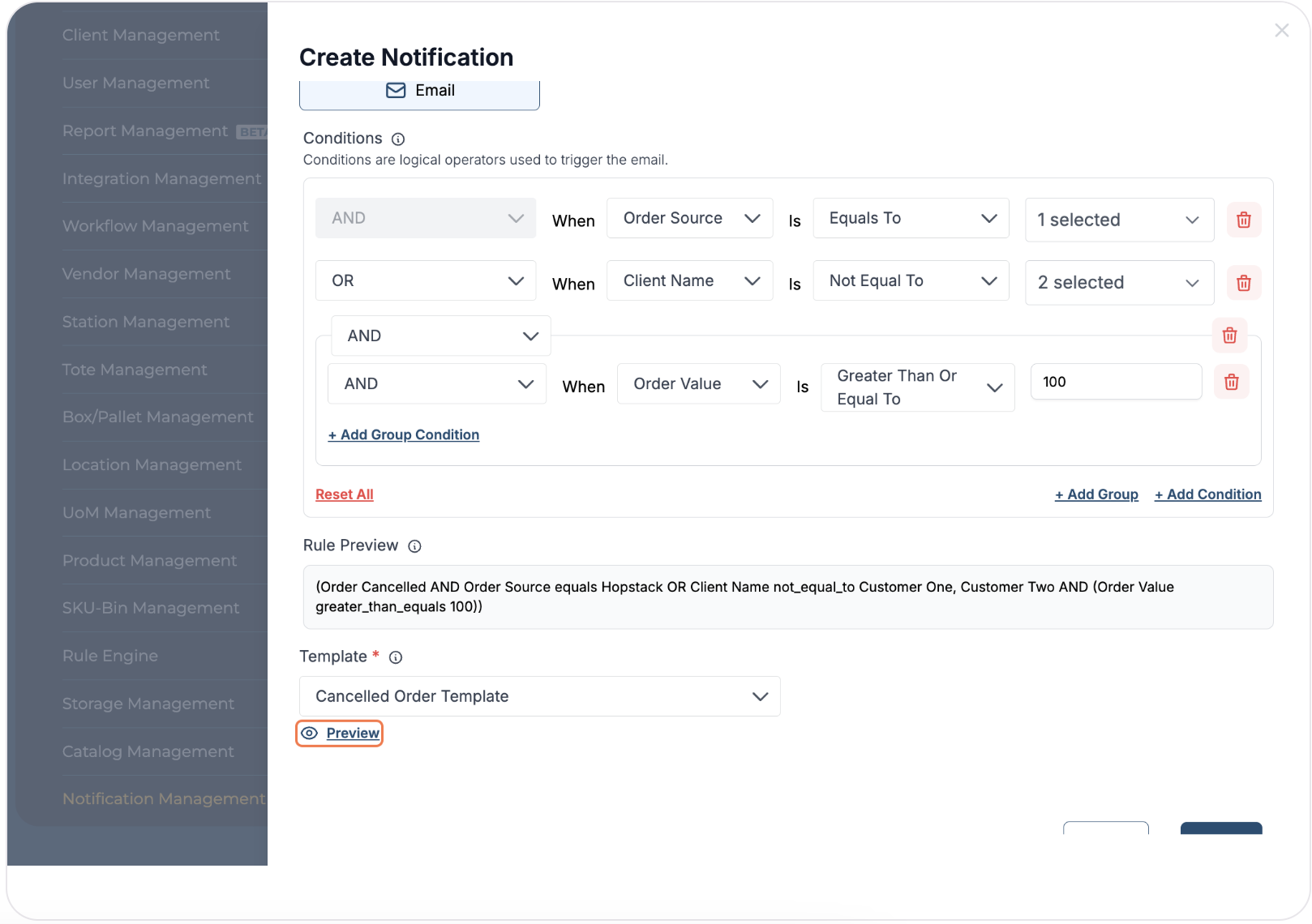
Click on "Preview" to view the notification template
-
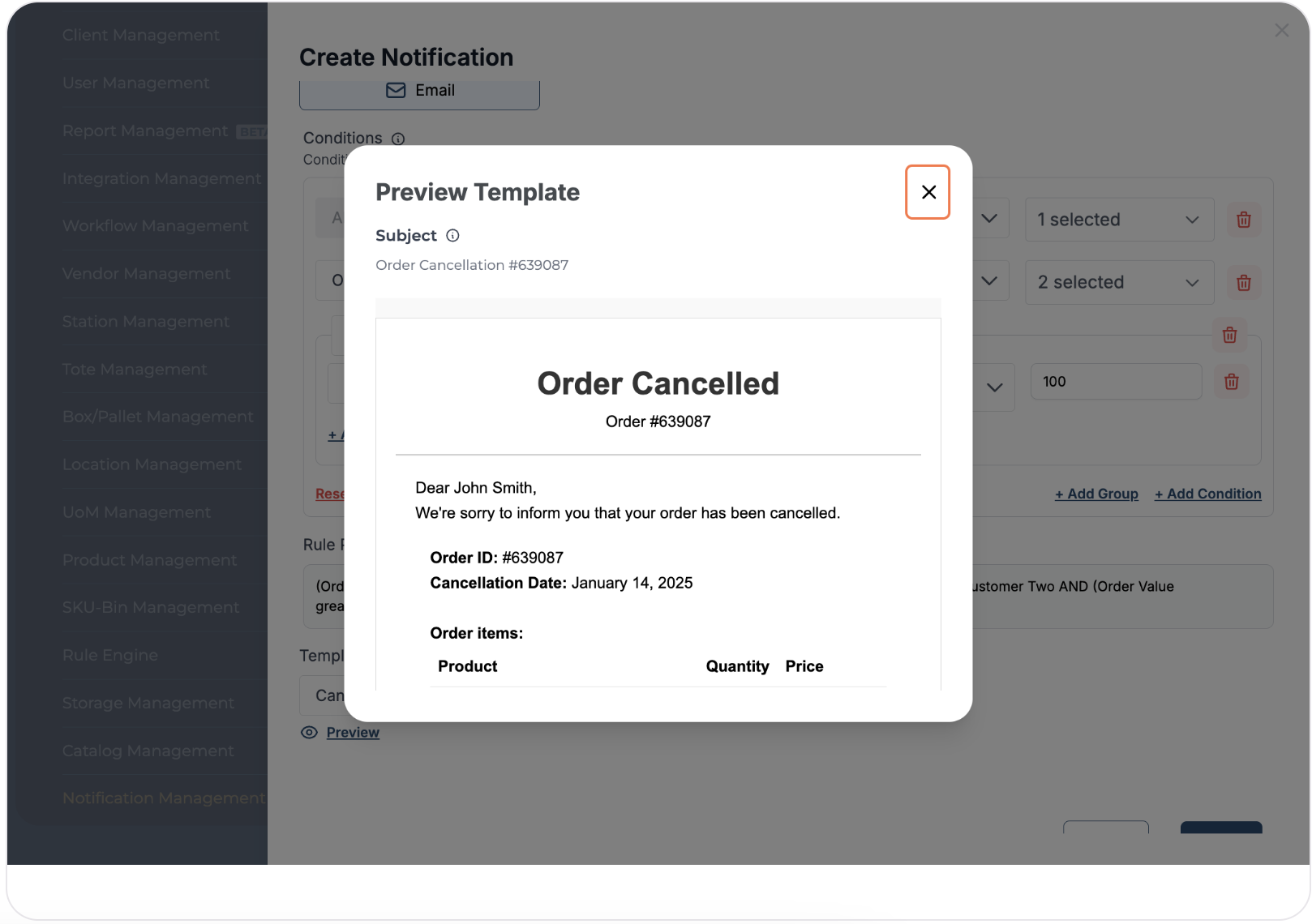
Close the preview after verifying the template
-
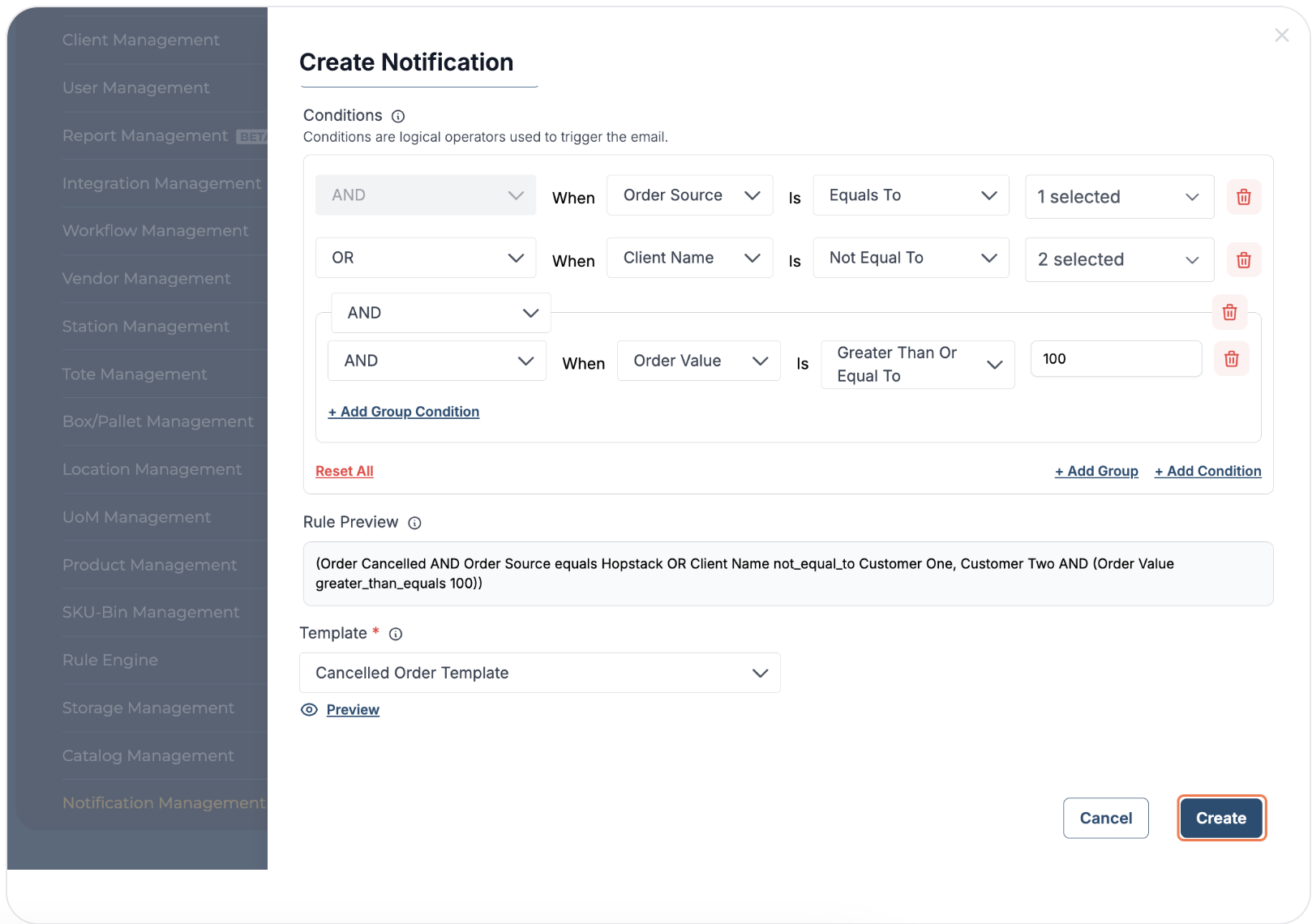
Click on "Create" to initiate Notification Rule creation
-
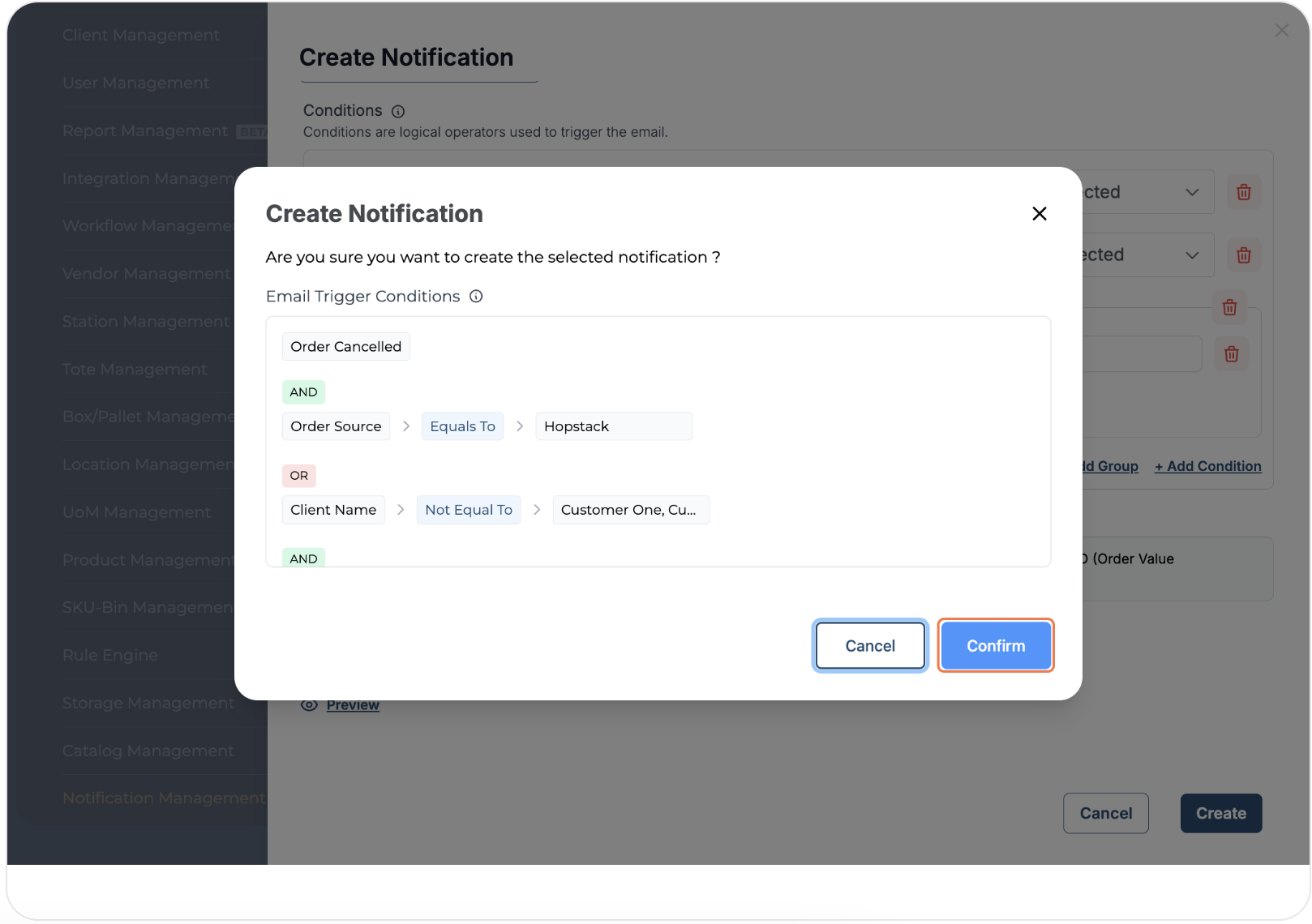
Verify the conditions and click on "Confirm" to create the Notification Rule
-
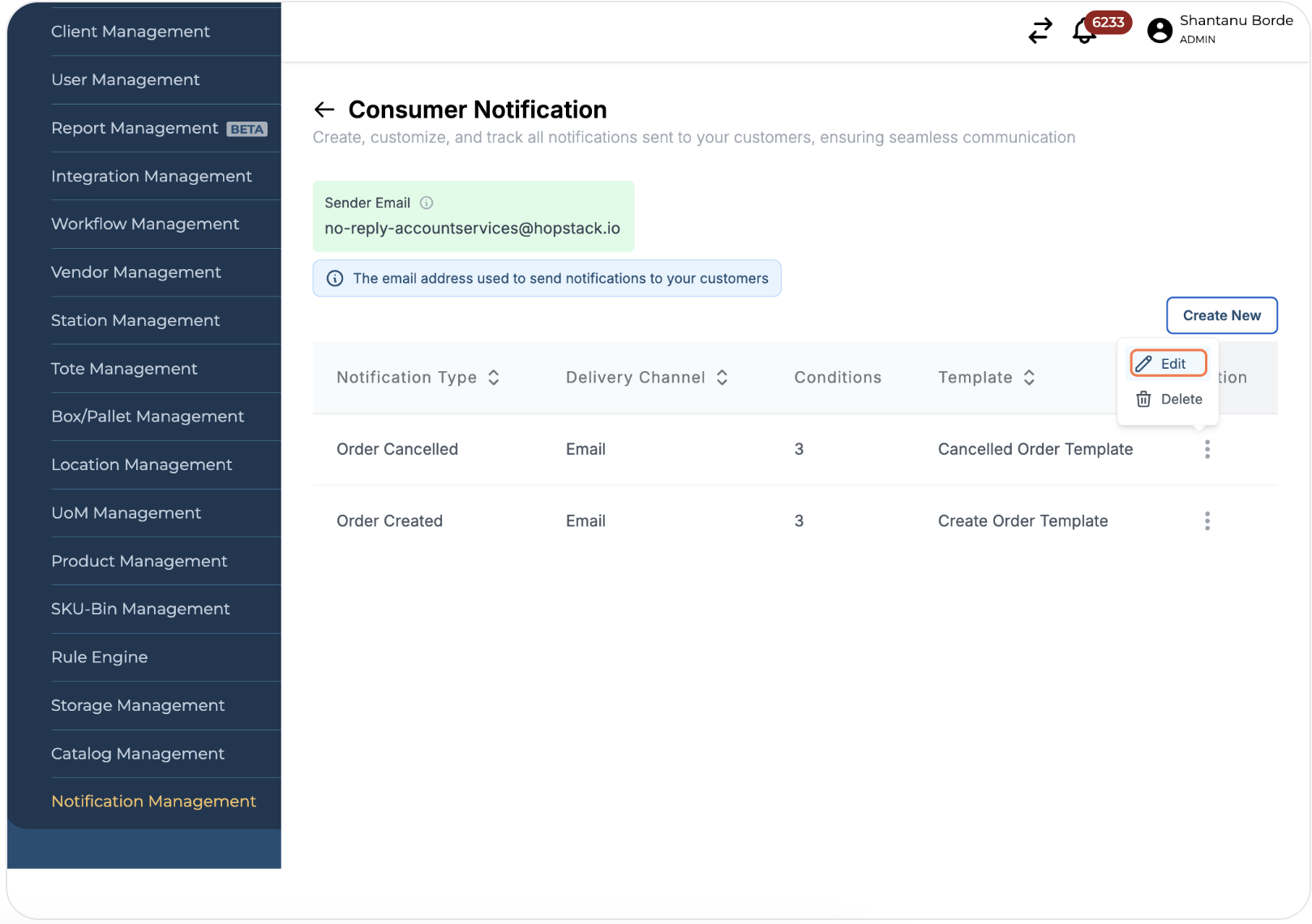
To edit an existing Notification Rule, Click on "Edit" next to it
-
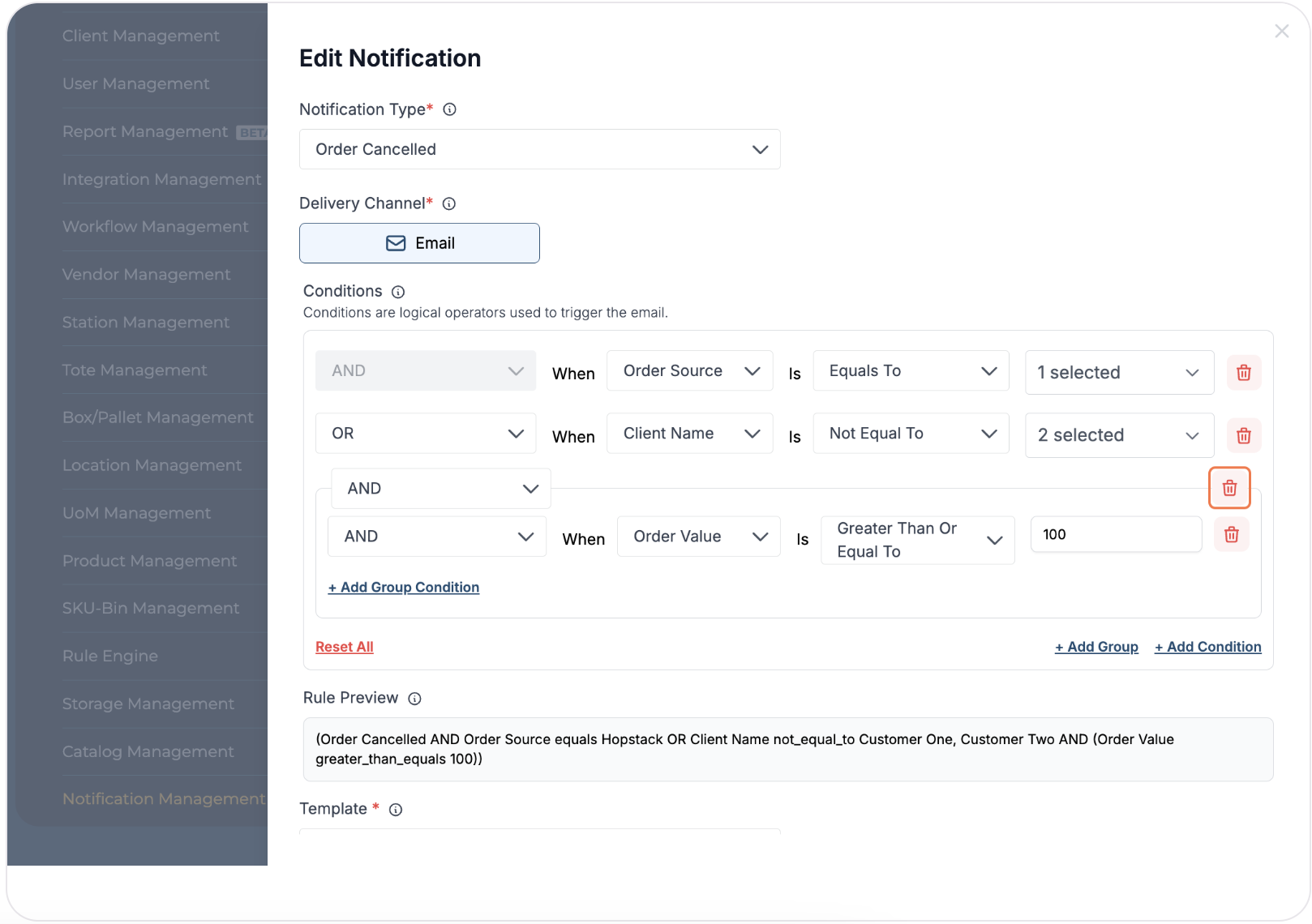
Make the required changes on the 'Edit Notification' page
-
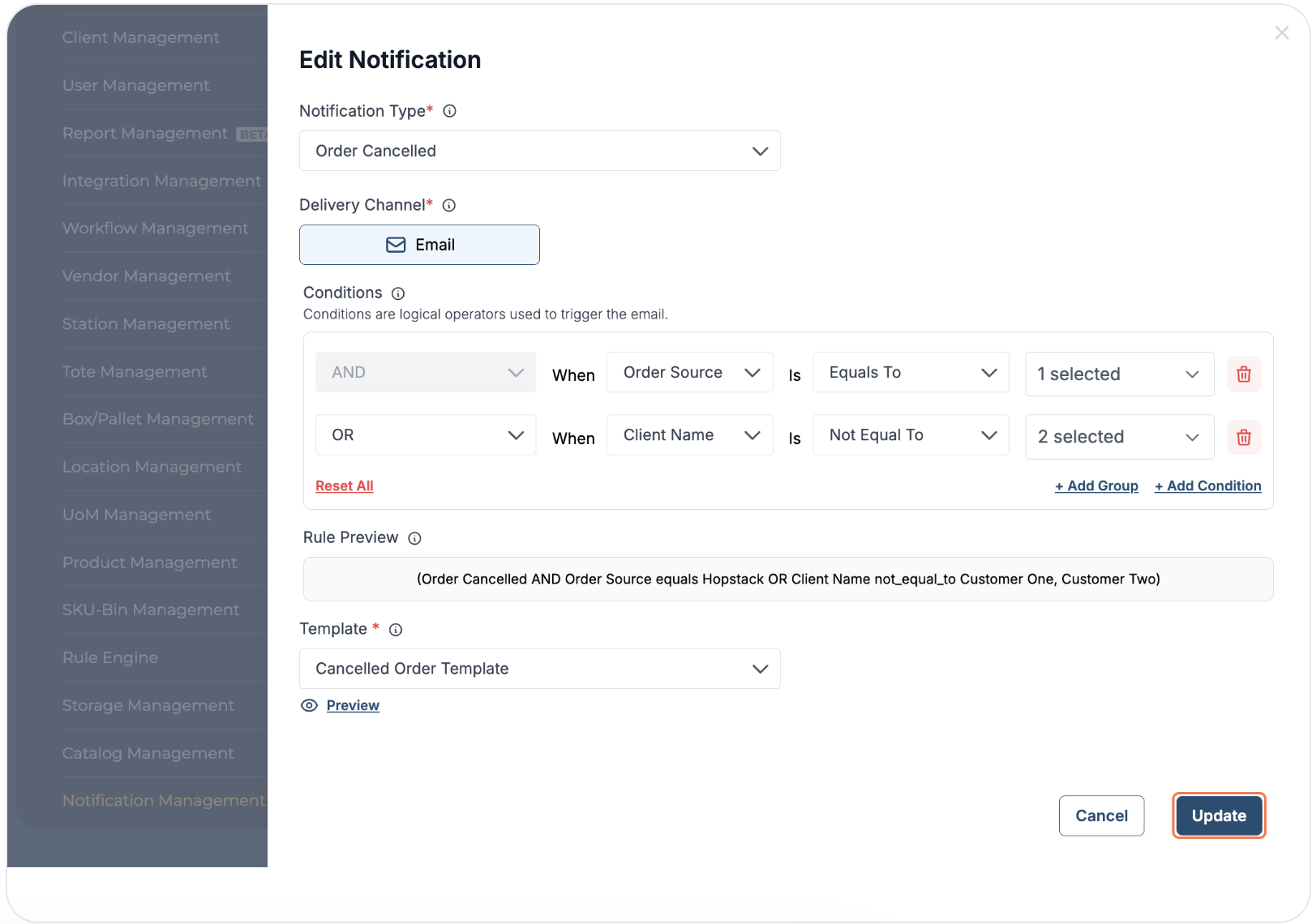
Click on "Update"
-
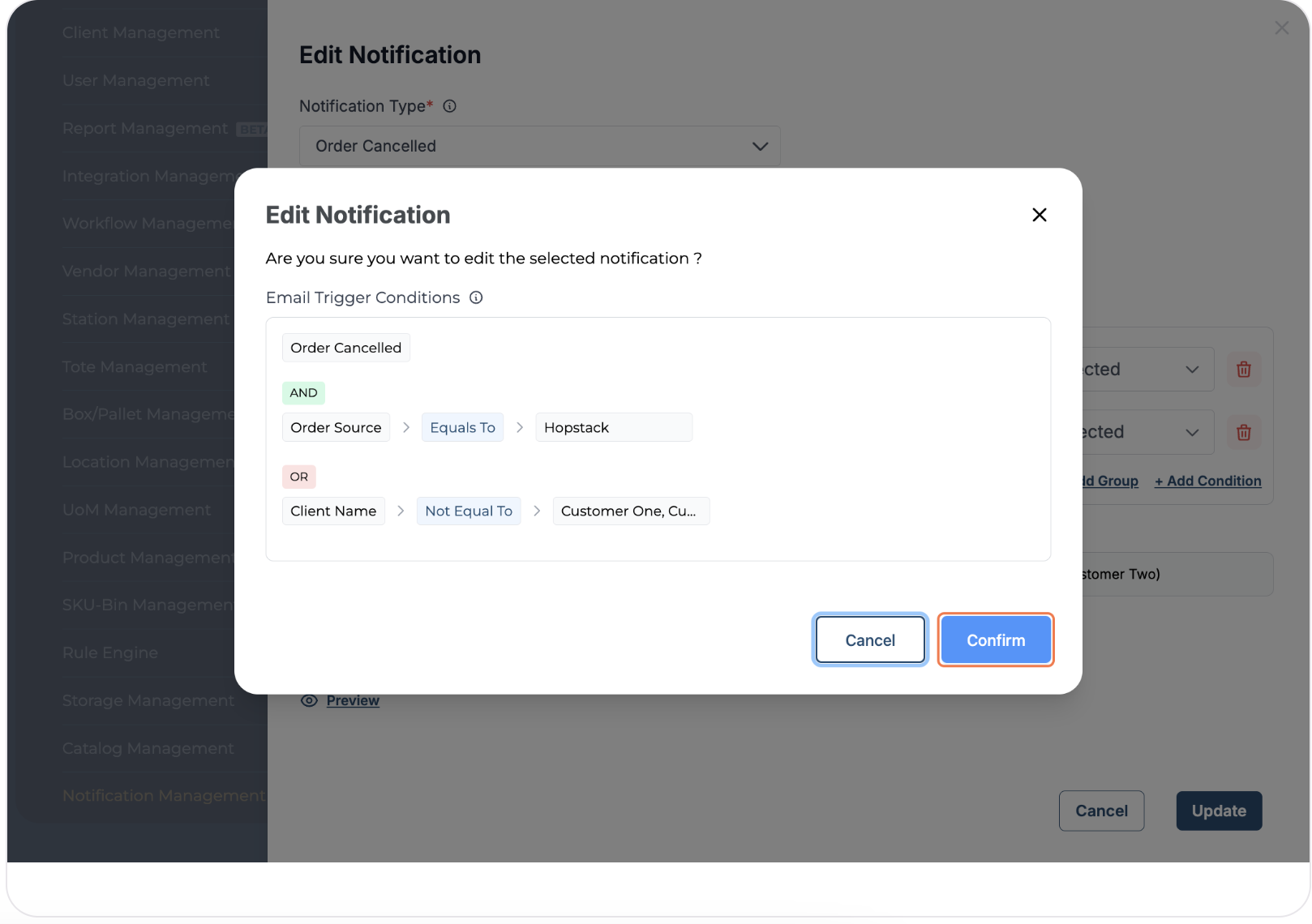
Verify the conditions and click on "Confirm" to confirm the changes
-
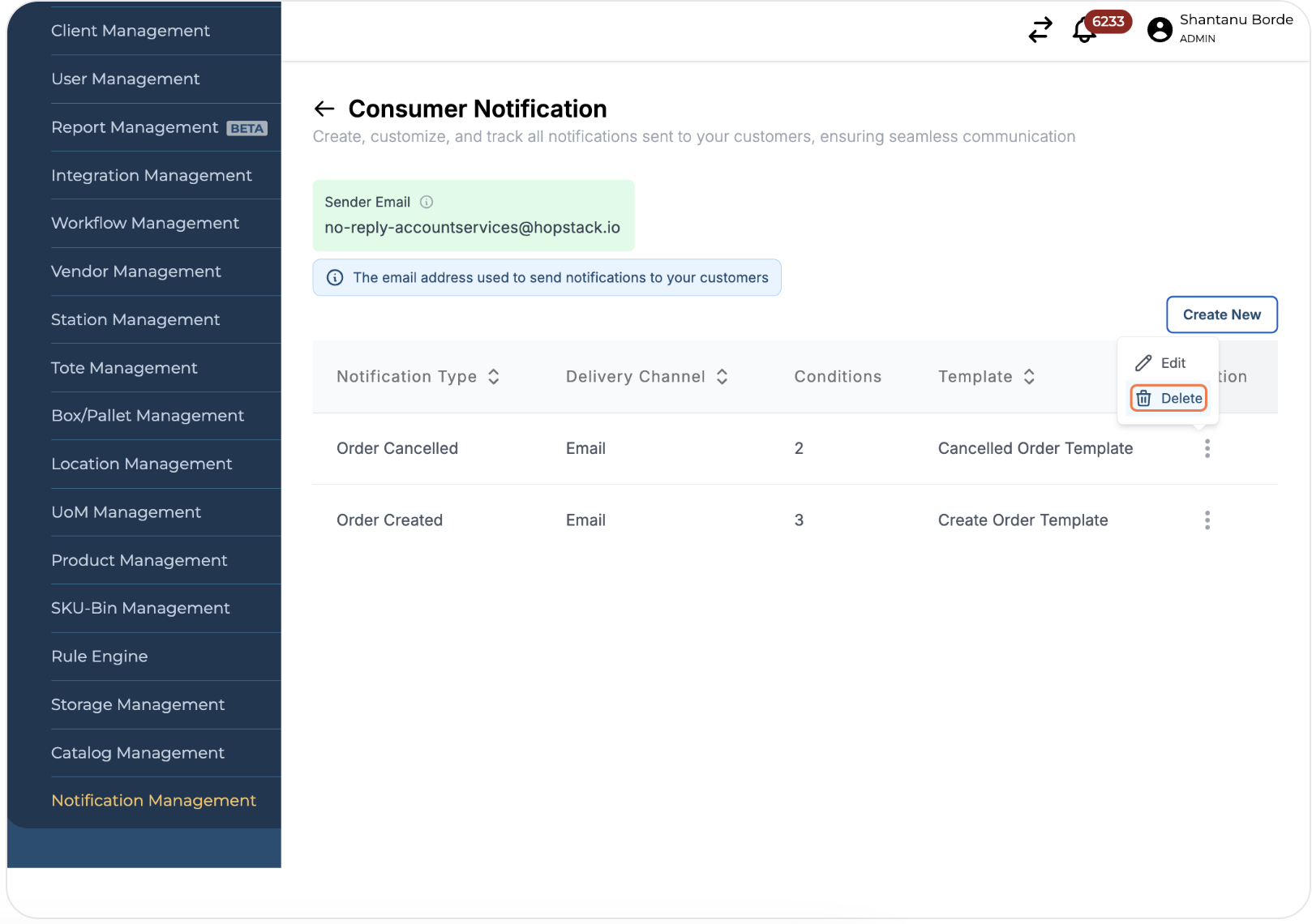
To initiate the deletion of an existing Notification Rule, click on "Delete" next to it
-
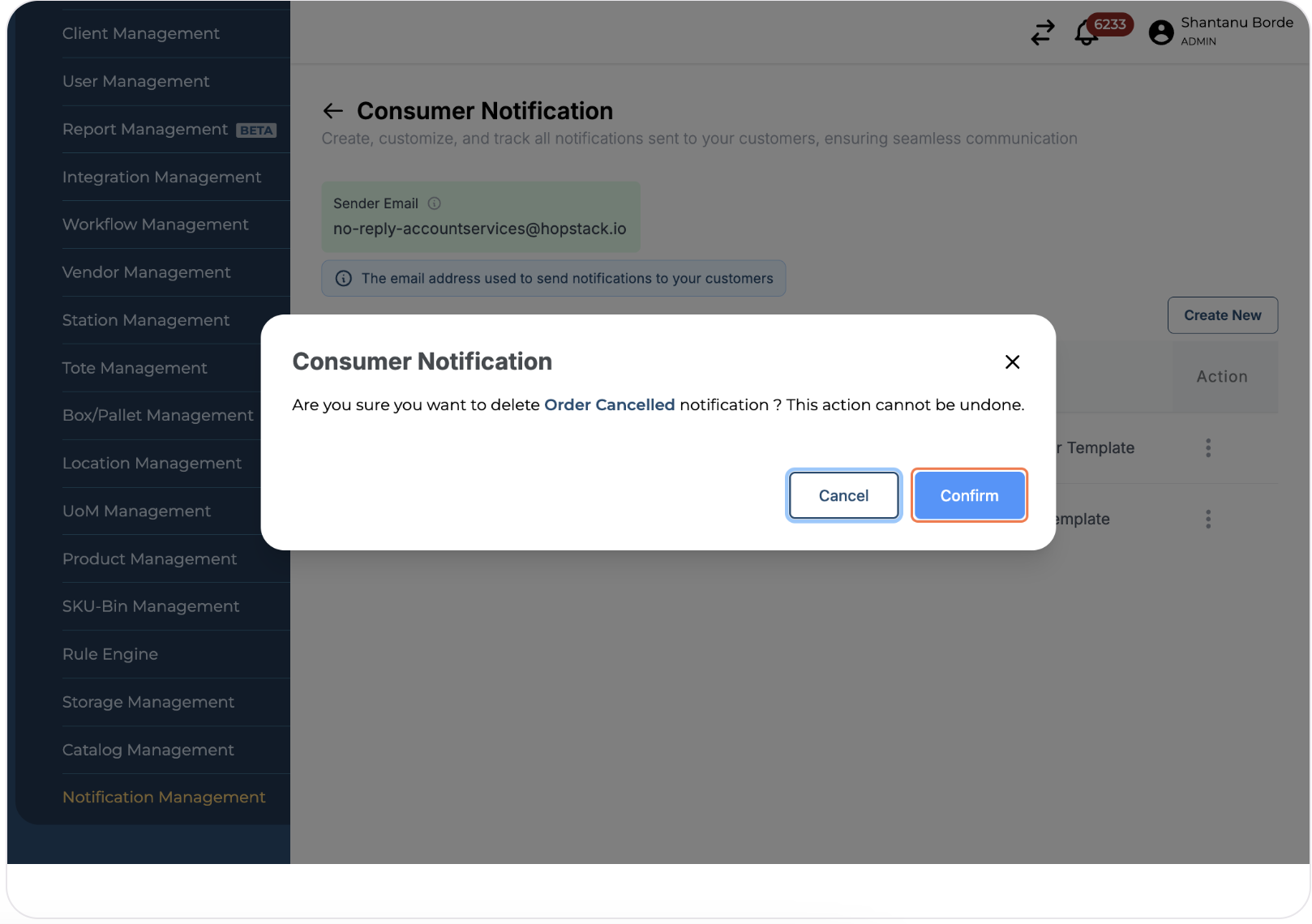
Click on "Confirm" to delete the Notification Rule
Below is an example of an Order Creation notification e-mail sent to the customer.